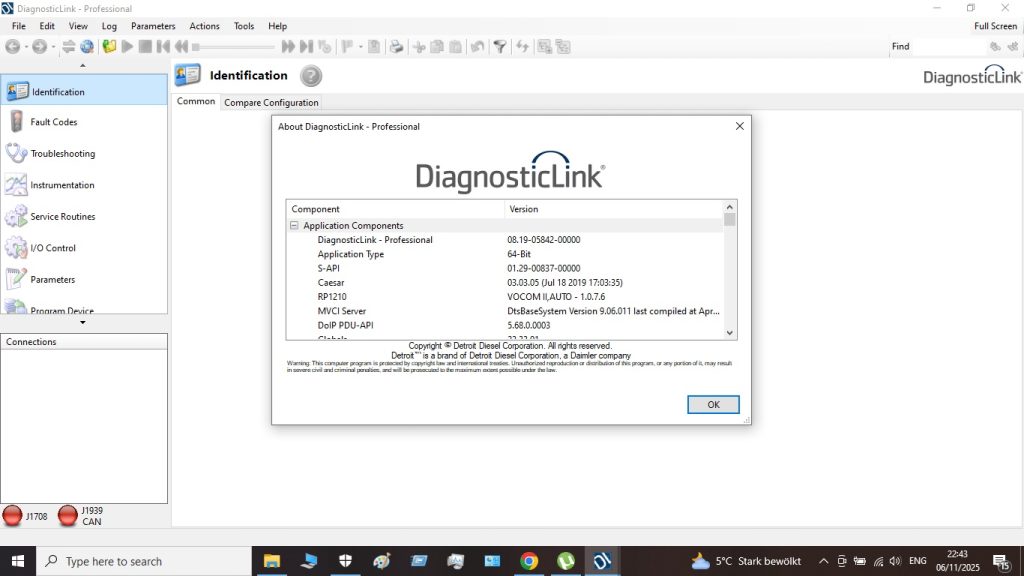
Why Run DDDL 8.19 in a Virtual Machine?
Running Detroit DDDL 8.19 in a VMware virtual machine keeps your diagnostic environment isolated from your main Windows installation. This prevents software conflicts, makes it easy to take snapshots before ECM programming sessions, and lets you run multiple diagnostic tools (DDDL + JPRO, for example) in separate VMs on one laptop. Forum users on TruckersReport regularly recommend this setup for busy independent shops.
The main challenge: DDDL licenses are hardware-bound to the RP1210 adapter’s hardware ID. Getting USB passthrough right is critical — if the VM can’t see the adapter during licensing, activation will fail.
Recommended VM Configuration
- VMware Workstation Pro 17 (best USB passthrough support) or VMware Workstation Player
- Guest OS: Windows 10 Pro 64-bit (22H2)
- RAM: 4–6 GB allocated to VM
- Storage: 60 GB virtual disk (SSD recommended for host drive)
- USB Controller: USB 3.1 (in VM settings) — enables passthrough of USB 2.0 devices
Step-by-Step: USB Passthrough for Nexiq USB Link
- Plug in your Nexiq USB Link 2 or 3 adapter to the laptop.
- In VMware Workstation: go to VM → Settings → USB Controller. Set to USB 3.1. Enable “Show all USB input devices”.
- Start the VM. Once Windows is booted, go to VMware menu bar: VM → Removable Devices → Nexiq USB-Link → Connect (Disconnect from Host).
- Wait for Windows guest to detect the device and install drivers (or install Nexiq drivers manually inside the VM).
- Verify in guest Device Manager: Nexiq USB Link should appear under “Ports (COM & LPT)” or “USB Serial Device” — no yellow exclamation mark.
Installing DDDL 8.19 in the VM
- Copy the DDDL 8.19 installer into the VM (via shared folder or ISO mount).
- Disable Windows Defender real-time protection inside the VM.
- Run installer as Administrator. Install to
C:DDDL. - When prompted for license activation — make sure the Nexiq adapter is connected to the VM at this point. The license binds to the adapter’s hardware ID. If the adapter is connected to the host, activation will bind to the wrong device.
- Complete activation. Take a VMware snapshot immediately after successful activation.
Snapshot Strategy
This is the biggest advantage of the VM setup:
- Snapshot 1 — “Clean install”: Take after successful DDDL activation, before first truck connection.
- Snapshot 2 — “Pre-programming”: Take before any ECM programming session. If something goes wrong, roll back instantly.
Forum users have saved themselves from failed ECM writes by rolling back to a pre-programming snapshot and retrying — a workflow impossible without VM.
Common VM Errors and Fixes
- “No RP1210 devices found” inside VM — The adapter is still connected to the host. Go to VMware → VM → Removable Devices → connect to VM first.
- “License validation failed” after snapshot restore — The license bound to the adapter’s hardware ID. As long as the same physical adapter is connected, it will validate. If you restored to a pre-activation snapshot, re-run activation with adapter connected to VM.
- Adapter disconnects mid-session — Windows host USB power management is suspending the port. Fix: Control Panel → Power Options → Advanced → USB Settings → USB selective suspend → Disabled.
- VM USB passthrough not appearing in menu — Ensure VMware Tools is installed in the guest. Reinstall VMware Tools if passthrough menu is missing.
- DDDL freezes during ECM communication in VM — Increase VM RAM to 6 GB. Ensure no other USB devices are competing for bandwidth on the same USB hub.
VirtualBox Alternative
VirtualBox works but USB passthrough is less reliable than VMware. If you use VirtualBox:
- Install the VirtualBox Extension Pack (required for USB 2.0/3.0 passthrough)
- Add a USB filter for the Nexiq adapter in VM settings → USB → Add USB Device Filter
- Connect adapter before starting the VM — VirtualBox captures it on boot more reliably than hot-plug
Forum consensus: VMware Workstation is worth the price for stable DDDL operation. VirtualBox is fine for occasional use but can be frustrating with Detroit’s license validation.
Conclusion
VMware + DDDL 8.19 is a powerful, recoverable setup for serious Detroit Diesel shops. The snapshot workflow alone justifies the VM approach for ECM programming. See our system requirements guide for hardware specs, or check the FAQ for quick answers to common questions.