Virtual Machines
Pre-Configured Virtual Machines for Automotive Diagnostic Software
Installing OEM diagnostic software directly on your host PC is a gamble. ODIS requires specific Java runtimes that conflict with other software. Diagbox Lexia demands a clean Windows 7 environment. Toyota Techstream clashes with VCI driver versions. The result: corrupted installations, blue screens, and hours lost before you have diagnosed a single vehicle.
Our pre-configured VMware images eliminate all of that. Boot the VM, pass through your USB interface, and start diagnosing in under 10 minutes — on any Windows 10 or 11 host PC. No license hunting, no dependency hell, no broken registry entries on your main system.
System Requirements
Component
Minimum
Recommended
CPU
Intel Core i5 (VT-x enabled in BIOS)
Intel Core i7 / AMD Ryzen 7 (VT-x or AMD-V)
RAM (Host)
8 GB total — 4 GB dedicated to the VM
16 GB total — 8 GB for the VM
Storage
60 GB free (HDD acceptable)
100 GB+ free on SSD (3× faster VM boot)
VMware Version
Workstation Player 17+ (free)
Workstation Pro 17+ (Snapshots enabled)
USB Port
USB 2.0
USB 3.0 (avoids VCI timeouts during flashing)
⚠️ BIOS Requirement: Enable Intel VT-x or AMD-V before launching any VM. Without hardware virtualization, VMware will refuse to start the 64-bit guest OS — this is the #1 reason first-time users get a black screen on launch.
What Is Included in Our VM Library
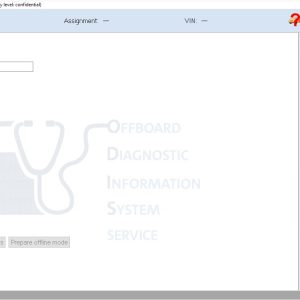
ODIS Service 25 + Engineering 19 — Full VAG Group (VW, Audi, Seat, Skoda, Bentley) diagnostics, guided functions, and ECU coding. Avoid installing ODIS on your host — it modifies system Java and breaks other tools.
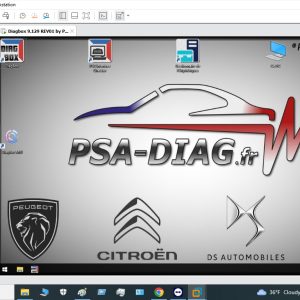
Diagbox Lexia 9.129 — PSA Group (Peugeot, Citroën, DS, Opel). Requires a sandboxed Windows environment; running it on a modern host OS causes constant crashes. The VM solves this permanently.
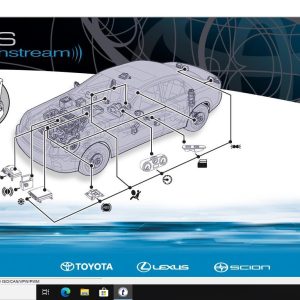
Toyota Techstream V18.008.00 — Dealer-level diagnostics for Toyota, Lexus, and Scion. Pre-activated with Mini-VCI passthrough configured.
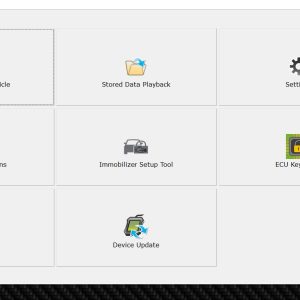
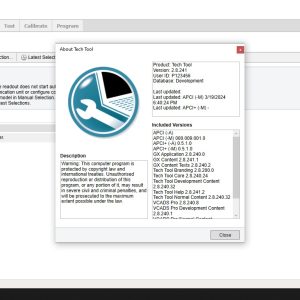
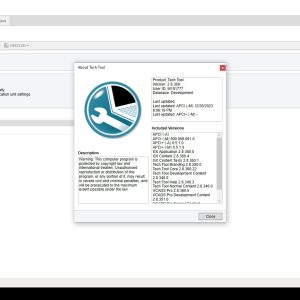
Volvo TechTool PTT 2.8.241 — Full Volvo Trucks, Mack, and Renault Trucks diagnostic and programming suite. VOCOM/VOCOM II USB passthrough pre-configured.
Ford ETIS IDS Offline (02.2022) — Ford factory repair database with wiring diagrams and mechanical repair procedures. Offline version, no Ford server subscription required.
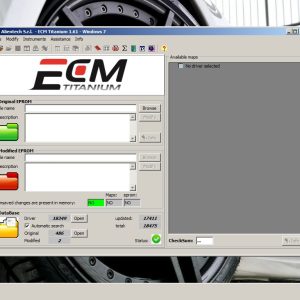
ECM Titanium 1.61 + WinOLS 4.51 — Professional ECU map editing and chip tuning, pre-configured as a dedicated tuning workstation.
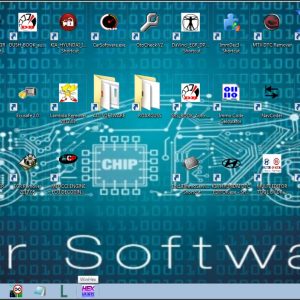
160+ Tools Collection — Multi-brand diagnostic suite on a single Windows 7 VM. Covers European, Asian, and American vehicles.
Pro Tip: VMware Snapshots — Your Safety Net
VMware Workstation Pro includes Snapshot Manager, which is the primary reason to choose it over the free Player. Before any risky operation — software update, license activation, connecting an unfamiliar VCI interface — take a snapshot:
Open VM → Snapshot → Take Snapshot. Name it clearly (e.g., “ODIS 25 — clean working state”).
If something breaks — corrupted update, activation loop, Techstream registry error — restore the snapshot in 60 seconds.
The VM returns to an exact byte-for-byte copy of its working state. No reinstall. No reconfiguration.
Keep at least two snapshots per VM: one at delivery (factory clean state) and one after your first successful diagnostic session.
USB Passthrough — Connecting Your VCI Interface
The most common first-time issue: “The software does not see my interface.” The VCI device is plugged into the host PC but not passed through to the VM. Fix it in three clicks:
In VMware, go to VM → Removable Devices
Find your interface (VCII, VAS 5054, MVCI, J2534 adapter, etc.)
Click Connect (Disconnect from Host)
The device disappears from Windows Device Manager on the host and appears inside the VM. Always use a USB 3.0 port — USB 2.0 causes communication timeouts with ODIS and Techstream during long programming or flashing sessions.
Showing all 12 results
-
Virtual Machines
⚡ READY-TO-USE: ECM Titanium 1.61 + WinOLS 4.51 VMWARE | ECU Remapping & Tuning Software
15.00 $ Add to cart -
Virtual Machines
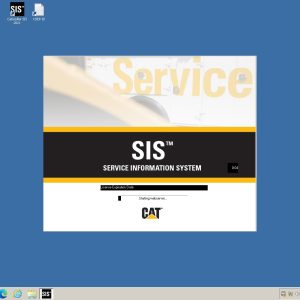
Caterpillar SIS 2021 Service Information System Pre-Installed VMware Image
120.00 $ Add to cart -
Virtual Machines
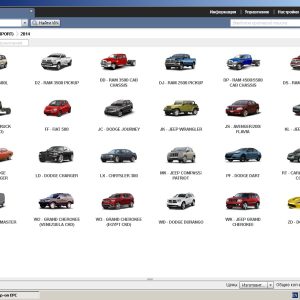
Chrysler FCA EPC 5 (2020-09) Pre-Installed VMware Image | Snap-on Parts Catalog
29.00 $ Add to cart -
Virtual Machines
Diagbox Lexia 9.129 Virtual Machine Software | PSA Peugeot Citroën DS & Opel Diagnostics
19.00 $ Add to cart -
Virtual Machines
ODIS Service 25 + ODIS Engineering 19 Pre-Installed Virtual Machine VAG Group
29.00 $ Add to cart -
Virtual Machines
Toyota Techstream V18.008.00 VMWARE | Pro Ready-to-Use Software
15.00 $ Add to cart -
Virtual Machines
Volvo TechTool PTT 2.8.241 Full Version Pre-Installed & activated VMware Image
99.00 $ Add to cart -
Virtual Machines
Volvo TechTool PTT 2.8.360 Full Version Pre-Installed & Activated VMware Image
129.00 $ Add to cart