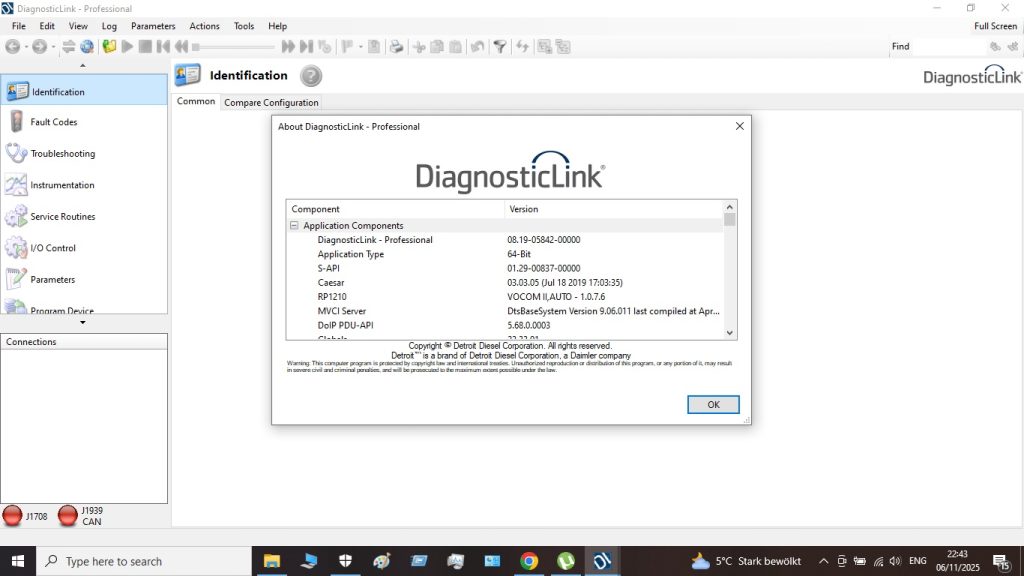
Welcome to JPRO 2025 v2 — Your First 30 Minutes
JPRO 2025 v2 is one of the most powerful heavy-duty truck diagnostic tools available. If you’ve never used it before, the first session can feel overwhelming. This guide is written for technicians who are new to JPRO. By the end, you will have connected to a truck, read all active fault codes, understood what they mean, and cleared them.
Before You Start — Checklist
- ✅ JPRO 2025 v2 installed and activated on your laptop
- ✅ RP1210 adapter (NexIQ USB-Link 2 or 3, or Noregon DLA+ 2.0) — not an ELM327
- ✅ Windows 10 or 11 (64-bit)
- ✅ Adapter RP1210 drivers installed
- ✅ Truck with ignition ON
Step 1 — Find the Truck’s Diagnostic Port
The diagnostic connector is a 9-pin Deutsch connector located under the dashboard, driver’s side:
- Under the dash, left of the steering column — Freightliner Cascadia, Kenworth T680
- Above the brake pedal area — Peterbilt 579
- Near the fuse panel — Volvo VNL, Mack Anthem
Step 2 — Connect the Adapter
- Plug the 9-pin Deutsch cable into the truck’s diagnostic port — push firmly until it clicks
- Plug the USB end into your laptop
- Turn the truck ignition to ON (key-on, engine-off is sufficient)
Step 3 — Open JPRO and Start a Session
- Launch JPRO 2025 v2 — right-click → “Run as Administrator” on first use
- Click New Session on the home screen
- JPRO automatically scans the J1939 network for all active ECUs (15–30 seconds)
- You will see a list of all ECUs detected — Engine ECM, Transmission, ABS, Body Controller, etc.
Step 4 — Read Fault Codes
- Left panel → Fault Codes → Request All Faults
- JPRO polls each ECU and returns Active faults (yellow/red) and Inactive/historical faults (grey)
- For each fault: SPN number, FMI code, description, and occurrence count
- Click any fault to expand it for detailed description and diagnostic steps
Step 5 — Active vs Inactive Faults
- Active fault — condition currently present. Clearing without fixing the root cause will cause it to return immediately. Always diagnose active faults first.
- Inactive fault — occurred in the past, not currently detected. Can usually be safely cleared after noting them.
Step 6 — Live Parameters
- Click Parameters → select the ECU (e.g., Engine ECM)
- Add parameters to your view: coolant temperature, oil pressure, boost pressure, RPM, battery voltage
- Values update in real-time every 500ms–1 second
Step 7 — Clear Fault Codes
- Fault Codes → select faults to clear → click Clear Selected
- JPRO sends a clear command to the responsible ECU
- Request all faults again to verify the fault did not return (if it does, root cause is still present)
Step 8 — Save Session Report
- File → Save Session Report
- Choose PDF or HTML format
- Report includes all faults found, their status, and parameter readings
Beginner Mistakes to Avoid
- ❌ Using an ELM327 adapter — JPRO requires RP1210 adapters only
- ❌ Clearing all faults without reading them first
- ❌ Not installing adapter drivers before launching JPRO
- ❌ Running JPRO without Administrator privileges
- ❌ Connecting with ignition OFF — J1939 only broadcasts with ignition ON