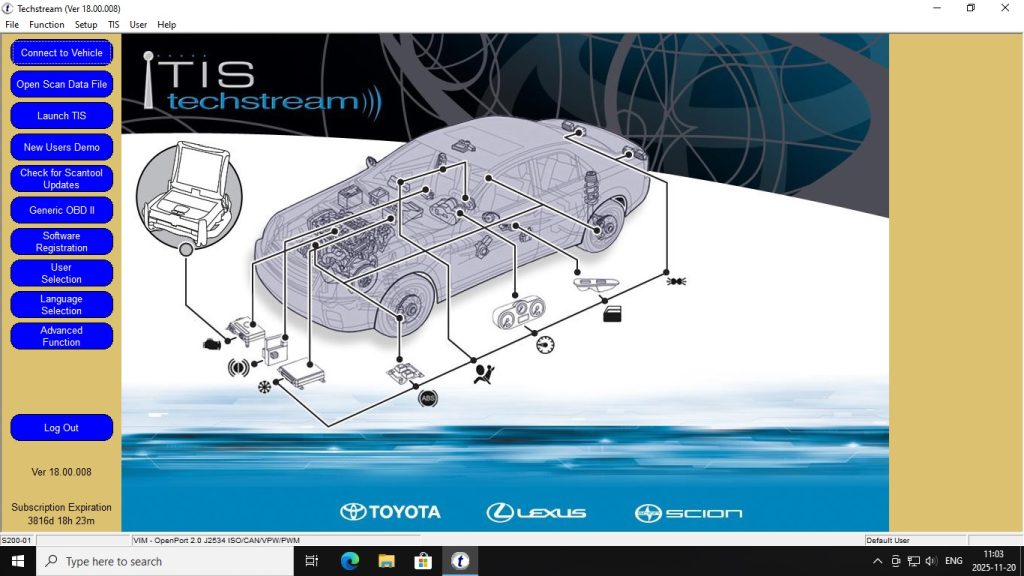
The Toyota Techstream V18 VMware image is the easiest way to run Techstream on any modern Windows PC without dealing with compatibility issues. Here is the complete setup guide.
Why Use VMware for Techstream?
Techstream was designed for older Windows versions. On Windows 10 and especially Windows 11, the native installer can fail due to driver signing restrictions and USB driver conflicts. The VMware image solves this by running Techstream in a pre-configured virtual environment that has no compatibility issues.
Step 1: Install VMware Workstation Player
Download and install VMware Workstation Player 17 (free) from the VMware website. Accept defaults during installation. Restart your PC when prompted.
Step 2: Enable BIOS Virtualization
- Restart your PC and enter BIOS (Del, F2, or F10 depending on motherboard)
- Find CPU settings and enable Intel VT-x (Intel) or AMD-V / SVM (AMD)
- Save and reboot
Step 3: Load the Techstream VM Image
- Extract the downloaded Techstream V18 VMware archive
- Open VMware Player → Open a Virtual Machine
- Select the .vmx file from the extracted folder
- Click Play to start the virtual machine
- Techstream V18 launches automatically on the desktop inside the VM
Step 4: Connect the Mini-VCI Cable to the VM
- Plug the Mini-VCI J2534 cable into your laptop USB port
- In VMware, go to Player → Removable Devices → find the cable (listed as USB Serial or FTDI device)
- Click “Connect (Disconnect from host)”
- Windows inside the VM will detect and install the FTDI driver automatically
- Connect the OBD2 end of the cable to the vehicle (ignition ON)
Step 5: Start a Diagnostic Session
- Open Techstream from the desktop
- Go to Setup → VIM Select → choose your Mini-VCI device
- Click Connect — Techstream will detect the vehicle
- Select the system you want to diagnose (Health Check scans all modules)
Troubleshooting
- VM won’t start: Enable virtualization in BIOS
- Mini-VCI not detected in VM: Use Player → Removable Devices to connect USB to VM
- Techstream says “Cannot connect to vehicle”: Check ignition is ON, cable OBD2 end is fully seated, USB passed to VM
- Driver install fails in VM: Run Windows Update inside the VM to get FTDI drivers