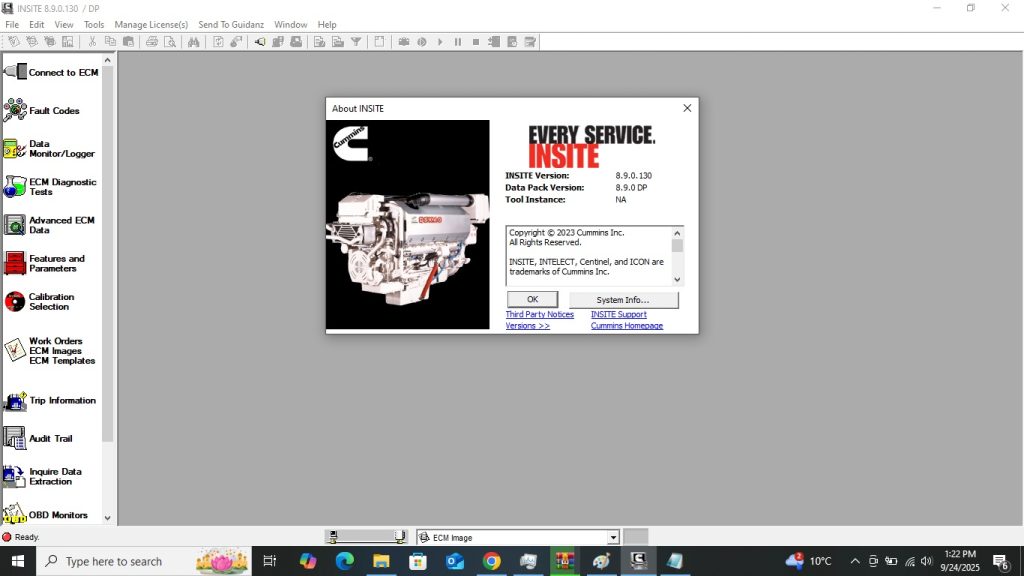
Cummins INSITE 8.9 is the official OEM diagnostic and programming software for Cummins diesel engines. Found in heavy-duty trucks, buses, generators, marine applications, and agricultural equipment worldwide, Cummins engines are among the most common powerplants in commercial vehicles — and INSITE is the only tool that provides complete factory-level access. This guide covers installation, activation, compatible adapters, and how to get the most out of version 8.9.130 in a workshop environment.
What Is Cummins INSITE?
INSITE is Cummins’ proprietary diagnostic and calibration software. It communicates with Cummins ECMs over J1939 CAN using an RP1210-compatible interface, giving technicians access to functions no aftermarket scanner can replicate.
Key functions of INSITE 8.9
- Full fault code diagnostics — active, inactive, and pending fault codes across engine, aftertreatment, and auxiliary systems
- Live data monitoring — real-time display of all engine sensor values including boost, EGR, SCR temperatures, and injection timing
- Injector trim codes — read and write individual injector calibration codes for fuel quantity correction
- Power correction factor — adjust rated power output for altitude and application requirements
- INCAL calibration updates — apply the latest Cummins calibration database updates to the ECM
- Aftertreatment management — force DPF regeneration, reset soot load, and perform SCR dosing system diagnostics
- Parameter programming — adjust idle speed, cruise control settings, progressive shift points, and PTO configuration
Version 8.9.130 adds support for the latest X15 Efficiency Series and PACE engines, with updated GHG17 and GHG21 aftertreatment diagnostic coverage and improved fault code descriptions for 2022–2024 model year trucks.
Engine Coverage
| Engine Family | Application | INSITE 8.9 Support |
|---|---|---|
| ISX15 / X15 | Freightliner, Kenworth, Peterbilt, Volvo, Mack | ✅ Full |
| ISB6.7 / B6.7 | Ram 2500/3500, medium-duty trucks | ✅ Full |
| ISC8.3 / L9 | Buses, medium-duty, vocational | ✅ Full |
| QSB / QSL / QSM | Construction, marine, generator | ✅ Full |
| ISM / ISX11.9 | Legacy heavy-duty trucks | ✅ Legacy mode |
| X12 / B4.5 | Medium-duty, vocational | ✅ Full |
Compatible Adapters
INSITE requires an RP1210-compatible interface to communicate with Cummins ECMs. The following adapters are confirmed working with version 8.9:
- Nexiq USB Link 3 — industry standard, supports J1939 and J1708 simultaneously. Best choice for North American fleets.
- Noregon DLA+ 3.0 — excellent reliability, used extensively in fleet maintenance environments
- Dearborn DPA 5 — reliable alternative at lower cost, confirmed compatible with INSITE 8.x
- VXDIAG VHDI Truck — budget-friendly option, works for diagnostics and most programming functions
Connects via the truck’s 9-pin Deutsch diagnostic port. For engines in non-truck applications (generators, marine), a pigtail adapter to the ECM diagnostic connector may be required.
Installation Guide
System Requirements
- Windows 10 64-bit or Windows 11
- Intel Core i5, 8 GB RAM minimum
- 15 GB free disk space
- USB 3.0 port for adapter connection
Step 1 — Install Adapter Drivers First
Before running the INSITE installer, install your RP1210 adapter’s drivers and confirm it appears in Windows Device Manager without warning flags. INSITE’s setup detects available RP1210 adapters during installation and pre-configures the communication stack accordingly.
Step 2 — Run INSITE Setup
Launch the installer as Administrator. Select Full Installation to include the INSITE application, the INCAL calibration database, and the fault code description library. A partial install leaves out the calibration database, which disables ECM parameter programming. Installation takes 15–25 minutes depending on disk speed.
Step 3 — Activate INSITE
INSITE 8.9.130 uses a licence file activation system. After installation, launch INSITE and enter your activation credentials when prompted. The software will validate the licence against the local licence file. Keep a backup of your activation details — reinstallation requires the same credentials.
Step 4 — Connect and Diagnose
Connect your RP1210 adapter to the engine’s 9-pin Deutsch port. In INSITE, go to Connection Wizard, select your RP1210 interface, and click Connect. INSITE will identify the ECM and present the full diagnostic screen within a few seconds.
Common Issues and Fixes
INSITE Cannot Find ECM
Verify the adapter is connected to the correct 9-pin Deutsch port — not the 6-pin AUX port present on some trucks. Also confirm the adapter is selected correctly in INSITE’s Connection Wizard and that the ignition is in key-on position.
INCAL Calibration Update Fails
INCAL updates require a stable internet connection and sufficient disk space. Ensure Windows Defender is not blocking the update process, and that your INSITE licence is current before attempting a calibration database update.
Injector Trim Code Write Fails
Injector code writing requires the engine to be off and the ECM in a specific state. Ensure the ignition is key-on engine-off, not crank mode, and that no active fault codes are blocking programming access.
For mixed fleets also running Detroit Diesel engines, our Detroit Diesel DDDL 8.19 SP1 guide covers the equivalent OEM tool for DD13/DD15/DD16 engines. For brand-agnostic coverage across multiple truck makes, see our JPRO 2025 v2 guide.
Get Cummins INSITE 8.9.130
Available as an instant digital download. Full installation with INCAL calibration database — no activation headaches, no missing components.