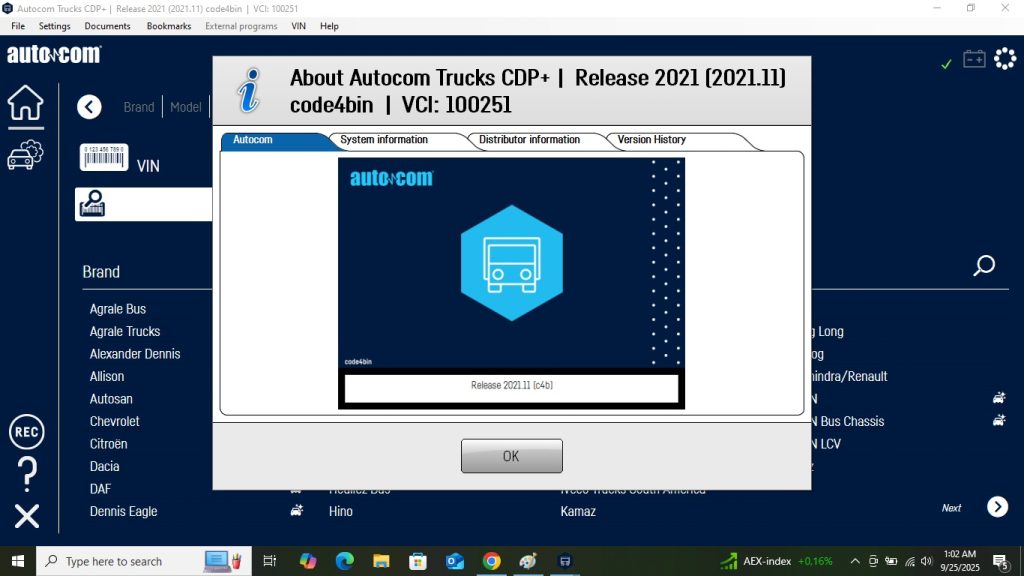
Autocom 2021 is a multi-brand diagnostic platform covering a comprehensive range of passenger cars, light commercial vehicles, and heavy-duty trucks from a single installation. Unlike OEM-specific tools, Autocom provides broad coverage without requiring separate software for each manufacturer — making it a practical choice for independent workshops handling diverse vehicle lineups. This guide covers what Autocom 2021 can do, how to install it, and how to get reliable results across its full vehicle range.
What Is Autocom 2021?
Autocom is a professional multi-make diagnostic platform developed for independent workshops. Version 2021 provides access to hundreds of vehicle brands through a single interface, communicating via J2534 or proprietary VCI adapters.
Key functions
- Fault code read/clear — all systems across all supported brands, including proprietary manufacturer-specific codes
- Live data — real-time sensor readings, freeze frame data, and graphing across all ECUs
- Actuator tests — force components to activate for testing without disassembly
- Service resets — oil service, brake pad wear indicator, DPF reset, and service interval resets
- Basic coding — module coding and adaptation for replacement parts on supported platforms
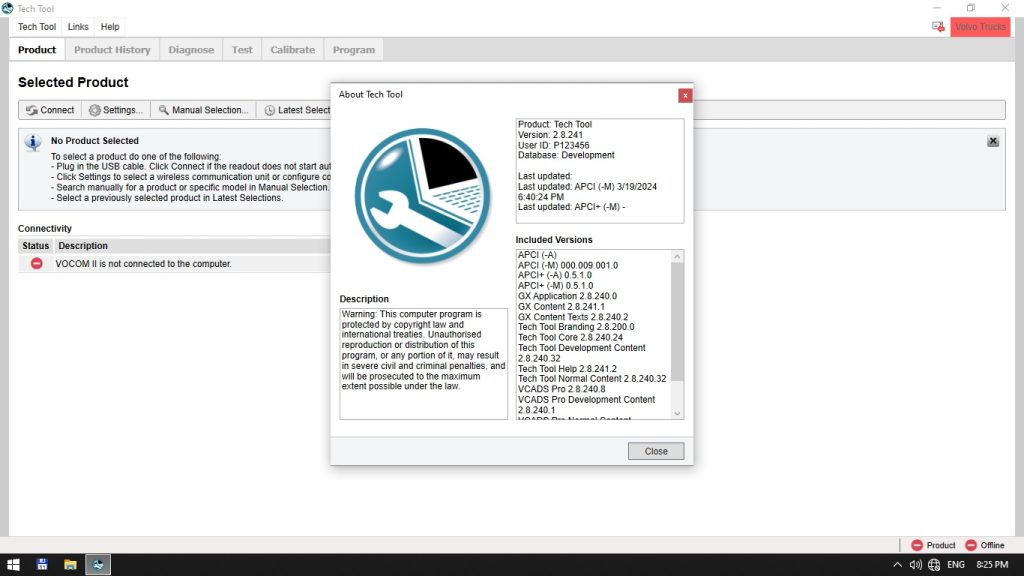
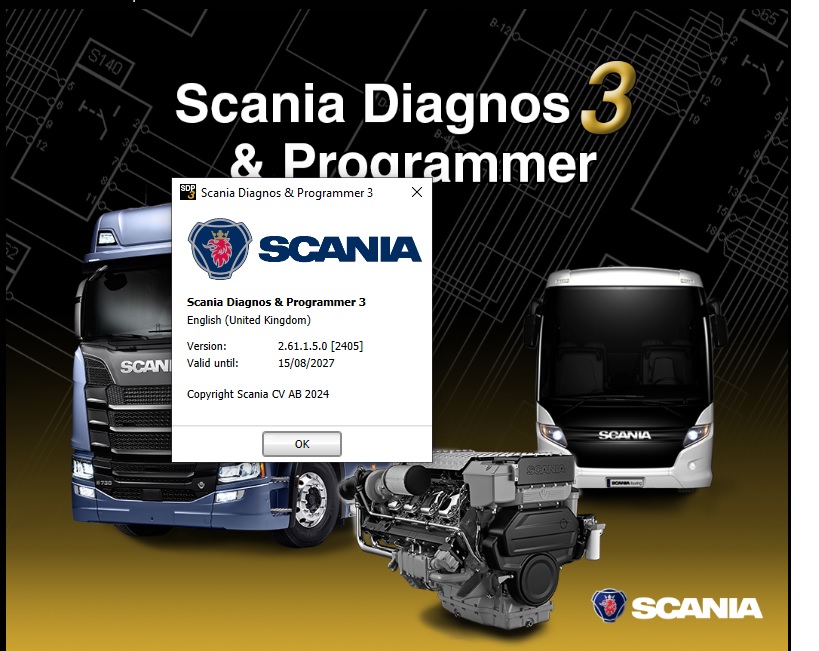
- Truck diagnostics — supports major heavy-duty brands including Volvo, Scania, MAN, Mercedes, DAF, and Iveco
Vehicle Coverage
| Category | Brands Covered |
|---|---|
| European passenger cars | VW, Audi, BMW, Mercedes, Volvo, Peugeot, Citroën, Renault, Fiat, Alfa Romeo, Opel |
| Asian passenger cars | Toyota, Lexus, Honda, Nissan, Mitsubishi, Hyundai, Kia, Mazda, Subaru |
| American cars | Ford, GM, Chrysler, Jeep, Cadillac, Dodge |
| Light commercials | Transit, Sprinter, Ducato, Vivaro, Trafic, Crafter |
| Heavy trucks | Volvo, Scania, MAN, Mercedes Actros, DAF, Iveco, Renault Trucks |
System Requirements and Installation
System Requirements
- Windows 10 64-bit recommended (Windows 7 64-bit also supported)
- 4 GB RAM minimum, 8 GB recommended
- 20 GB free disk space
- USB 2.0 or USB 3.0 for VCI connection
Step 1 — Disable Antivirus Temporarily
Autocom’s licence and database files are frequently flagged as false positives by Windows Defender and third-party antivirus software. Temporarily disable real-time protection before installation and restore it after the first successful launch.
Step 2 — Install as Administrator
Right-click the installer and select Run as Administrator. Choose Full Installation to include all vehicle databases, system modules, and the VCI interface drivers. Partial installs leave out specific brand databases, reducing coverage.
Step 3 — Install VCI Drivers
After the main application installs, connect your Autocom VCI interface and allow Windows to detect it. If the driver is not found automatically, install it manually from the Autocom installation directory under drivers. Confirm the VCI appears in Device Manager without error flags.
Step 4 — Activate and Launch
Launch Autocom from the desktop. On first run, the activation wizard will prompt for your licence credentials. Enter them and allow the software to validate. Once activated, the vehicle selection screen will appear — select your vehicle category, manufacturer, model, and year to begin diagnostics.
Autocom vs OEM Tools — What to Expect
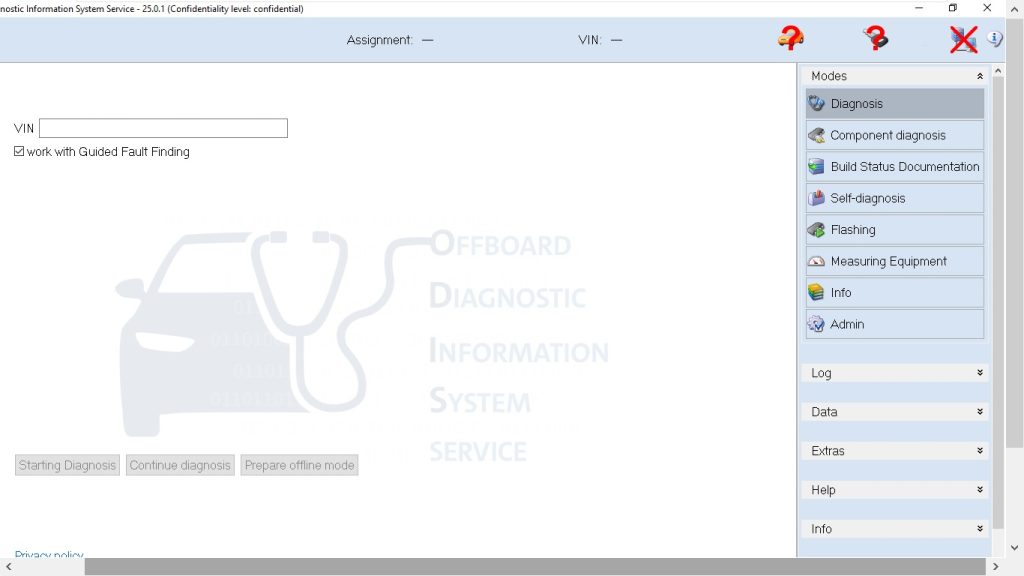
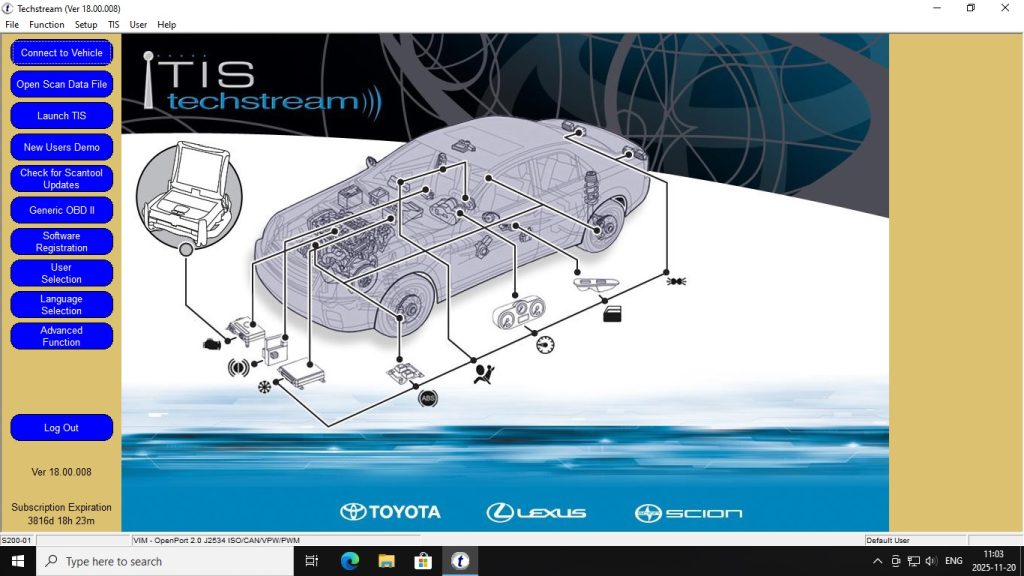
Autocom covers a breadth of vehicles that no single OEM tool can match. However, it does not reach the depth of manufacturer-specific tools for advanced functions. For routine diagnostics, service resets, and live data on most vehicles, Autocom performs well. For deep ECU coding, programming, or accessing hidden adaptation channels on VAG Group vehicles, a dedicated tool like ODIS Service + Engineering provides capabilities Autocom cannot replicate. Similarly, for Toyota/Lexus-specific initialisation and immobilizer functions, Toyota Techstream V18 goes deeper than any multi-brand tool.
Common Issues and Fixes
VCI Not Recognised
If Autocom cannot find the VCI on startup, check that the VCI drivers are properly installed and that the USB device appears in Device Manager without warning flags. Try a different USB port, preferably USB 2.0 directly on the motherboard rather than a hub.
Vehicle Database Not Found
This usually occurs with partial installations. Reinstall using the Full Installation option and ensure the database files are not blocked by antivirus quarantine.
Coding Functions Greyed Out
Some coding and programming functions require a higher-tier Autocom licence. Confirm your licence level and whether the specific function is included in your version.
Get Autocom 2021
Unlimited PC installations. Full vehicle database included. Ready to run on Windows 10 straight from download.