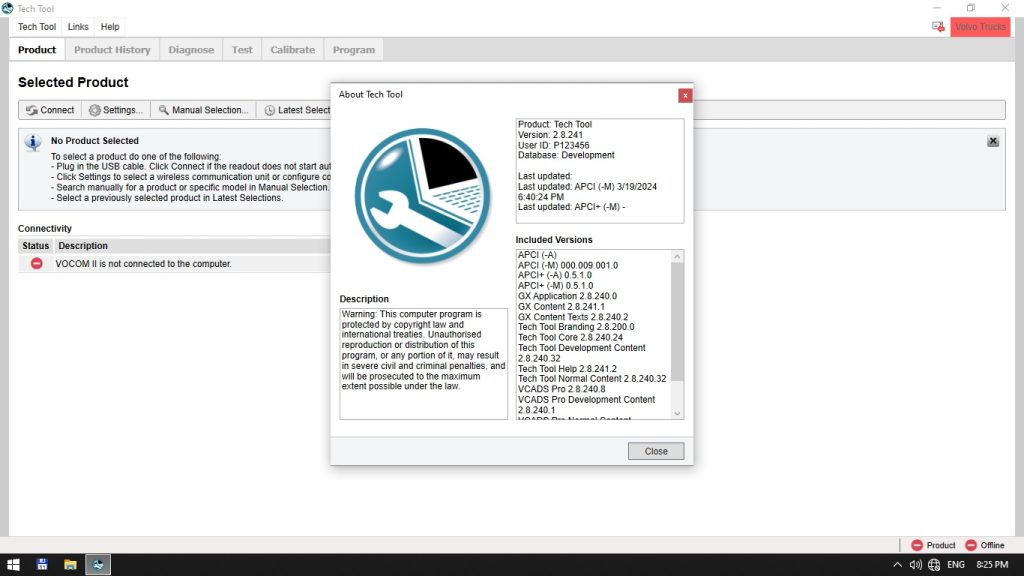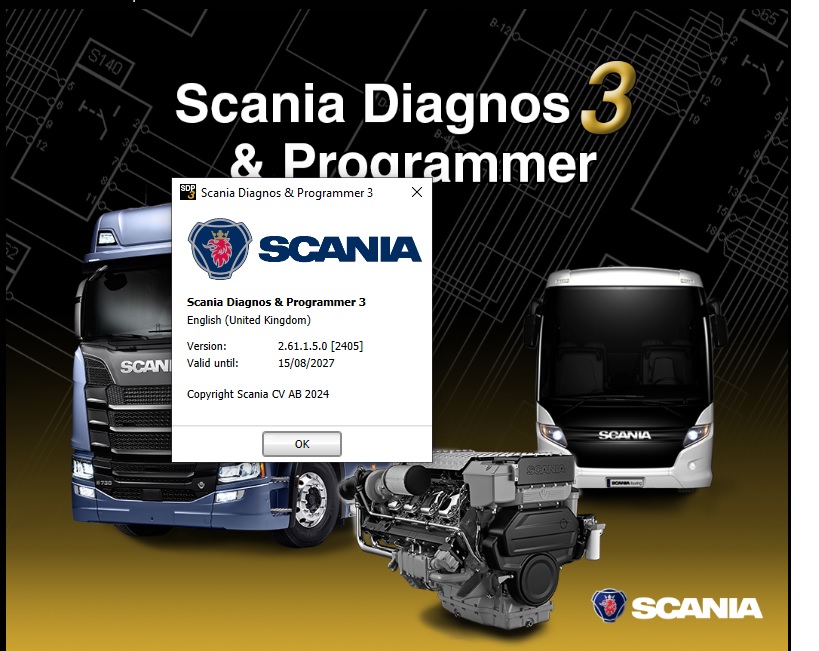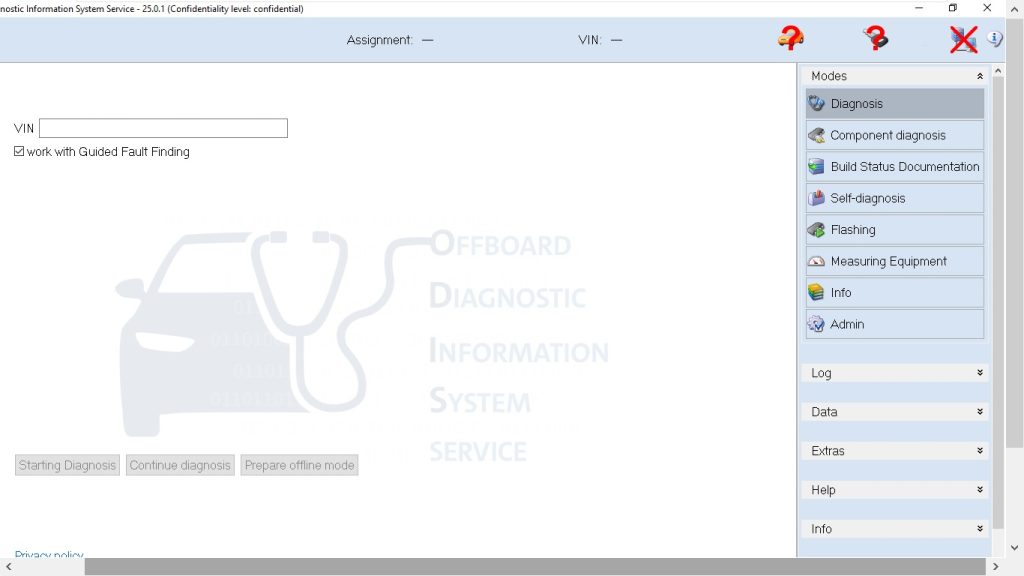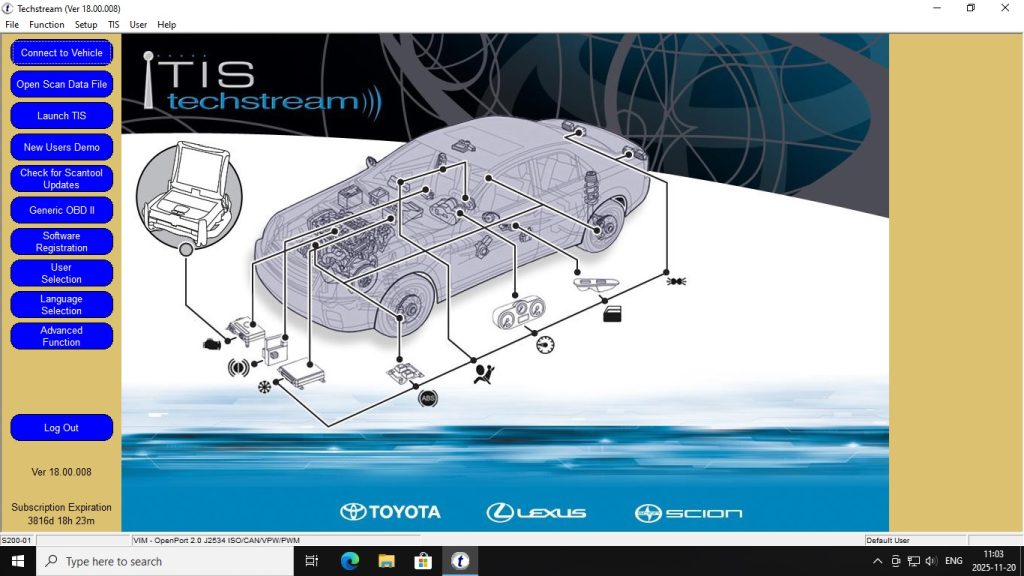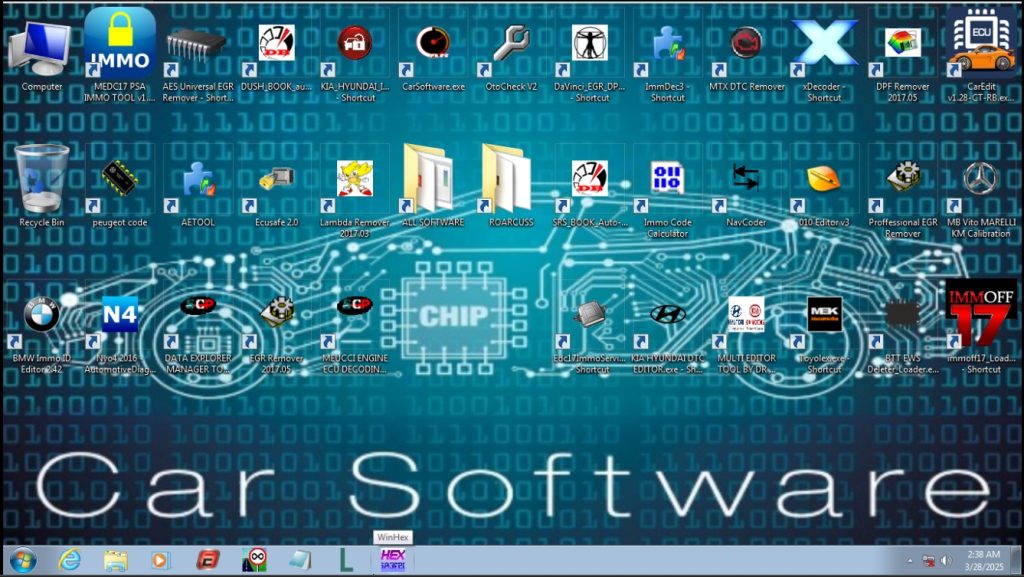
The Car Software Collection VMware is a pre-installed virtual machine containing over 160 automotive diagnostic, tuning, and programming tools in a single ready-to-run environment. Instead of sourcing, installing, and configuring dozens of separate tools individually — each with its own dependencies, activation requirements, and compatibility quirks — this collection puts everything into one Windows 7 VM that opens in VMware and works immediately. This guide covers what the collection includes, how to set it up, and who it is designed for.
What Is Included in the Collection?
The collection spans every major category of automotive software used in professional workshops, tuning shops, and diagnostic centres:
OEM Diagnostic Tools
- ODIS Service and Engineering (VAG Group)
- Toyota Techstream (Toyota/Lexus)
- Diagbox (Peugeot/Citroën/DS)
- Autocom and Delphi diagnostic platforms
- Multi-brand OBD tools for European and Asian makes
ECU Tuning and Remapping
- WinOLS 4.x — binary ECU editing with checksum correction
- ECM Titanium — driver-based map identification for 26,000+ ECU types
- CrossTuner Studio — ECU tuning platform by MTX Electronics
- Checksum Corrector utility for ECU file verification
IMMO, Airbag, and Coding Tools
- ImmoKiller — universal immobilizer removal tool
- Multiple airbag reset tools (EcuVonix, Airbag Service Tool, Bosch reset)
- DASH ECU Teacher — VAG Group dashboard/ECU sync
- AETool — ECU decoding and IMMO OFF
- Various EEPROM dump calculators for PIN code extraction
Odometer and Service Tools
- Dashboard Service Tool — multi-brand odometer and service reset
- NYO 4.0 — odometer, radio, airbag, and navigation tool
- Multiple brand-specific cluster tools (BMW, Audi, Opel)
Radio Code and Unlock Tools
- 160+ car radio code unlock collection
- Geza Dump Calculator — universal radio unlock via dump
- Code Calculator Second Edition — Grundig/Philips radio tools
Why a VMware Collection?
Each tool in the collection has its own set of dependencies — specific Windows versions, Visual C++ runtimes, .NET versions, DirectX builds, and activation systems. Running all of these natively on a single Windows 10 or 11 machine creates inevitable conflicts. The VMware approach isolates the entire environment: the VM runs Windows 7 with every dependency pre-installed and every tool pre-configured. You do not install anything — you just open the VM and start working.
For a deeper understanding of why VMware is the standard delivery method for diagnostic software, our guide to VMware for automotive diagnostics explains the compatibility and isolation benefits in detail.
System Requirements
- Host OS: Windows 10 or Windows 11 (64-bit)
- RAM: 16 GB host recommended (8 GB allocated to VM)
- Storage: 120–150 GB free (the full VM image is large)
- CPU: Intel Core i5 or AMD Ryzen 5 with VT-x/AMD-V enabled in BIOS
- VMware: Workstation Player 17 (free) or Workstation Pro
Setup Guide
Step 1 — Install VMware Workstation Player
Download and install VMware Workstation Player 17 from VMware’s website. Enable Intel VT-x in your BIOS if not already active. Verify VMware opens without errors before proceeding.
Step 2 — Extract the VM Archive
Extract the collection archive to a drive with at least 150 GB free. Use a short path without spaces — C:AutoSuite is ideal. Extraction takes 15–30 minutes depending on disk speed and archive size.
Step 3 — Open and Configure the VM
Open VMware and select the .vmx file. Before powering on, allocate at least 6–8 GB RAM and 2–4 CPU cores. Set USB to 3.0 and network to Bridged mode.
Step 4 — Power On and Use
Boot the VM. Windows 7 will load with all tools accessible from the desktop or Start menu. Connect your diagnostic interface and pass it through via VMware’s Removable Devices menu.
For workshops that need individual focused tools rather than the full collection, our guide to ODIS Service 25 + Engineering 19 covers the dedicated VAG diagnostic setup in detail.
Get the Car Software Collection VMware
160+ tools. One VM. One download. Everything pre-installed and ready to run.