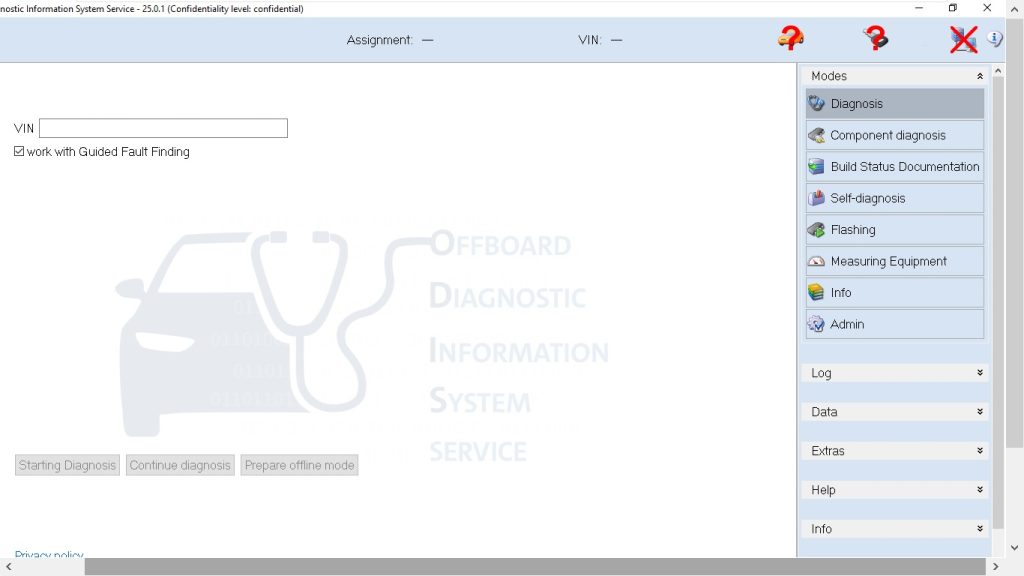
The ODIS Service 25 + Engineering 19 VMware image is the most practical way to run the full VAG dealer diagnostic suite on a modern Windows PC without complex licensing setup. Here is the complete installation guide.
Step 1: Install VMware Workstation Player
Download and install VMware Workstation Player 17 (free) from VMware.com. Accept defaults and restart your PC if prompted. VMware Player is required to open the ODIS VM image.
Step 2: Enable Virtualization in BIOS
- Restart and enter BIOS (Del, F2, or F10)
- Enable Intel VT-x (Intel CPUs) or AMD-V / SVM (AMD CPUs)
- Save and exit BIOS
Step 3: Open the ODIS VMware Image
- Extract the ODIS VMware archive to a location with at least 100GB free space (SSD preferred)
- Open VMware Player → Open a Virtual Machine → select the .vmx file
- Before starting, adjust VM settings: set RAM to 6144MB (6GB) and CPU cores to 2 or 4
- Click Play — the VM boots into Windows with ODIS Service pre-installed
Step 4: Connect Your VAS Interface
- Plug VAS 5054A (USB) or VAS 6154 into a USB port on your host PC
- In VMware: Player → Removable Devices → find your VAS interface → Connect (Disconnect from host)
- Windows inside the VM installs the driver automatically
- Open ODIS Service from the desktop and select your VAS interface in communication settings
Step 5: Connect to Vehicle and Start Diagnosing
- Connect VAS 5054A/6154 to the vehicle OBD2 port
- Turn vehicle ignition ON
- In ODIS, create a new order → enter VIN or let ODIS read it automatically
- Select Self-Diagnosis to scan all modules, or open a specific system directly
Common VMware Issues With ODIS
- ODIS loads very slowly: Move VM to SSD, allocate more RAM
- VAS not detected in VM: Use Player → Removable Devices to pass USB to VM
- GFF procedures fail midway: Ensure vehicle battery is fully charged — ODIS GFF can trigger multiple actuators
- VM crashes during flashing: Disable USB power management on host PC, use a powered USB hub
Get ODIS Service 25 + Engineering 19 VMware pre-configured →