Scania XCOM 2.54 VIN Change & Chassis ID Programming Guide
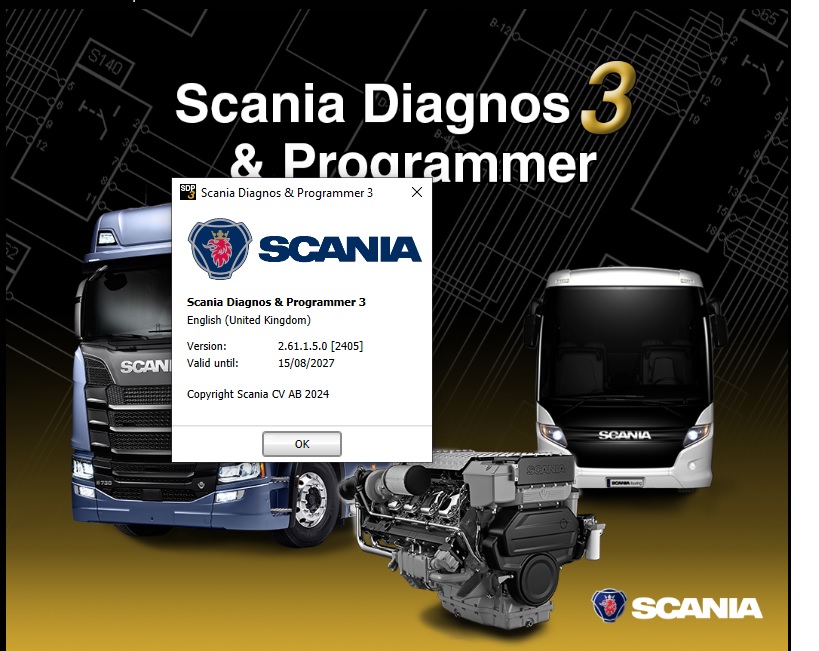
Replacing a Scania ECU isn’t plug-and-play. The new (or used) unit must be programmed with the vehicle’s correct VIN and chassis ID before it will communicate properly with other modules. Scania XCOM 2.54 is the tool that makes this possible. This step-by-step guide covers VIN programming, chassis ID changes, and immobilizer configuration.
Why VIN Programming Matters
Scania trucks use a centralized identification system managed by the COO (Coordinator) ECU. The COO stores:
- Chassis ID: Scania’s internal chassis number (typically 6 digits)
- VIN: The 17-character Vehicle Identification Number
- Immobilizer Code: Anti-theft pairing data
When you replace the EMS, COO, or instrument cluster, the new module must match the vehicle’s original identification data. Mismatched VINs cause: warning lights, limp mode, immobilizer lockout, and communication failures between ECUs.
Required Equipment
- Scania XCOM 2.54 software (download below)
- Scania VCI3 or VCI2 adapter (VCI3 recommended)
- Windows 10 laptop with USB port
- Vehicle’s original VIN and chassis ID (from previous ECU or registration documents)
- Stable power supply — connect a battery charger during programming to prevent voltage drops
Step-by-Step: VIN Change via XCOM 2.54
Preparation
- Connect VCI3 to the vehicle’s diagnostic port (under-dashboard OBD2 16-pin)
- Turn ignition ON (engine OFF)
- Connect VCI3 to the laptop via USB
- Launch Scania XCOM and wait for VCI detection
- Click “System Scan” to identify all connected ECUs
- Read and save the current parameters from ALL ECUs — this is your backup
Read Current COO Data
- Select “COO ECU” from the ECU list
- Navigate to Parameters → Vehicle Identification
- Record the current Chassis ID and VIN values
- Take a screenshot or write them down — these are your safety net
Program New VIN
- COO ECU → Parameters → VIN (17 characters)
- Enter the correct VIN exactly as it appears on the vehicle registration
- Double-check every character — an incorrect VIN can cause cascading system errors
- Click “Write to ECU”
- Wait for confirmation: “Write successful”
- Read back the value to confirm it matches
Program Chassis ID
- COO ECU → Parameters → Chassis ID
- Enter the Scania chassis number (found on the vehicle frame rail or registration)
- Click “Write to ECU”
- Verify with read-back
Immobilizer Configuration
- COO ECU → Parameters → Immobilizer
- Options: “ON” (enabled) or “OFF” (disabled)
- For most replacement ECU scenarios, set to “ON” after VIN programming
- If the vehicle fails to start after ECU swap, try “OFF” temporarily to diagnose
- Write to ECU
Verify System-Wide Recognition
- Return to “System Scan”
- Select each ECU and read VIN/chassis status
- All modules should display the same VIN
- If any module shows a different VIN, update its identification field to match
- Clear all DTCs after completing identification changes
- Cycle ignition OFF → 30 seconds → Ignition ON
- Perform a final DTC scan to confirm no identification-related faults
Common VIN Programming Issues & Fixes
| Issue | Cause | Solution |
|---|---|---|
| “Write Failed” error | Communication interrupted; VCI disconnected | Reconnect VCI; use USB instead of WiFi; retry |
| VIN accepted but not recognized by other ECUs | Only COO was updated; EMS/cluster still has old VIN | Update VIN in each ECU individually |
| Immobilizer lockout after VIN change | Immobilizer expects original VIN pairing | Set Immobilizer → OFF, start engine, then ON + rewrite |
| COO not detected | VCI2 limitation on COO7; or power issue | Use VCI3; check COU power supply (fuse 23A) |
| Instrument cluster shows wrong mileage | Cluster stores mileage independently; will show cluster’s mileage | Mileage correction requires cluster-specific tool |
Immobilizer ON vs OFF — When to Use Each
Immobilizer ON (Recommended for normal operation): The engine will only start if the key’s transponder matches the COO ECU’s stored code. Standard anti-theft protection.
Immobilizer OFF (For diagnostics and recovery): Allows engine start without key pairing. Use during ECU replacement, key loss scenarios, or when diagnosing no-start conditions. Remember to re-enable after resolving the issue.
XCOM vs Dealer VCI
XCOM 2.54 with a third-party VCI3 handles VIN programming, chassis ID, and immobilizer configuration identically to the dealer tool. The only limitation is that XCOM cannot access Scania’s backend calibration database — but for VIN/chassis work, no online connection is needed.
Get Scania XCOM 2.54 — Instant Download
➜ Buy Scania XCOM 2.54 — $49 Instant Download