If you’ve ever stared at a Caterpillar fault code like 596-3 or 1401-5 and wondered where to even begin, Cat Electronic Technician (Cat ET) is the OEM diagnostic software that decodes exactly what those numbers mean — and more importantly, tells you where to probe with a multimeter. This walkthrough is based on a complete Cat ET 2021A training session using the software’s built-in Trainer mode, which lets you practice diagnostics on a simulated CAT 980H Medium Wheel Loader without needing a live machine or a paid license.
Whether you’re a fleet technician handling CAT excavators and wheel loaders, or a shop owner investing in heavy equipment diagnostic capability, understanding Cat ET’s interface — from ECM identification to reading active and logged fault codes — is the foundation of every Caterpillar diagnosis. Let’s walk through it step by step.
What Is Cat ET and What Do You Need to Run It?
Cat Electronic Technician is Caterpillar’s factory diagnostic software — the only tool that gives you full access to every ECM on a CAT machine, including parameter monitoring, active and logged fault codes, ECM flash programming, and component activation tests. Third-party OBD2 scanners simply cannot read Caterpillar’s proprietary CAN bus protocol at this depth.
To run Cat ET against a real machine, you need five things:
- A Windows PC or laptop (Windows 7 or newer — Windows 10/11 fully supported)
- Cat ET software installed
- A communication adapter (Caterpillar Comm Adapter 2, Comm Adapter 3, or compatible RP1210 interface)
- A Caterpillar machine with a service connector (10-pin round DT or 9-pin Deutsch)
- A valid Cat ET software license for live connection
The Trainer mode removes requirements 3–5. It runs entirely offline, simulates a full machine environment, and is ideal for training new technicians or learning the interface before going field-side.
Step 1 — Launching Cat ET and Navigating the Startup Prompts
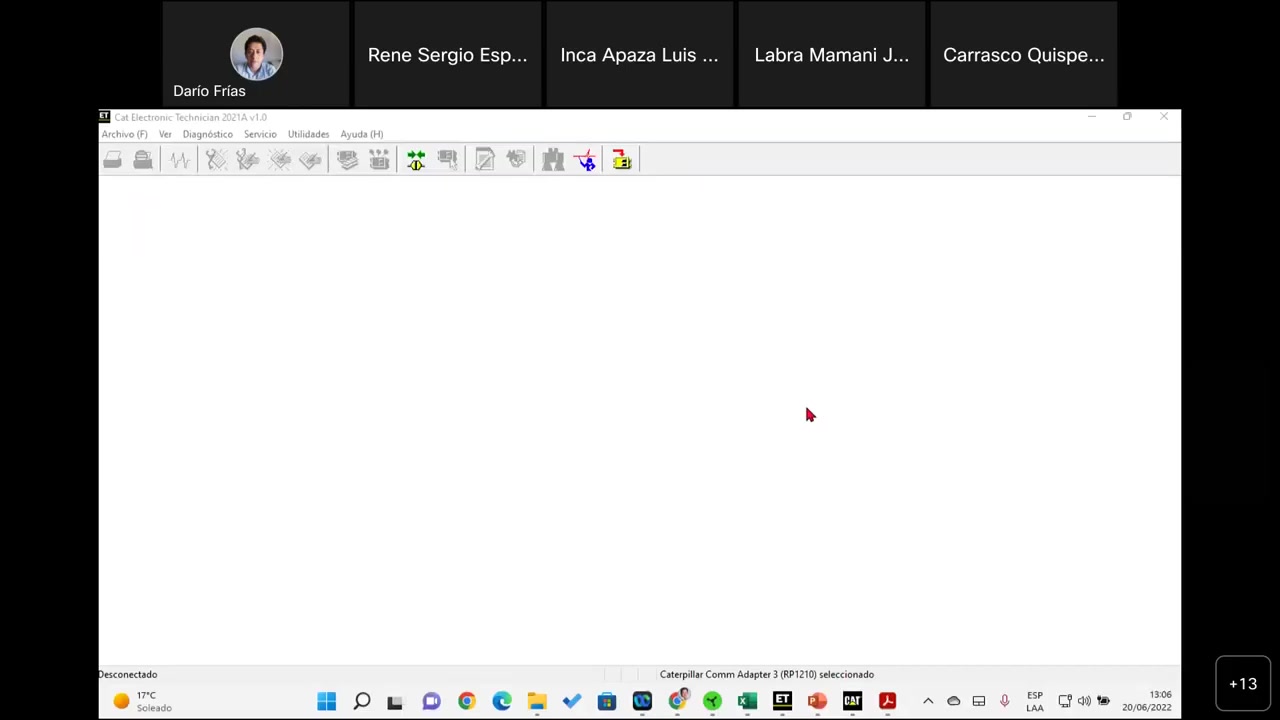
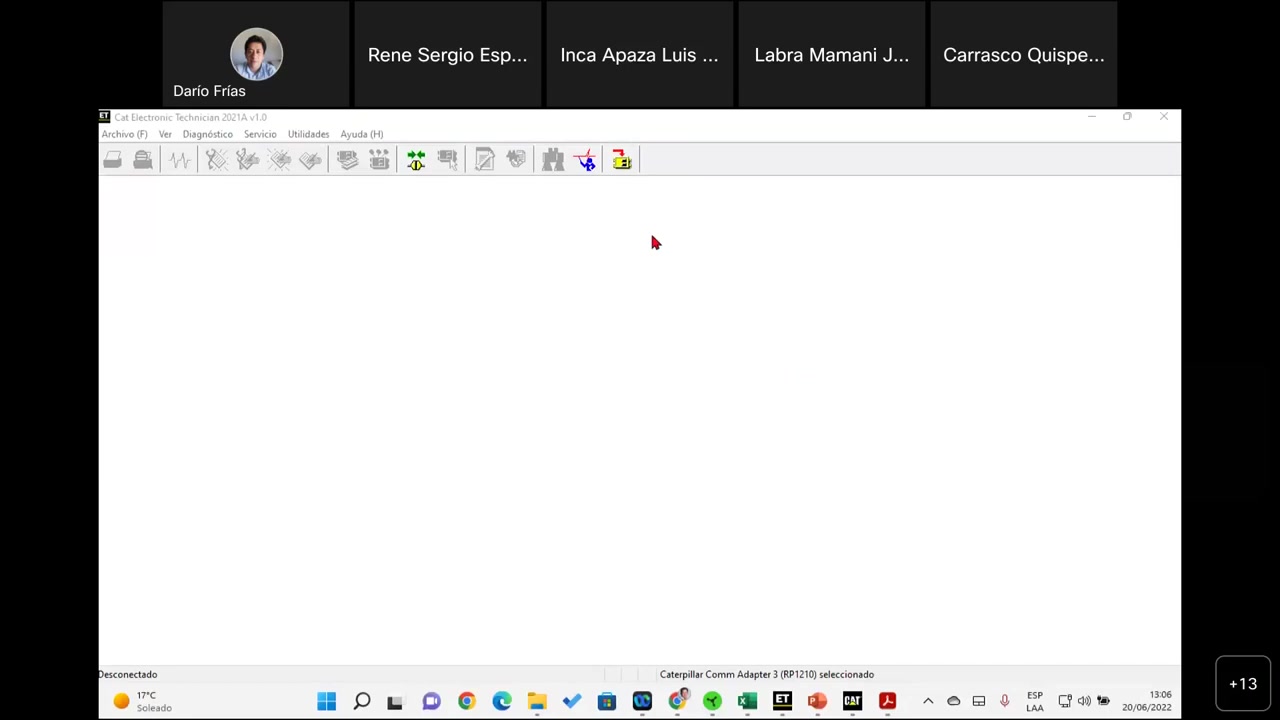
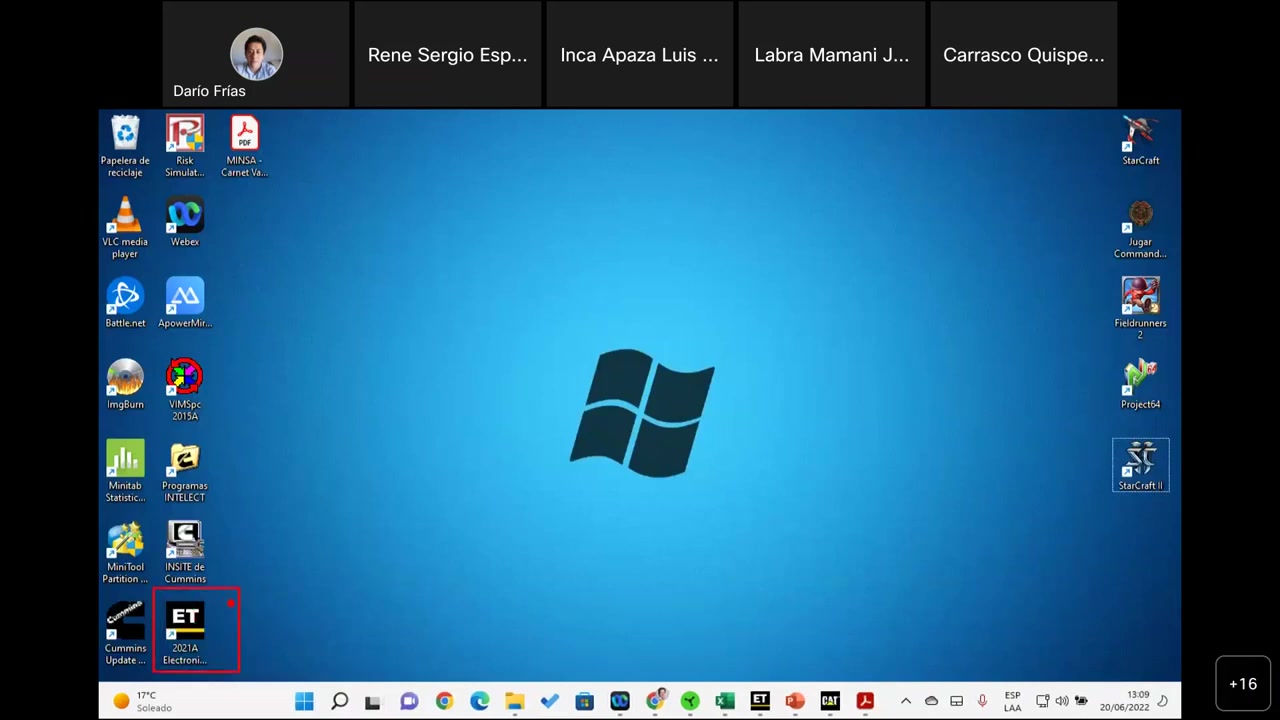
After installation, Cat ET places a desktop shortcut labeled ET 2021 A Electronic Technician. Double-click to launch.
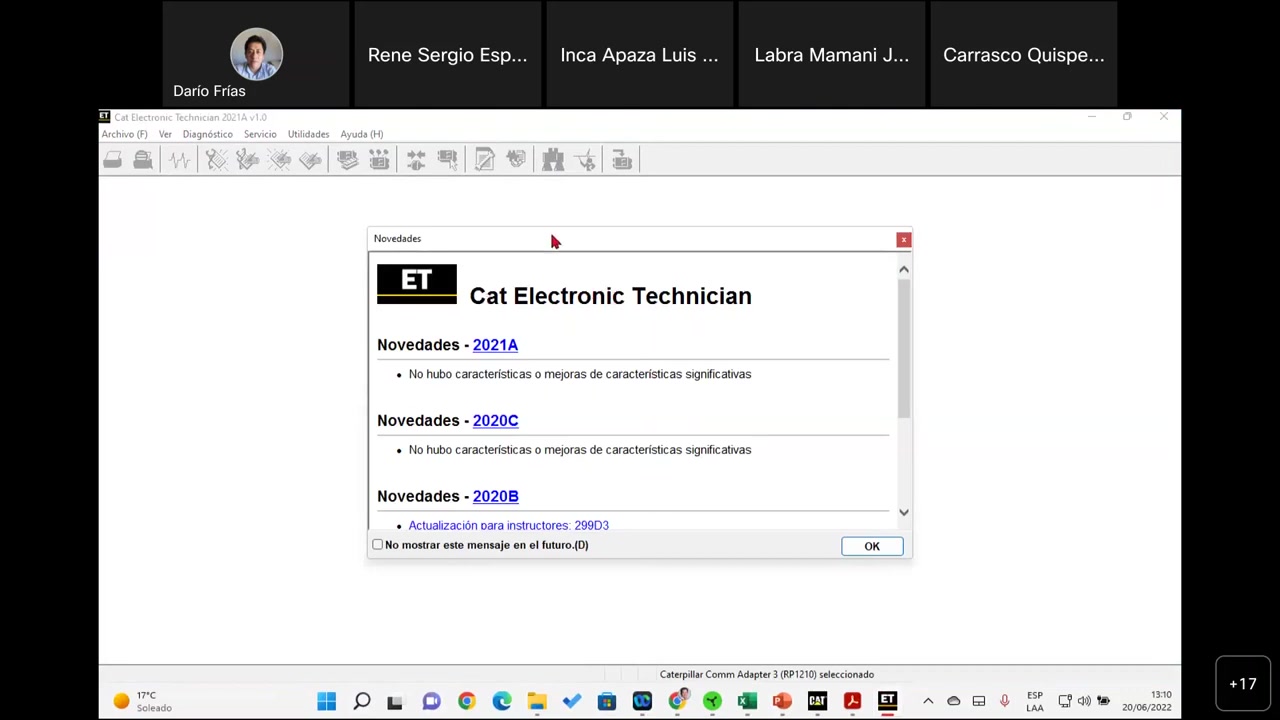
On first launch (or after an update), Cat ET displays a “Novedades” (What’s New) pop-up summarizing version changes. Click through to dismiss it.
Next, you’ll see the license warning: “Este programa no tiene licencia…” (This program does not have a license). If you’re using Trainer mode for training purposes, simply click through — Trainer mode bypasses the license requirement entirely. For live machine connections, a Cat ET license tied to a valid SIS Web subscription is required.
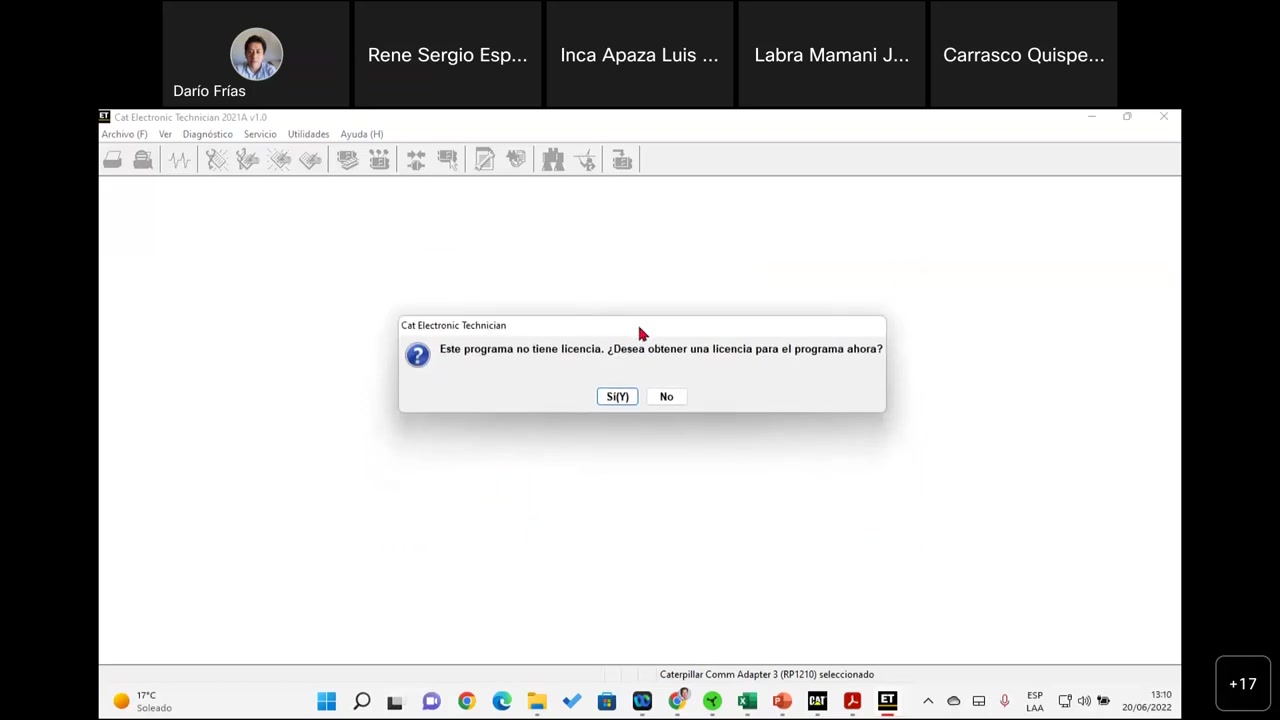
Step 2 — Connecting to a Real Machine vs. Activating Trainer Mode
The Cat ET toolbar has two critical icons you need to understand:
| Icon | Function | When to Use |
|---|---|---|
| Connection (F8) — plug icon | Connects to a real Caterpillar machine via Comm Adapter | Live field diagnostics on actual equipment |
| Activate Trainer — teacher figure with pointer | Opens simulated machine selection list | Training, practice, software familiarization |
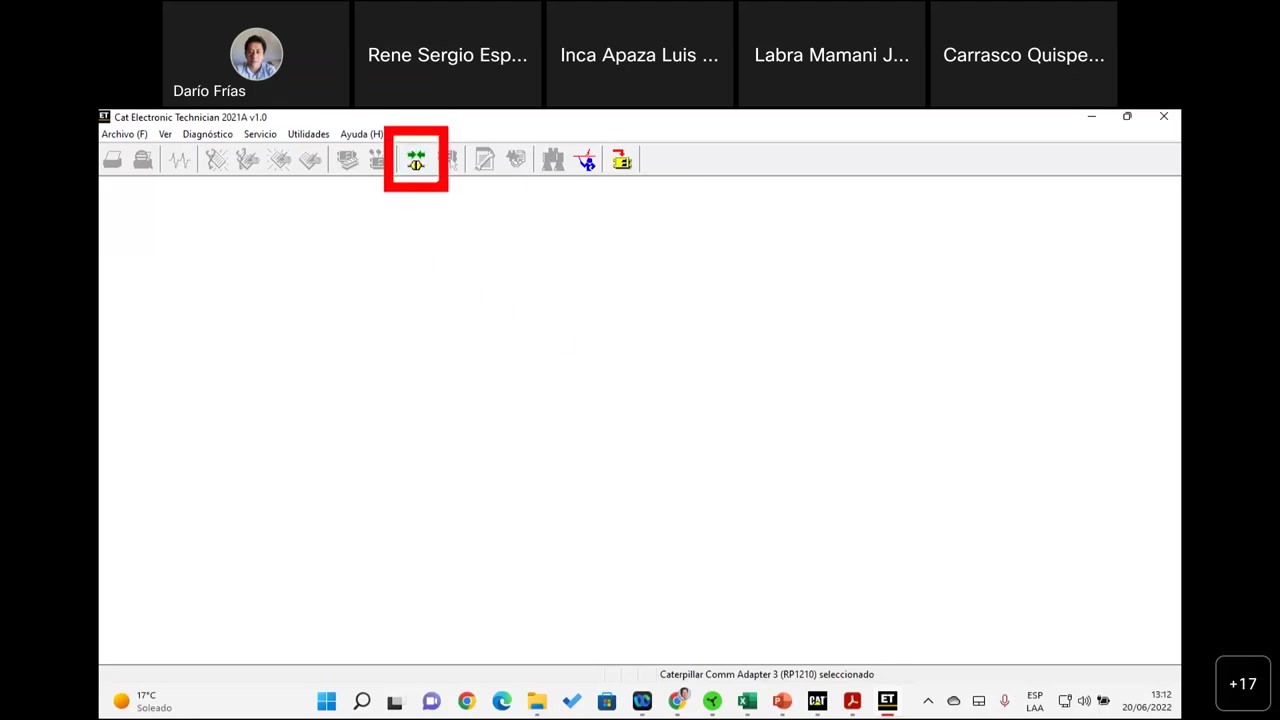
For this training session, click the Activate Trainer icon. The trainer window opens immediately, presenting the full list of available CAT equipment simulations.
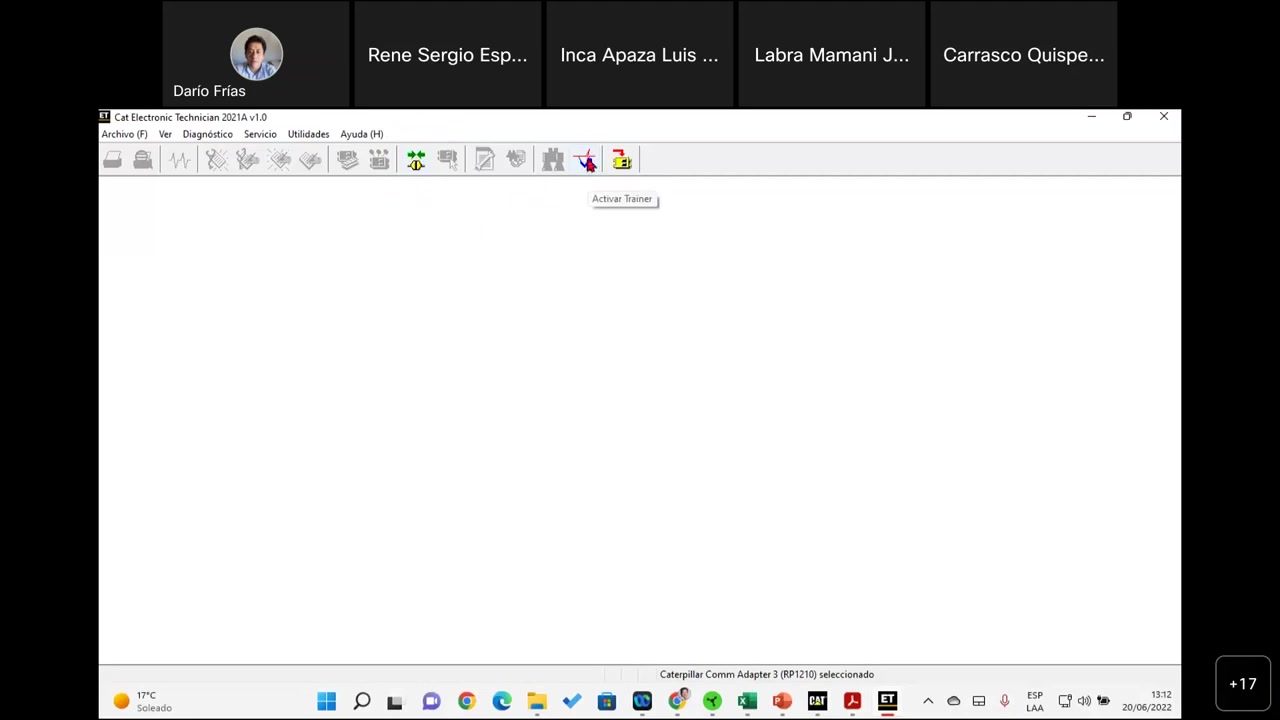
Step 3 — Selecting a Machine in Trainer Mode
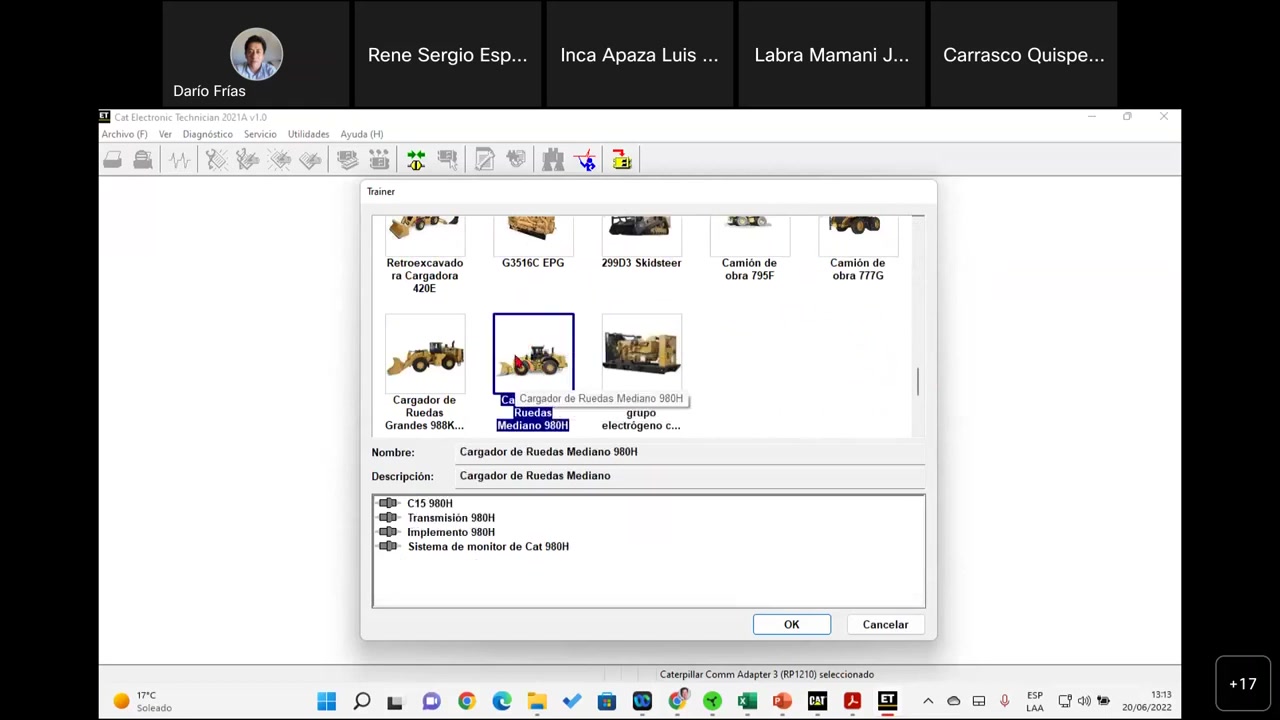
The Trainer window lists 16 Caterpillar machine simulations covering the major equipment categories you’ll encounter in the field:
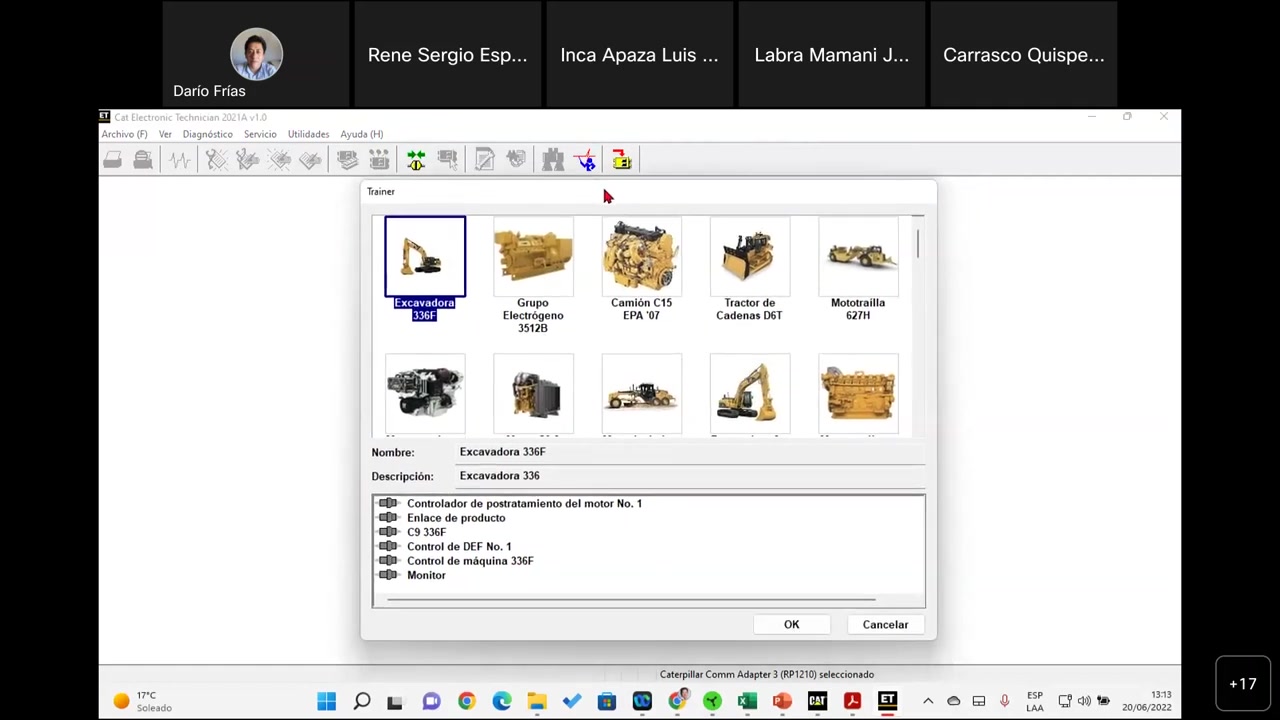
| Machine (Trainer) | Equipment Type | Use Case |
|---|---|---|
| Excavadora 336F | Hydraulic Excavator | Earthmoving / construction |
| Cargador de Ruedas Mediano 980H | Medium Wheel Loader | Quarry / aggregate / port operations |
| Tractor de Cadenas D8T | Crawler Dozer | Landfill / heavy pushing |
| Camión de obra 795F / 777G | Off-highway Haul Trucks | Mining operations |
| Grupo Electrógeno 3512B / Motor Marino C32 | Generator / Marine Engine | Power generation / marine |
| Motoniveladora 140M / 821H | Motor Grader | Road grading / maintenance |
| Retroexcavadora Cargadora 420E | Backhoe Loader | Utility / small construction |
| 259D3 Skidsteer | Compact Track Loader | Landscaping / compact jobsites |
For this demonstration, select Cargador de Ruedas Mediano 980H. The selection panel shows a brief description confirming the machine type, and Cat ET immediately identifies its ECMs.
Step 4 — ECM Selection and the Resumen de ECM Screen
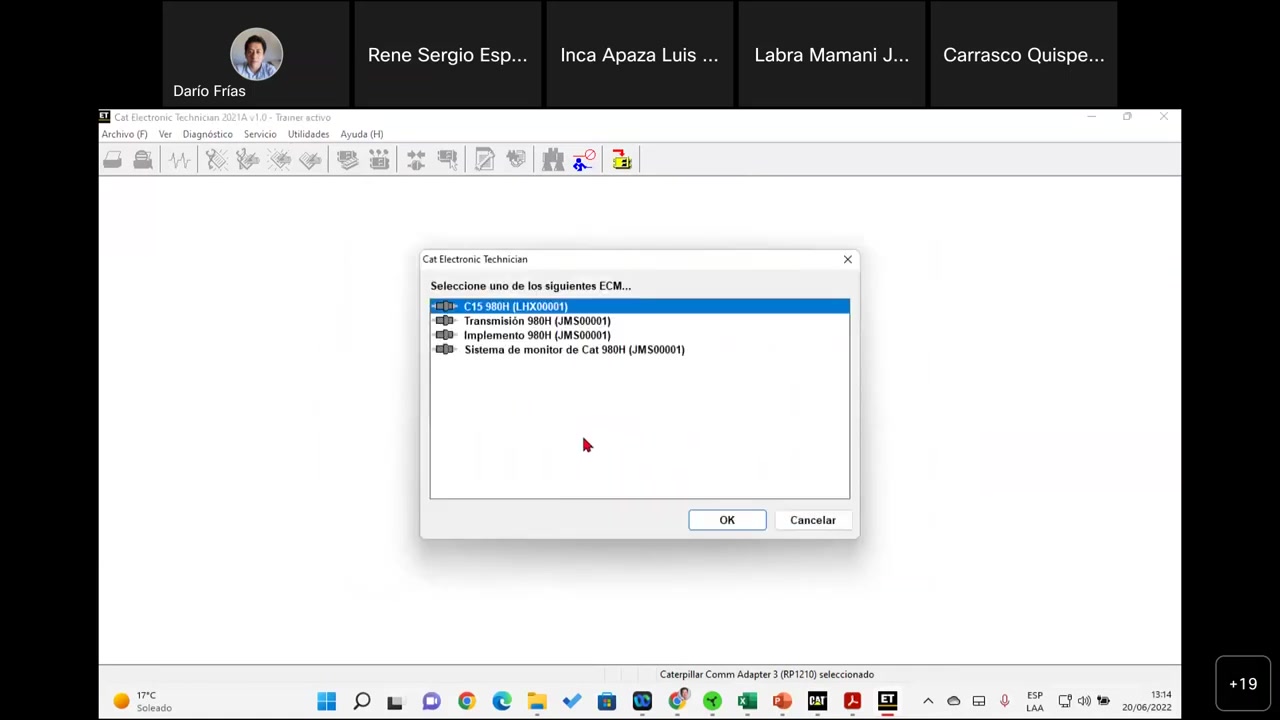
After selecting the 980H, Cat ET presents the “Seleccione uno de los siguientes ECM” (Select one of the following ECMs) window. The 980H has 4 ECMs, each controlling a specific machine system:
| ECM Name | System Controlled | MID Code |
|---|---|---|
| C15 980H (Motor ECM) | Engine — fuel, sensors, emissions | 032 |
| Transmisión 980H | Transmission — solenoids, speed sensors | 076 |
| Implemento 980H | Hydraulic implement circuits | Varies by model |
| Sistema de monitor de Cat 980H | Operator display / monitor system | Varies by model |
Selecting an ECM opens the Resumen de ECM (ECM Summary) screen, which displays the engine serial number (e.g., HXX00001), ECM part number, software group part number, software publication date, and a flag indicating whether active diagnostic codes are present. This summary is critical for verifying you’re connected to the correct ECM and for documenting machine configuration before any flash or calibration work.
Step 5 — Reading Active Diagnostic Codes
Navigate to Diagnose → Diagnostic Codes → Active Diagnostic Codes. For the 980H simulation, Cat ET displays 6 active codes across all 4 ECMs. Using the “Incluir todos los ECM” (Include all ECMs) checkbox gives you a consolidated view:
| ECM | Code (CID-FMI) | Description | Severity |
|---|---|---|---|
| Motor C15 980H | 596-3 | Implement control — Abnormal update rate | Communication fault (CAN bus) |
| Transmisión 980H | 1401-5 | Transmission Solenoid #1 — Current below normal | Electrical open circuit / wiring |
| Transmisión 980H | 1405-5 | Transmission Solenoid #5 — Current below normal | Electrical open circuit / wiring |
| Implemento 980H | 350-4 | Lift linkage position sensor — Voltage below normal | Sensor supply / ground fault |
| Implemento 980H | 1818-0 | Implement oil filter differential pressure switch — High | Filter service required / switch fault |
| Monitor 980H | 921-3 | Display power supply — Voltage above normal | Electrical supply overvoltage |
Key principle: Active codes indicate faults that are currently present in the machine. Once you repair the root cause — whether that’s a broken wire, failed sensor, or corroded connector — the code disappears from the active list automatically. Never clear active codes without first repairing the fault; they’ll return within seconds if the underlying problem isn’t fixed.
Step 6 — Reading Logged Diagnostic Codes
Navigate to Diagnose → Diagnostic Codes → Logged Diagnostic Codes. These are the fault history — past events that may no longer be active. Cat ET shows you exactly how many times each fault occurred, and at what machine hours it first and last appeared:
| ECM | Code | Description | Times | First (hrs) | Last (hrs) |
|---|---|---|---|---|---|
| Motor C15 980H | 94-3 | Fuel delivery pressure sensor — Voltage above normal | 1 | 678 | 678 |
| Transmisión 980H | 673-5 | Transmission output speed sensor #2 — Erratic/intermittent data | 4 | 555 | 621 |
| Implemento 980H | — | No logged codes | — | — | — |
| Monitor 980H | 69-5 | Display power supply — Voltage above normal | 22 | 62 | 69 |
The transmission output speed sensor fault (673-5) appearing 4 times between 555–621 hours is a classic intermittent fault pattern. This tells you the sensor or its wiring harness was marginal during that period — likely a connector with corrosion or a wiring chafe point that makes/breaks contact under vibration. The display power supply fault (69-5) logged 22 times between 62–69 hours is unusual — 22 events in 7 machine hours suggests a severely unstable power supply circuit to the monitor, possibly a loose battery connection or failing voltage regulator.
Understanding Caterpillar Fault Code Structure: MID, CID, FMI
Every Caterpillar diagnostic code follows a three-part structure. This is the most important concept for anyone new to Cat ET:
| Component | Full Name | What It Tells You | Example |
|---|---|---|---|
| MID | Module Identifier | Which ECM detected the fault | 032 = Engine ECM, 076 = Transmission ECM |
| CID | Component Identifier | Which sensor, actuator, or circuit has the fault | 596 = Implement control, 94 = Fuel pressure sensor |
| FMI | Failure Mode Identifier | What type of electrical fault it is | FMI 3 = Voltage high, FMI 4 = Voltage low, FMI 5 = Current low |
The most common FMI values you’ll encounter on Caterpillar equipment:
| FMI | Meaning | Common Root Cause |
|---|---|---|
| FMI 0 | Data valid but above normal range (high) | Short to voltage, over-pressurization |
| FMI 3 | Voltage above normal | Short to battery voltage in signal wire |
| FMI 4 | Voltage below normal | Short to ground in signal wire, failed sensor |
| FMI 5 | Current below normal (open circuit) | Broken wire, failed solenoid coil, open connector |
| FMI 6 | Current above normal (short circuit) | Wiring shorted to ground, failed solenoid |
| FMI 9 | Abnormal update rate | CAN bus communication failure between ECMs |
| FMI 12 | Bad intelligent device / component | Failed ECM or module internal fault |
Critical rule: CAT fault codes describe electrical circuit problems — they do not directly indicate mechanical failures. A CID 1401-5 (Transmission Solenoid #1 current low) tells you the circuit carrying current to that solenoid has an open somewhere — a broken wire, corroded connector, or failed solenoid coil winding. It does NOT tell you the transmission is mechanically damaged. Always use Cat ET fault codes as a starting point for electrical circuit testing, not as a final verdict.
The Diagnostic Workflow: From Code to Root Cause
Once Cat ET identifies an active fault code, the correct diagnostic sequence is:
- Record the full code — Note MID, CID, and FMI. Note whether it’s active or logged, and how many times it has occurred.
- Open Cat SIS (Service Information System) — Look up the specific troubleshooting procedure for that CID-FMI combination. Cat SIS provides the exact electrical schematic, connector locations, and test sequence for every code.
- Locate the circuit in the wiring diagram — Identify the sensor/actuator, its power supply wire, signal wire, ground return, and the connector pinouts at both the component and the ECM.
- Test with a multimeter — Measure voltage at the sensor supply pin (should match spec — typically 5V or 12V), signal pin voltage or resistance (compare against Cat spec), and continuity through the harness to the ECM connector.
- Repair and verify — Fix the fault (replace sensor, repair wiring, clean connector). The active code should clear from Cat ET’s active list once the fault is resolved. If it returns, the repair was incomplete or there is a second fault source.
CAT ET Trainer Mode — Full Equipment Compatibility
The Cat ET 2021A Trainer mode provides simulation data for the following Caterpillar equipment families — all of which are also supported for live diagnostics when connected via a Comm Adapter:
| Equipment | Model | Application |
|---|---|---|
| Medium Wheel Loader | 980H | Aggregate, quarry, port |
| Large Wheel Loader | 988K XE | Heavy mining loading |
| Hydraulic Excavator | 336F, 324D | Earthmoving, demolition |
| Crawler Dozer | D8T | Landfill, heavy pushing |
| Motor Grader | 140M, 821H | Road construction |
| Off-Highway Truck | 795F, 777G | Surface mining |
| Backhoe Loader | 420E | Utility construction |
| Compact Track Loader | 259D3 | Landscaping, tight spaces |
| Generator Set | 3512B | Stationary power generation |
| Marine Engine | C32 | Commercial marine |
| Diesel Engine | C9.3, C15 EPA 07 | Industrial/on-highway |
| Gas Engine | G3508, G3516C EPG | Gas-fired power generation |
ECM Flash Programming — What Cat ET Can Do Beyond Fault Codes
The training session also introduces ECM flash programming — the process of downloading and installing a new “personality module” (software package) into a Caterpillar ECM. This is identified by a hammer icon in the Cat ET toolbar.
Flash programming is used for several purposes:
- Engine performance updates — Caterpillar releases periodic software updates that fix known bugs, improve fuel economy, or adjust power ratings
- Emissions compliance — Updating ECM software to meet current EPA/EU tier requirements
- Configuration changes — Modifying the machine’s performance rating (e.g., adjusting a C15 from one horsepower rating to another via a software personality change)
- Failed ECM replacement — Programming a blank replacement ECM with the correct software and configuration parameters for a specific machine serial number
Flash programming requires a live Cat ET license, a stable communication adapter connection, and the correct software files sourced through Cat’s ET licensing system. It is not performed in Trainer mode, but understanding the capability is essential for advanced Cat ET users.
Frequently Asked Questions
Can I use Cat ET without a license?
Yes — for Trainer mode only. The built-in Trainer allows you to simulate diagnostics on 16 CAT machine models without a license, making it ideal for training and learning the software interface. For live connection to a real Caterpillar machine, a valid Cat ET license is required. The license is subscription-based and tied to a Cat SIS Web account.
What communication adapter does Cat ET require?
Cat ET officially supports the Caterpillar Comm Adapter 2 and Comm Adapter 3, both of which use the RP1210 communication standard. The Comm Adapter 3 is the current recommended interface and supports both older and newer CAT machine communication protocols. Third-party RP1210-compliant adapters may also work but are not officially supported by Caterpillar.
What does FMI 5 mean on a Caterpillar fault code?
FMI 5 means “Current below normal” — this indicates an open circuit condition in the component’s electrical circuit. For a transmission solenoid (e.g., code 1401-5), it means the ECM is detecting less current than expected flowing through the solenoid coil. Root causes include a broken wire in the harness, a failed solenoid coil (open winding), a corroded or loose connector pin, or an internal ECM driver fault. Start testing at the solenoid connector before probing deeper into the harness.
What’s the difference between active and logged codes in Cat ET?
Active codes are faults that exist right now — the circuit is currently faulty and the ECM is detecting the problem in real time. Logged codes are historical records of past faults, stored with occurrence count and machine hours. Active codes must be repaired before they’ll disappear. Logged codes remain in memory even after repair and are useful for diagnosing intermittent problems — a fault that appeared 15 times over a short period is a much more urgent wiring concern than one that appeared once three years ago.
Does Cat ET work on Windows 10 and Windows 11?
Yes. Cat ET 2019C and newer versions (including 2021A) are fully compatible with Windows 10 and Windows 11 (64-bit). The installer requires administrator privileges. The recommended setup for technicians who want to avoid driver conflicts with other diagnostic software is to run Cat ET in a dedicated Windows virtual machine — this eliminates any risk of RP1210 driver conflicts with other OEM tools installed on the same system.
Can Cat ET diagnose Caterpillar marine engines and generators?
Yes. Cat ET supports the full range of Caterpillar power systems, including marine engines (C32, C18, C12), generator sets (3512B, 3516C), and natural gas engines (G3508, G3516C). The same diagnostic principles apply — ECM identification, active/logged fault codes, parameter monitoring, and flash programming. The Trainer mode includes simulations for both 3512B generator sets and C32 marine engines.
Verdict: Why Cat ET Is the Only Tool for Caterpillar Equipment
Generic OBD2 scanners and even professional aftermarket tools like JPRO or Cojali Jaltest can read some Caterpillar data — but they cannot replace Cat ET for full ECM access. Only Cat ET gives you complete visibility into all machine ECMs simultaneously, the ability to view all active and logged codes across every module in a single screen, the correct MID/CID/FMI structure that maps directly to Cat SIS troubleshooting procedures, and factory-level flash programming capability for ECM updates and replacements.
The Trainer mode makes Cat ET uniquely powerful for training — your technicians can learn the complete diagnostic workflow on all 16 machine types before ever touching a real machine. For any shop or fleet operation maintaining Caterpillar equipment, Cat ET 2019C is the essential investment. Our version comes pre-configured and ready to run on Windows 10/11, with full ECM connection capability via any RP1210-compatible Comm Adapter.
—