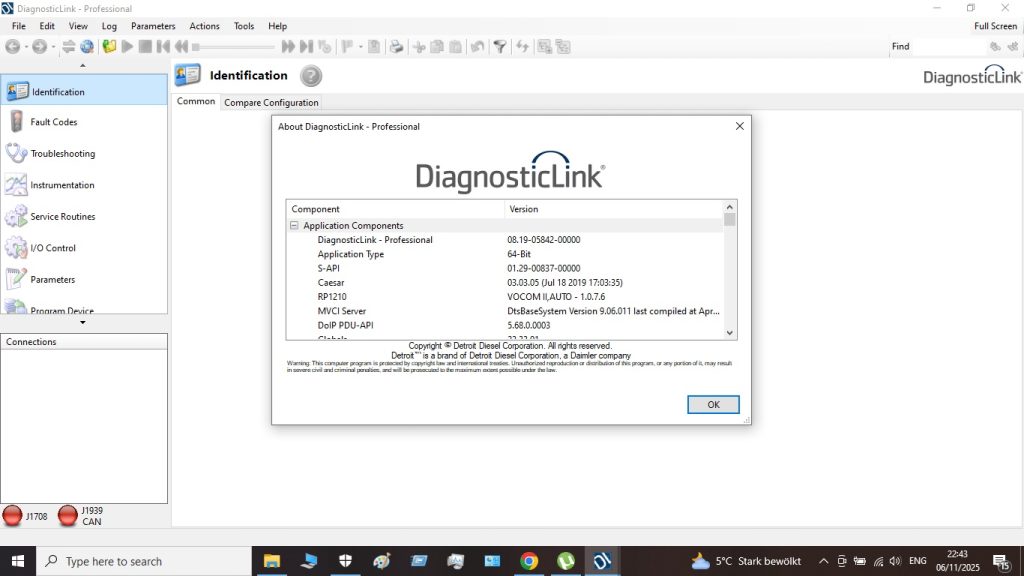
Getting Started with Detroit DDDL 8.19
If you’ve just purchased Detroit DDDL 8.19 and this is your first time using OEM diagnostic software, this guide walks you through everything from hardware setup to running your first DPF regen — in plain language, the way experienced diesel mechanics explain it to new technicians on forums like TruckersReport and TruckNet.
What You Need Before You Start
- DDDL 8.19 installed on Windows 10 Pro 64-bit laptop
- RP1210-compliant adapter (Nexiq USB Link 2 or 3 recommended)
- Adapter drivers installed and verified (check Device Manager — no yellow marks)
- Truck with Detroit Diesel engine (DD13/DD15/DD16, Series 60, or MBE)
- Truck parked safely, parking brake set, key OFF initially
Step 1 — Connect the Adapter
Locate the J1939 OBD port on the truck. On Freightliner Cascadia, it’s under the dashboard on the driver side near the A-pillar. On Western Star 5700, it’s left of the steering column. Plug in your Nexiq USB Link. The adapter LED should light up — typically solid green for power, flashing green when communicating.
Connect the USB end to your laptop. You should see the Nexiq appear in Device Manager.
Step 2 — Configure RP1210 Adapter in DDDL
- Open DDDL 8.19 (run as Administrator)
- Click Tools → RP1210 Selection
- From the dropdown, select your adapter: “Nexiq USB-Link 2” or “Nexiq USB-Link 3”
- Select protocol: J1939 (for GHG14/GHG17/GHG21 engines) or J1708 (for Series 60)
- Click OK
Step 3 — Connect to Vehicle
- Turn truck key to ON position (ignition on, engine off)
- In DDDL, click Connect (or the plug icon in the toolbar)
- DDDL will scan for ECUs. You’ll see a progress bar — typically 5–10 seconds
- Available ECUs appear in the left panel: Engine (MCM), ACM (Aftertreatment Control Module), CPC (Common Powertrain Controller), GHG module
- Click on the MCM (Engine) to start diagnostics
Step 4 — Read Fault Codes
Once connected to the MCM:
- Click the Fault Codes tab at the top
- You’ll see two columns: Active and Inactive
- Active faults = currently happening. Inactive = occurred in the past but not triggering now
- Click any fault to see: SPN, FMI, description, occurrence count, last occurrence timestamp, freeze frame data
- Write down all active faults before doing anything else
Step 5 — View Live Data
The Live Data tab shows real-time sensor values. Key parameters to monitor on a DD15:
- Fuel rail pressure (target: ~26,000 psi at idle)
- EGR valve position (%)
- DPF inlet temperature (°C/°F)
- DEF tank level (%)
- NOx sensor upstream/downstream values
- Boost pressure (kPa)
- Coolant temperature
Step 6 — Run a DPF Forced Regen
If your DPF soot load is high (typically above 80%) and passive regen hasn’t cleared it, you can force a stationary regen via DDDL:
- Verify preconditions: coolant temp above 140°F, no active inhibit switch, no active SPN 3251 pressure faults
- Navigate to Procedures → Aftertreatment → Stationary Regen
- DDDL will check preconditions automatically and flag any that aren’t met
- When all preconditions are green, click Start Regen
- Regen takes 20–45 minutes. Monitor DPF inlet temp (should climb to 550–650°C) and soot load dropping in live data
- Stay at the truck during regen — DDDL will alert if any fault interrupts the procedure
Step 7 — Clear Fault Codes (After Repair)
Only clear fault codes after the underlying issue is repaired — not before. Clearing codes on an unrepaired fault wastes time and can mask dangerous conditions.
- In Fault Codes tab, verify the active fault is resolved (component tested, repair confirmed)
- Click Clear Faults button
- DDDL will clear both active and inactive logs
- Reconnect and verify no new faults appear
Beginner Mistakes to Avoid (from Forum Experience)
- Don’t clear codes without fixing the fault — Active faults come back within minutes and you’ve lost the freeze frame data that helps diagnosis
- Don’t run regen with active SPN 3251 — High DPF backpressure faults must be investigated before regen
- Don’t disconnect adapter mid-session — Always click Disconnect in DDDL first, then unplug
- Don’t ignore the ACM module — The Aftertreatment Control Module has its own fault codes separate from the MCM. Check both.
- Don’t program ECM parameters without a snapshot (if using VM) — See our VMware guide for snapshot strategy
Conclusion
DDDL 8.19 is powerful but logical once you understand the J1939 architecture. For detailed fault code explanations, see our error codes guide. For quick answers, check the FAQ.