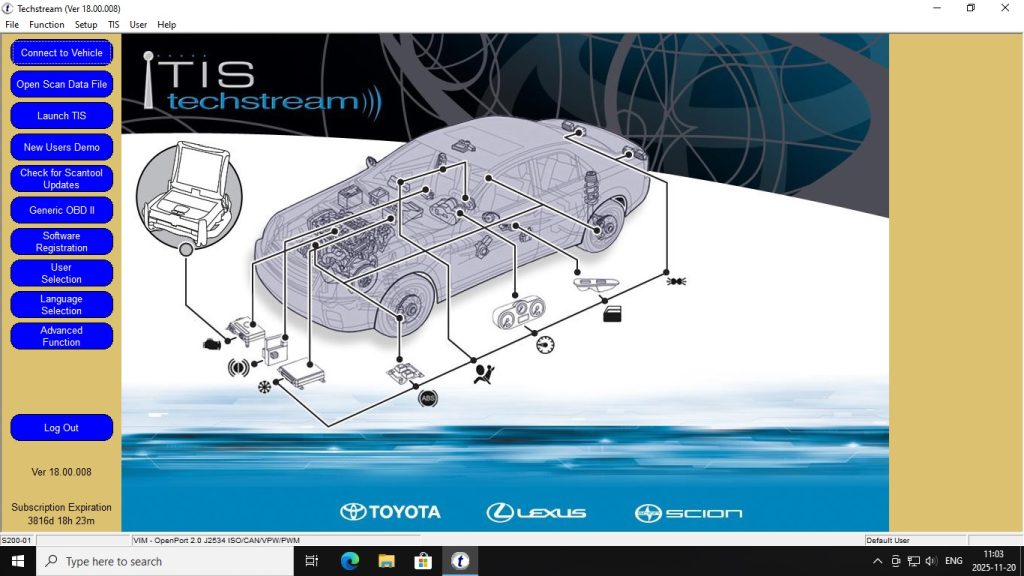
Toyota Techstream is the official OEM diagnostic software used at all Toyota and Lexus dealerships worldwide. Version 18 (V18.008.00) is the latest stable release, adding support for 2022–2023 Toyota models while maintaining full backwards compatibility.
What Is Toyota Techstream?
Toyota Techstream is Toyota’s factory diagnostic application. Unlike generic OBD2 scanners, Techstream communicates with all Toyota-specific ECUs and supports functions that only the dealer software can perform: active tests, immobilizer programming, ECU initialization, and full parameter configuration for Toyota, Lexus, and Scion vehicles.
What Vehicles Does Toyota Techstream V18 Support?
- Toyota: Camry, Corolla, RAV4, Hilux, Land Cruiser, Prius, Yaris, Auris, Avensis, C-HR, GR86, Supra (A90), Tundra, Tacoma, Fortuner, HiAce
- Lexus: IS, ES, GS, LS, RX, NX, UX, GX, LX, LC, RC series (all generations)
- Scion: xB, tC, FR-S (all models)
- Hybrid models: Full hybrid system diagnostics including Prius, Prius+, RAV4 Hybrid, Highlander Hybrid
- Model year coverage: 1996 to 2023
Toyota Techstream V18 Key Features
- Fault code reading and clearing (all modules)
- Live data monitoring for all ECU parameters
- Active tests — command actuators directly
- ECU initialization and learning procedures
- Smart key and transponder key registration
- Immobilizer (IMMO) reset and programming
- Throttle position sensor (TPS) initialization
- Steering angle sensor calibration
- ABS bleeding procedure
- DPF regeneration (diesel models)
- Hybrid battery health and balancing
System Requirements for Toyota Techstream V18
- OS: Windows 7, 8, 10, or 11 (32-bit or 64-bit) — native install; the VMware version works on any modern Windows 10/11 64-bit system
- RAM: 2GB minimum (4GB recommended)
- Storage: 10GB free disk space
- Interface: Mini-VCI cable with FTDI chipset (most reliable), or MVCI J2534 adapter
How to Install Toyota Techstream V18 (VMware Version)
- Install VMware Workstation Player (free) on your Windows PC
- Download the Toyota Techstream V18 VMware image
- Open VMware Player → Open Virtual Machine → select the .vmx file
- Start the VM — Techstream launches automatically
- Connect your Mini-VCI cable to the PC and pass it to the VM via Player → Removable Devices
- Connect the other end to the vehicle OBD2 port and start a new session
Get Toyota Techstream V18 VMware pre-installed →
More Toyota Techstream V18 VMware Guides
- Toyota Techstream vs Autel vs Forscan: Best Toyota Diagnostic Tool?
- Toyota Techstream V18 System Requirements: Windows, RAM, Interface Cable
- Toyota Techstream Fault Codes: Common Toyota DTCs and How to Fix Them
- Toyota Techstream Version History: V14 to V18 — What Changed?
- Toyota Techstream V18 VMware Setup: Step-by-Step Guide for Windows 10/11
- Toyota Techstream for Beginners: Your First Toyota Diagnostic Session
- Toyota Techstream V18 FAQ: 15 Most Asked Questions Answered