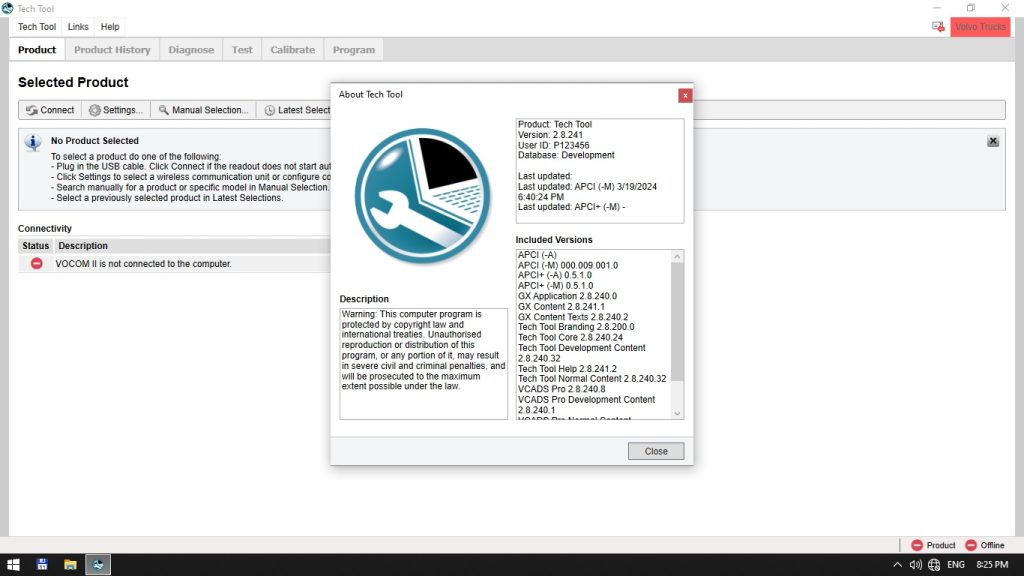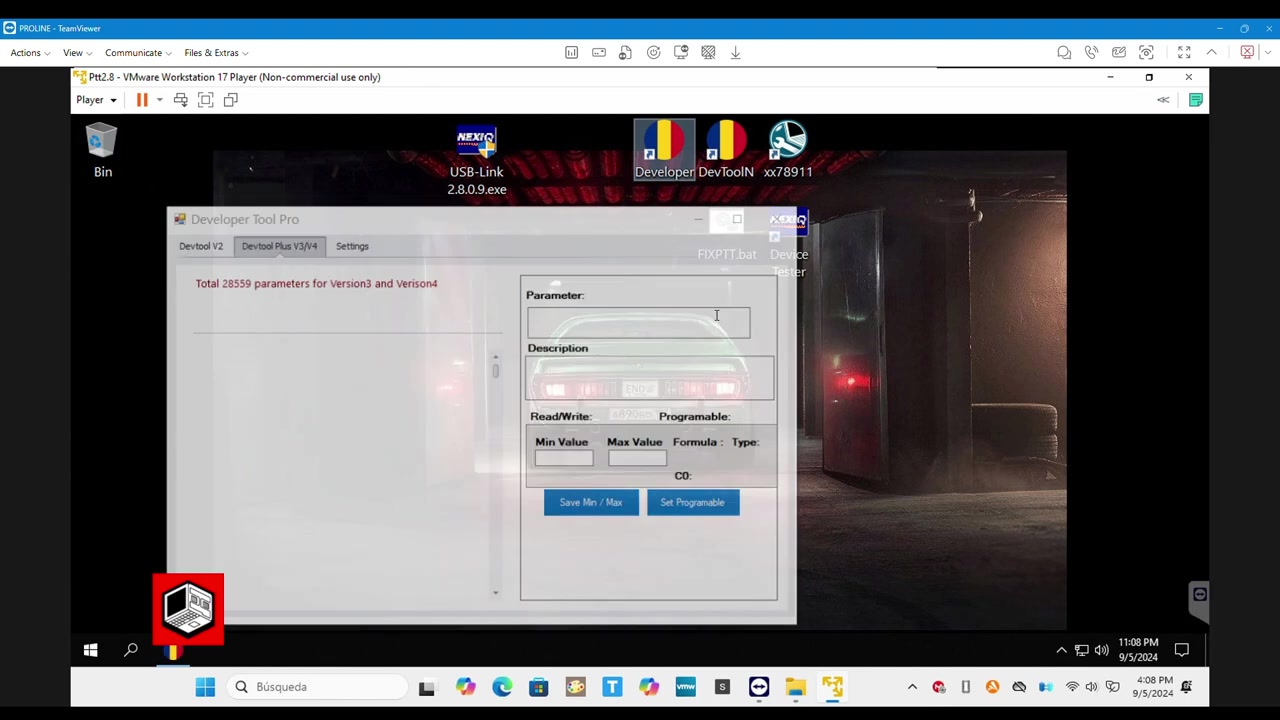
Tech Tool Pro 2.8 and Developer Tool Pro are essential diagnostics packages for Volvo Trucks, especially the VHD series. This tutorial walks you through changing the chassis ID, programming parameters, and reading control‑unit data while avoiding common pitfalls such as frozen software and unprogrammable parameters.
What You Will Learn
- How to launch Tech Tool Pro 2.8 and Developer Tool Pro correctly.
- How to read the current chassis ID from a Volvo VHD ECU.
- How to program a new chassis ID without triggering red‑text errors.
- How to modify vehicle parameters safely using Developer Tool Pro.
- How to prevent software freezes and avoid unwanted Volvo updates.
- How to verify that the new ID and parameters are stored correctly.
- Best practices for restarting virtual machines and handling connections.
Step-by-Step Walkthrough
Begin by opening the virtual machine that hosts Tech Tool Pro 2.8. Before you start, close any running instance of the program; this eliminates residual locks that can cause the “unprogrammable parameters” red text. Launch Developer Tool Pro as an administrator – right‑click the shortcut and select “Run as administrator.” This elevated permission is required for low‑level ECU communication. Once Developer Tool Pro is open, navigate to the “Parameters” tab and set the desired chassis ID value. After confirming the entry, click “Apply” and wait for the confirmation message. Do not click “Connect” in Tech Tool Pro yet. Instead, shut down Developer Tool Pro, return to the desktop, and restart the virtual machine. The restart clears any lingering buffers and ensures that the new parameter set is fully committed.
After the VM boots, launch Tech Tool Pro 2.8. The software will automatically attempt to detect the ECU; allow it a few seconds to establish the link. When the “Connected” status appears, open the “Read Data” window and select the chassis ID field. The current ID will be displayed in the grid. Verify that it matches the value you entered earlier. If it does not, repeat the parameter entry step, ensuring that you wait at least 30 seconds after each change.
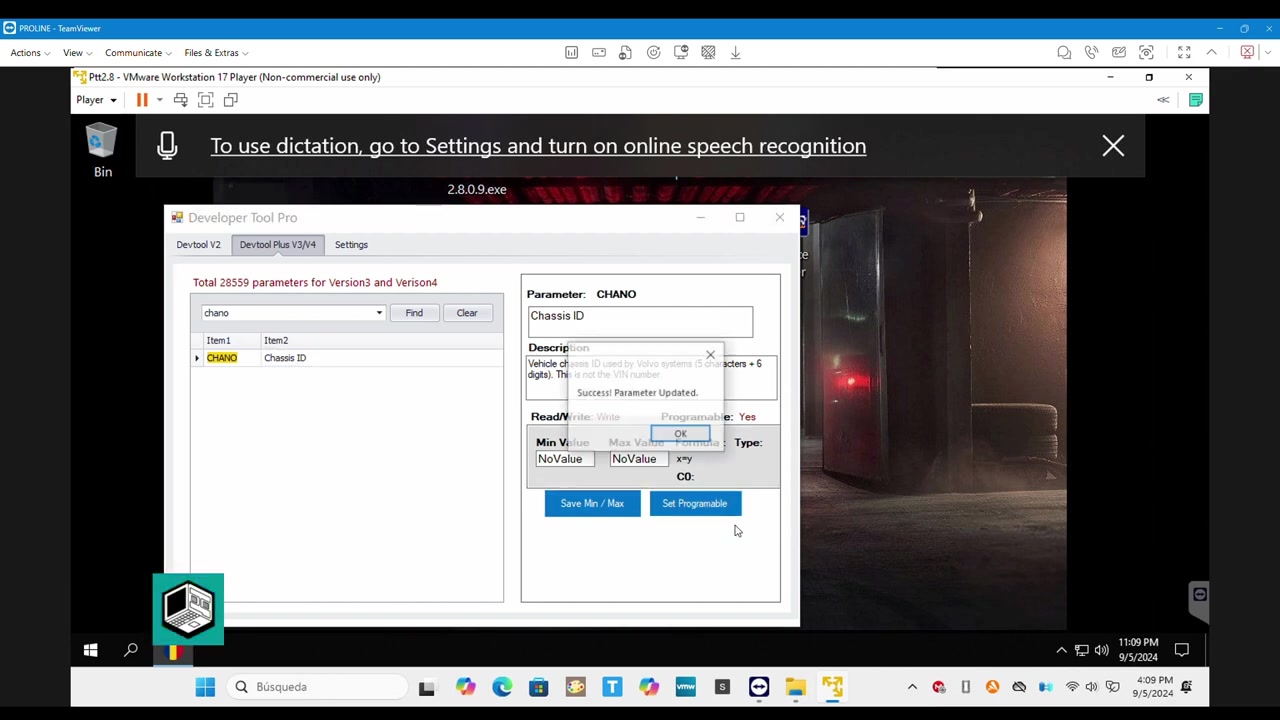
Next, open the “Programming” module. Choose “Chassis ID” from the drop‑down list, enter the new ID, and press “Write.” Tech Tool Pro 2.8 will show a progress bar; be patient and avoid rapid clicking, as this can cause the software to freeze. Once the write operation completes, a green confirmation will appear.
To double‑check, return to the “Read Data” screen and refresh the chassis ID field. The new ID should now be visible. If the field still shows the old value, repeat the write step after a full VM restart.
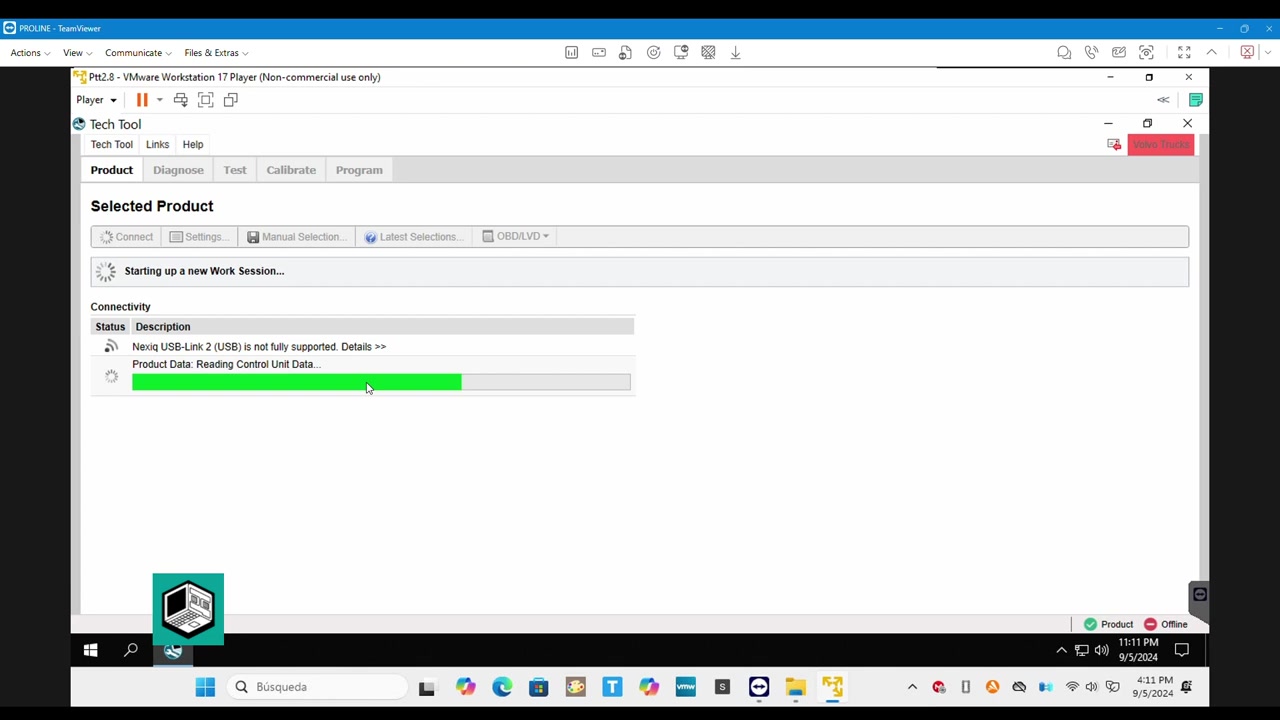
Finally, to prevent unwanted Volvo software updates, go to the “Settings” menu, locate the “Auto‑Update” option, and disable it. Confirm the change and close the settings window. This step eliminates the risk of the ECU being overwritten with a factory firmware that would revert your custom ID.
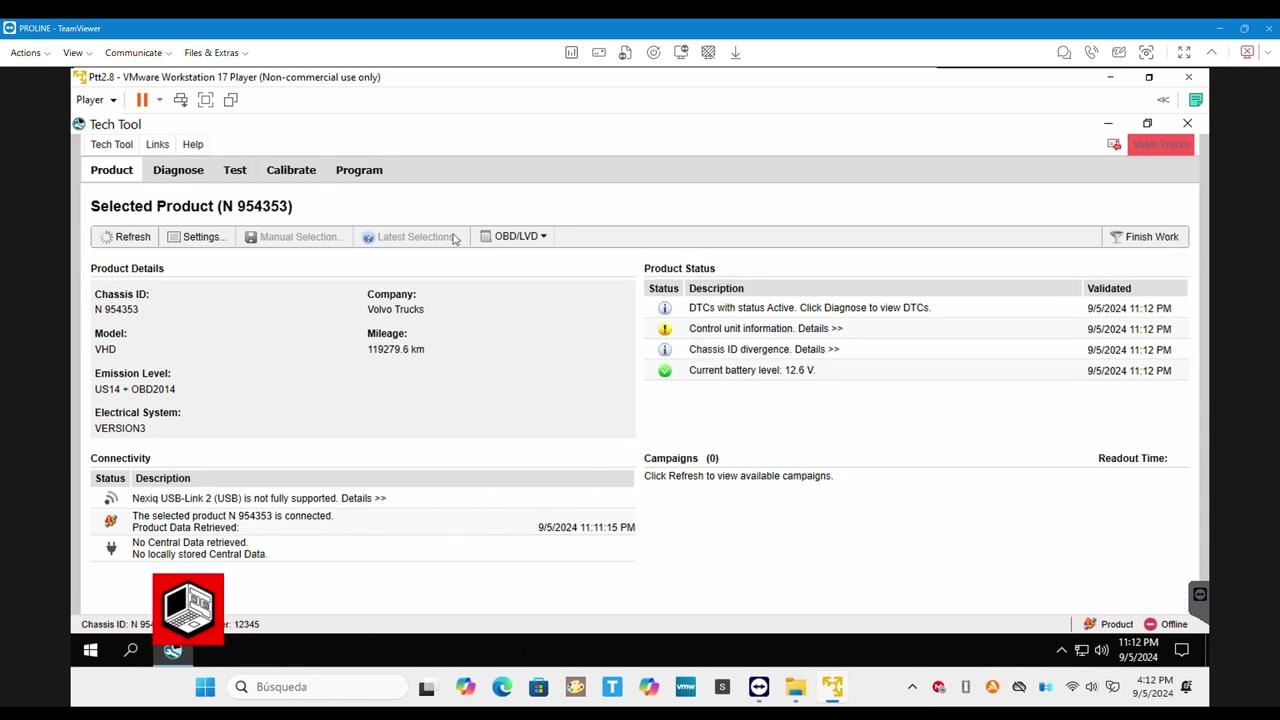
For a complete diagnostic snapshot, use the “Export Log” feature to save a .csv file containing the old and new IDs, timestamps, and any error codes that appeared during the session. Store this log for future reference or warranty documentation.
If at any point the software becomes unresponsive, close Tech Tool Pro 2.8, wait ten seconds, and relaunch it. Avoid clicking the “Connect” button immediately after launch; let the automatic detection finish first.
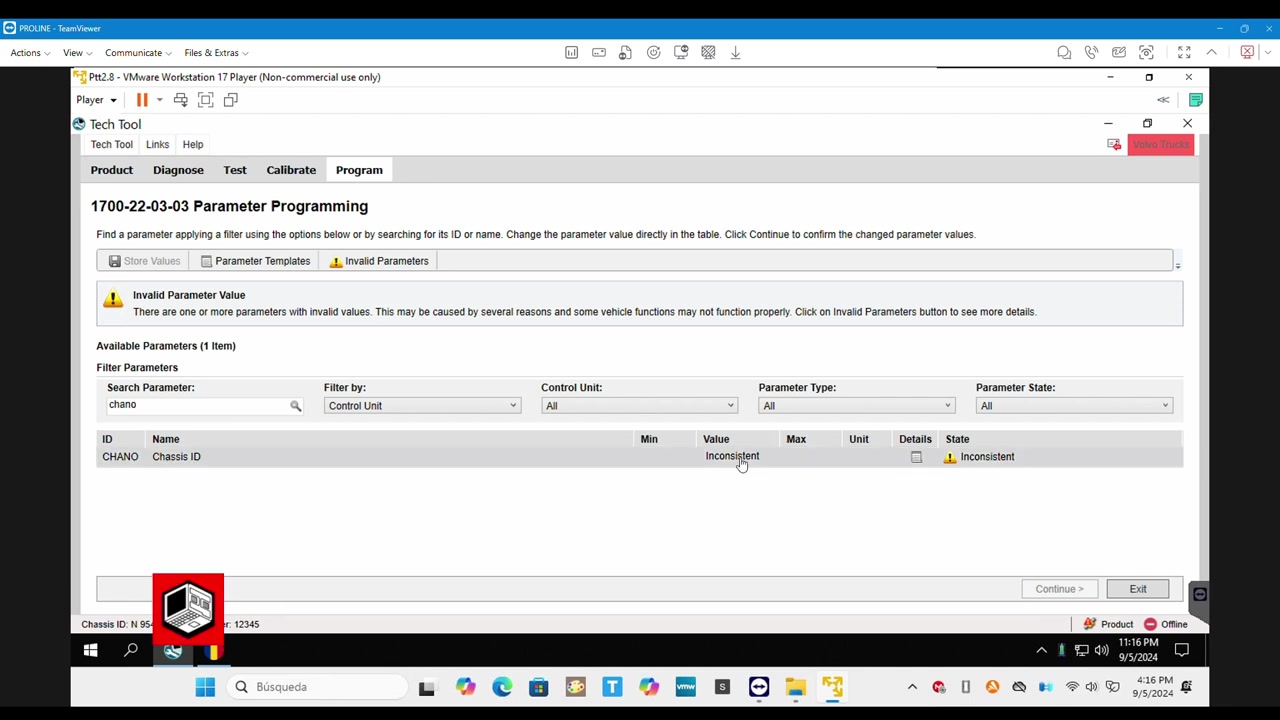
Should you encounter red‑text error messages indicating “unprogrammable parameters,” verify that you are running Developer Tool Pro with administrator rights and that the virtual machine has been restarted after the last parameter change. Often a simple reboot resolves the issue.
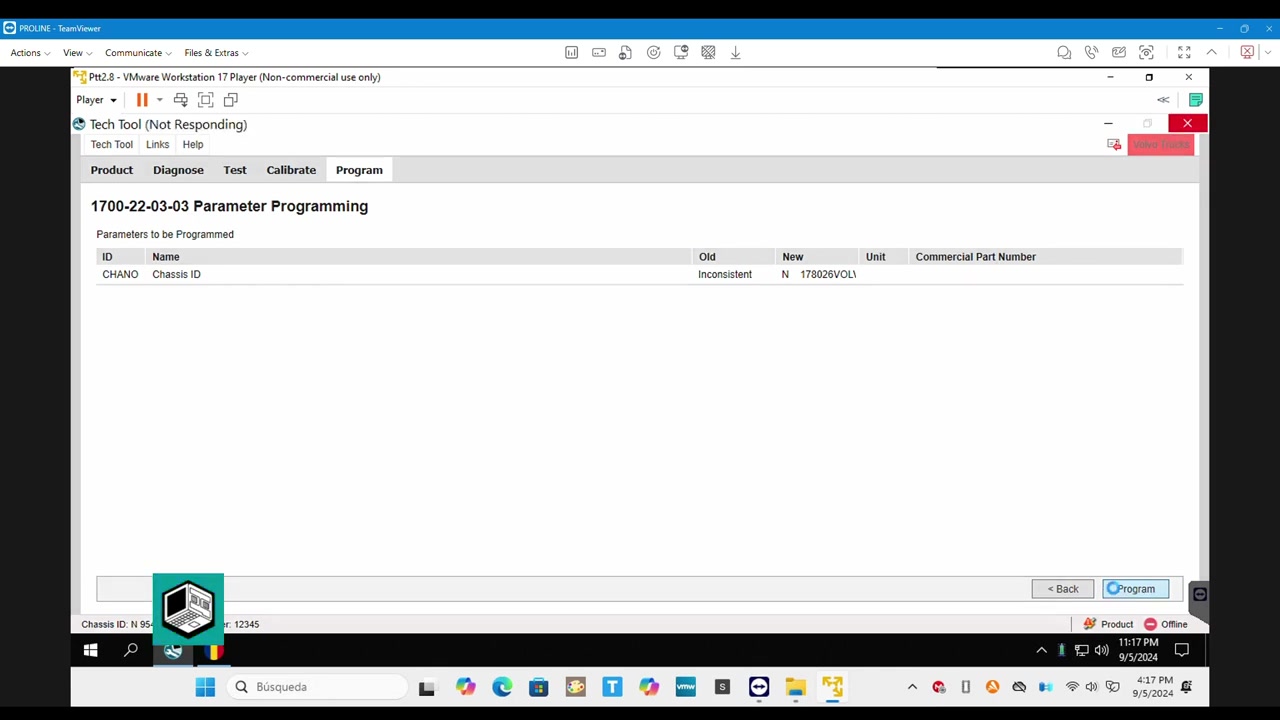
Once all steps are successfully completed, you can safely disconnect the diagnostic cable and power down the vehicle. The chassis ID will now be permanently stored in the ECU, ready for fleet tracking or compliance reporting.
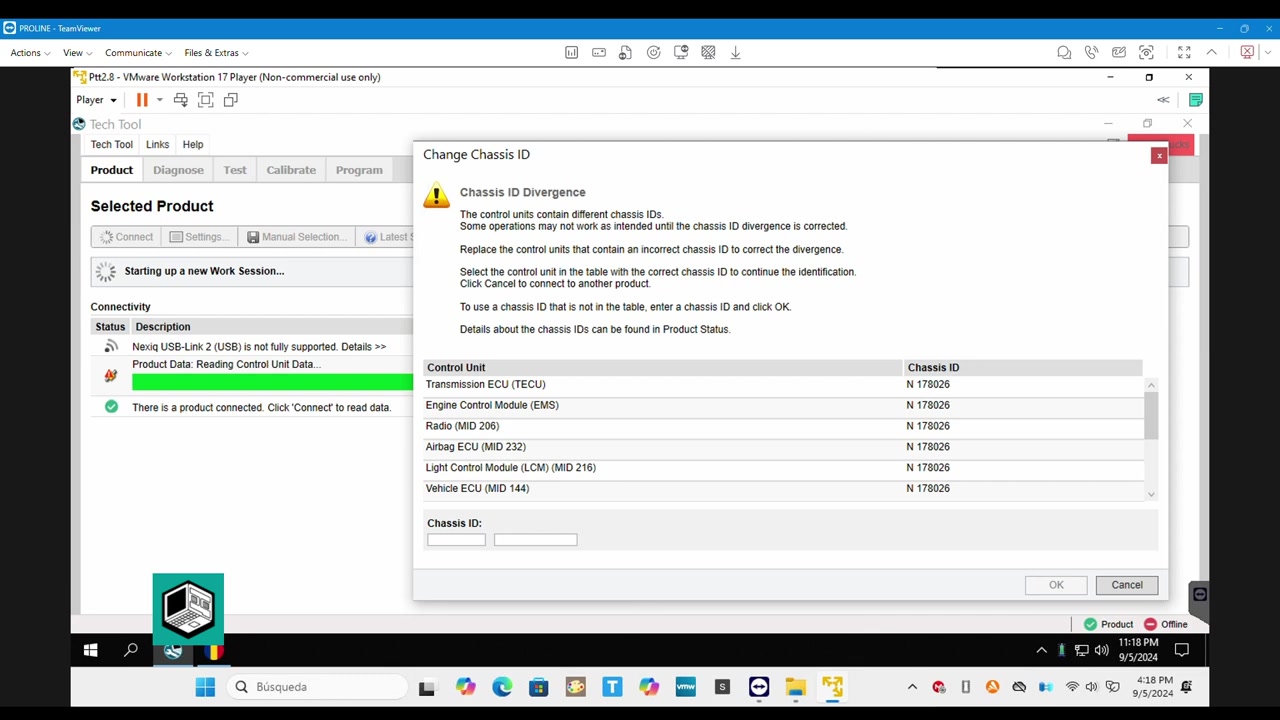
Key Features of Tech Tool Pro 2.8, Developer Tool Pro
- Full read/write access to Volvo VHD ECUs, including chassis ID and vehicle parameters.
- Real‑time data streaming for live sensor monitoring and fault code analysis.
- Parameter editing with validation checks to prevent illegal values.
- Integrated log export for audit trails and service documentation.
- Administrator‑level operations via Developer Tool Pro for low‑level ECU programming.
- Customizable UI that allows technicians to hide unused modules and focus on chassis ID work.
Compatible Vehicles and ECUs
The procedures described apply to Volvo Trucks equipped with the VHD electronic architecture, including but not limited to:
- Volvo VHD 4‑cylinder diesel engines (model years 2015‑2023).
- Volvo VHD 6‑cylinder diesel engines (model years 2016‑2024).
- Associated control units: Engine Control Module (ECM), Transmission Control Module (TCM), and Body Control Module (BCM) that store chassis identification data.
- Vehicles using the standard Volvo diagnostic connector (16‑pin) compatible with Tech Tool Pro 2.8.
Pro Tips
- Always close Tech Tool Pro before opening Developer Tool Pro; this prevents file‑locking conflicts.
- Run Developer Tool Pro as administrator to ensure parameter changes are written at the hardware level.
- After setting parameters in Developer Tool Pro, restart the virtual machine before launching Tech Tool Pro.
- Do not click “Connect” in Tech Tool Pro immediately; allow the auto‑detect routine to finish to avoid freezing.
- Disable Volvo’s automatic update feature in Tech Tool Pro settings to keep your custom chassis ID intact.
Following this workflow guarantees a reliable chassis ID change, minimizes downtime, and keeps your Volvo VHD diagnostics running smoothly.
Frequently Asked Questions
How to make parameters programmable?
Use Developer Tool Pro, click ‘Set Programmable’, then restart the virtual machine.
Why is Tech Tool slow?
It’s due to the program’s optimization, not computer speed.
What to do if Tech Tool freezes?
Be patient and avoid clicking excessively.
Should I perform Volvo updates?
No, cancel them to avoid issues.
Ready to use Tech Tool Pro 2.8, Developer Tool Pro in your workshop? Download it directly from firstdiag.com — instant delivery, no subscription needed.