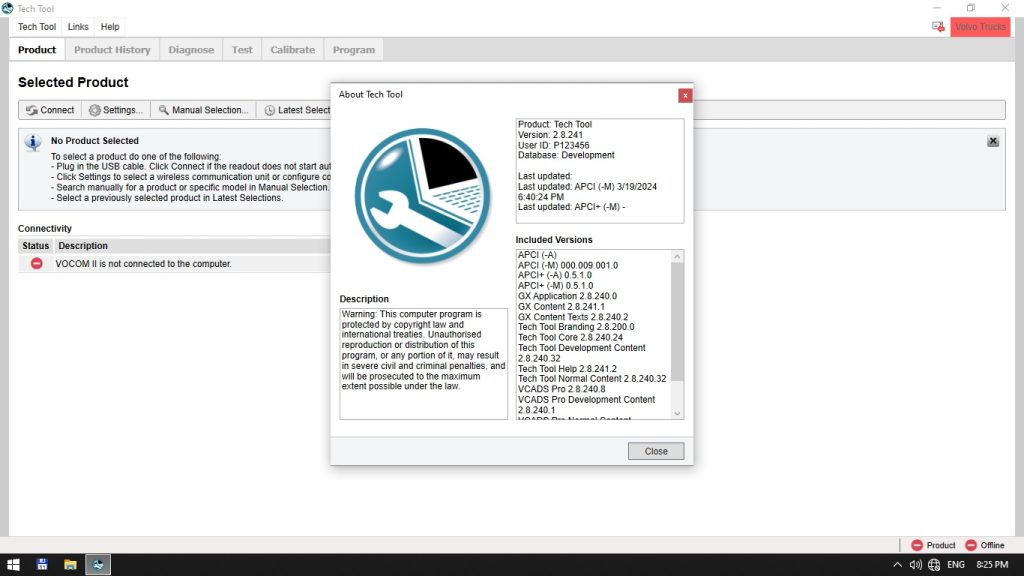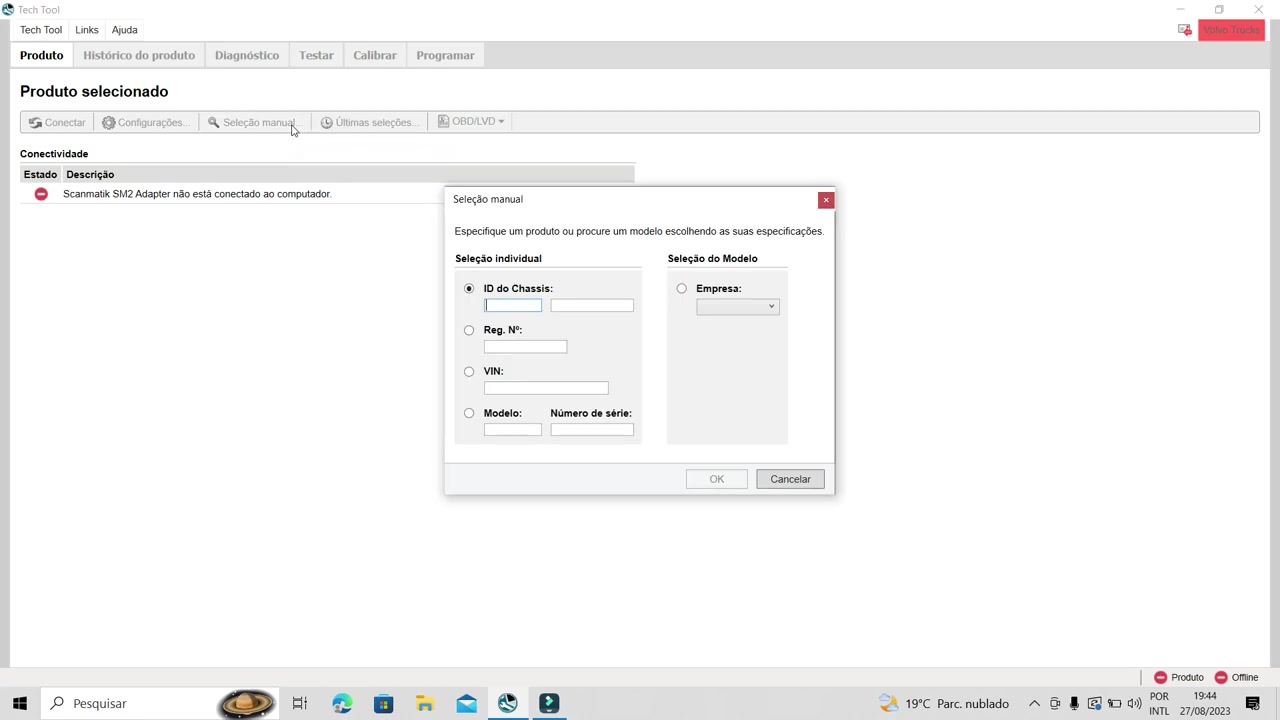
Tech Tool 2.8 is Volvo’s official offline diagnostic platform that lets technicians troubleshoot FH, FM, and related models without a live connection to the truck. This tutorial walks you through the simulated mode, manual chassis selection, and symptom‑based diagnosis, so you can master the software before working on the shop floor.
What You Will Learn
- How to launch Tech Tool 2.8 in offline simulated mode
- How to manually input a chassis ID and select the correct electrical system version
- How to choose the vehicle model (FH, FM) and configure the diagnostic parameters
- How to navigate the symptom‑based diagnosis tree for engine, fuel, air‑intake and cooling issues
- How to read component diagrams and understand the relationship between ECUs such as VMCU, DDM and CCM
- How to run and interpret each test instruction, including key position, fuel level and exhaust gas pressure regulator checks
- How to resolve common warning messages and connection errors in Tech Tool 2.8
Step-by-Step Walkthrough
Start Tech Tool 2.8 and select the Offline Simulated Mode from the main screen. This mode disables any live communication and loads a virtual vehicle environment that mimics the real‑world data structures.
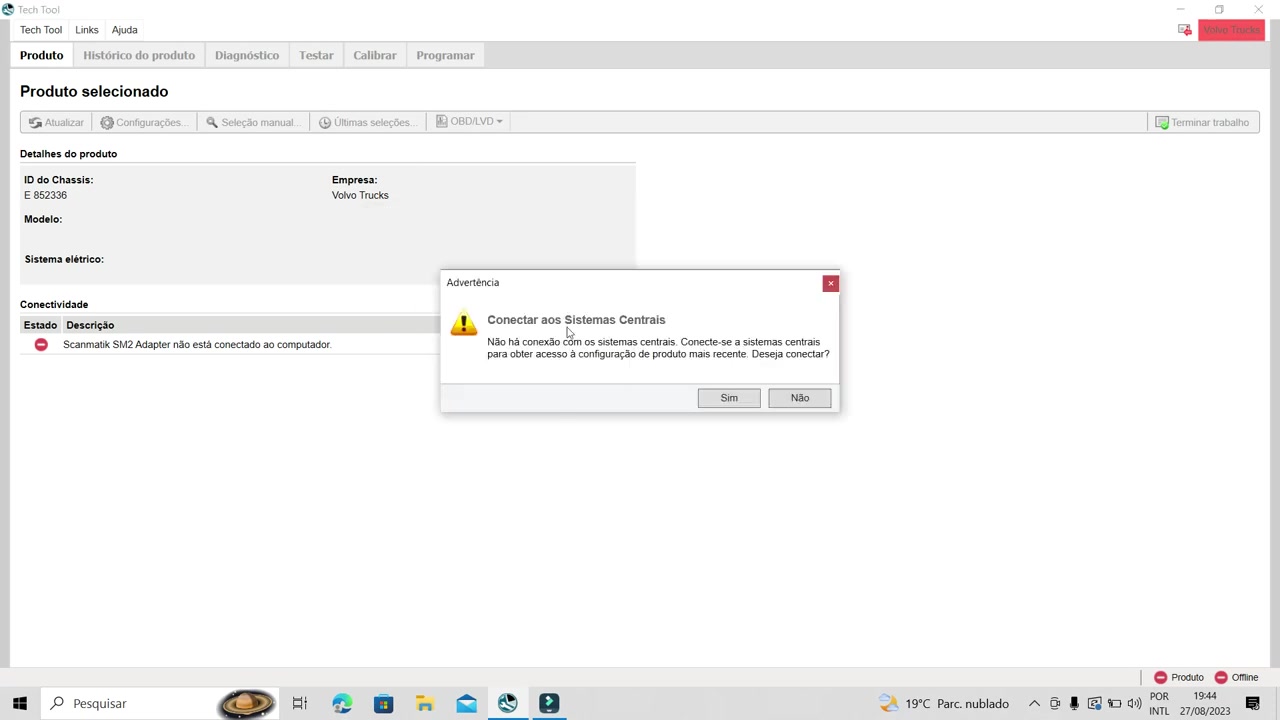
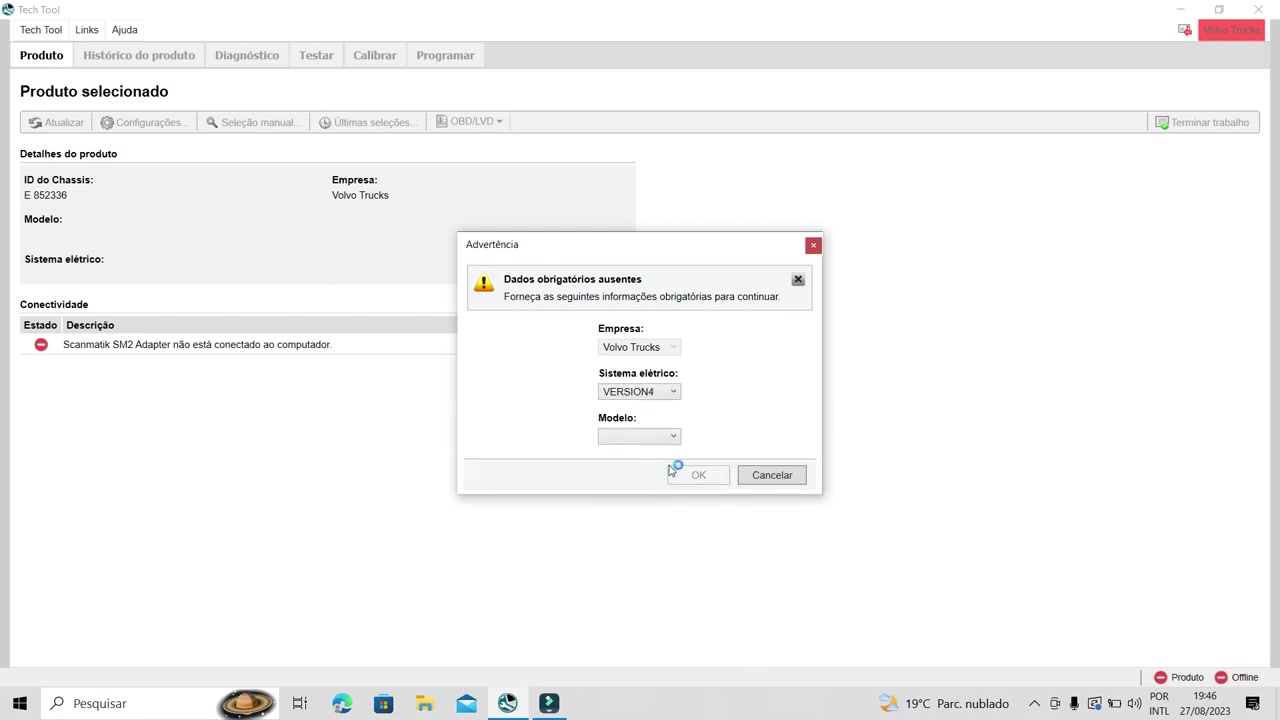
Once in simulated mode, click the Manual Vehicle Selection button and enter the chassis identification number (e.g., YV2R4xxxxx). The software will automatically suggest the appropriate electrical system version; if it does not, choose VERSÃO2 or VERSÃO4 based on the model year and engine type.
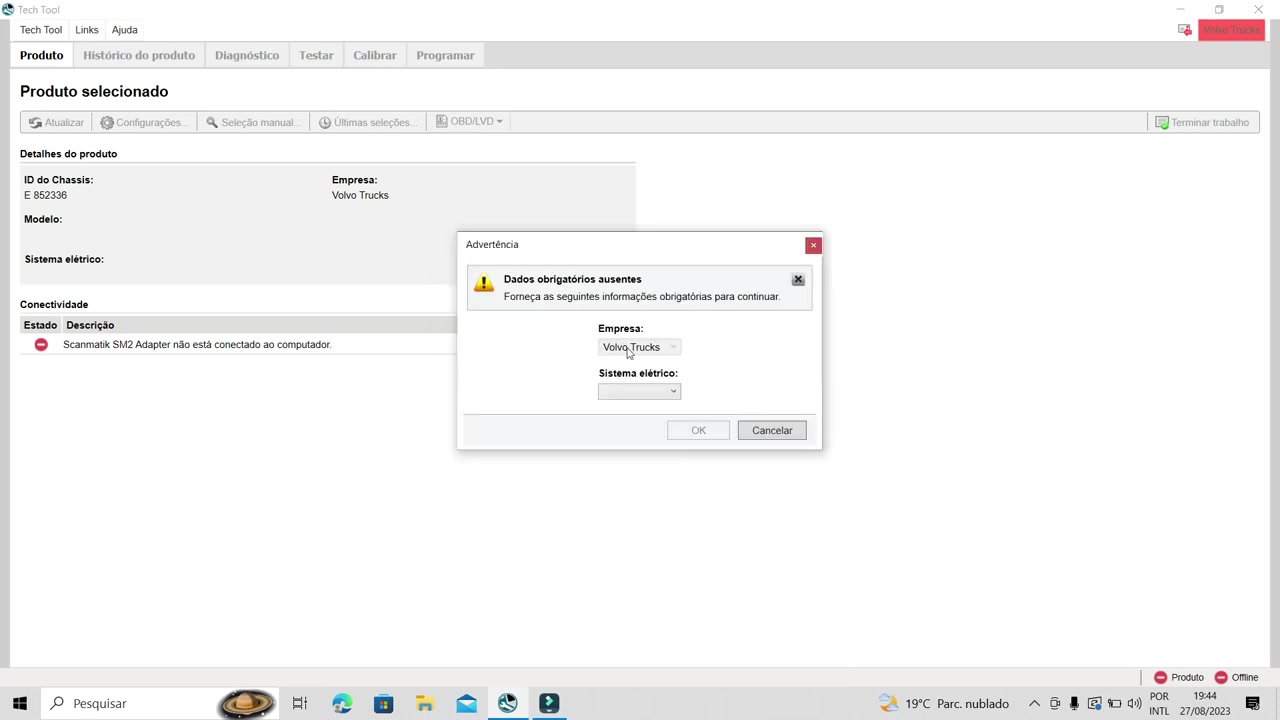
Next, pick the vehicle model. For a standard Volvo FH4, select FH; for a Volvo FM4, choose FM. The selection determines which ECUs appear in the diagnostic tree. Confirm your choices and press OK to load the simulated vehicle configuration.
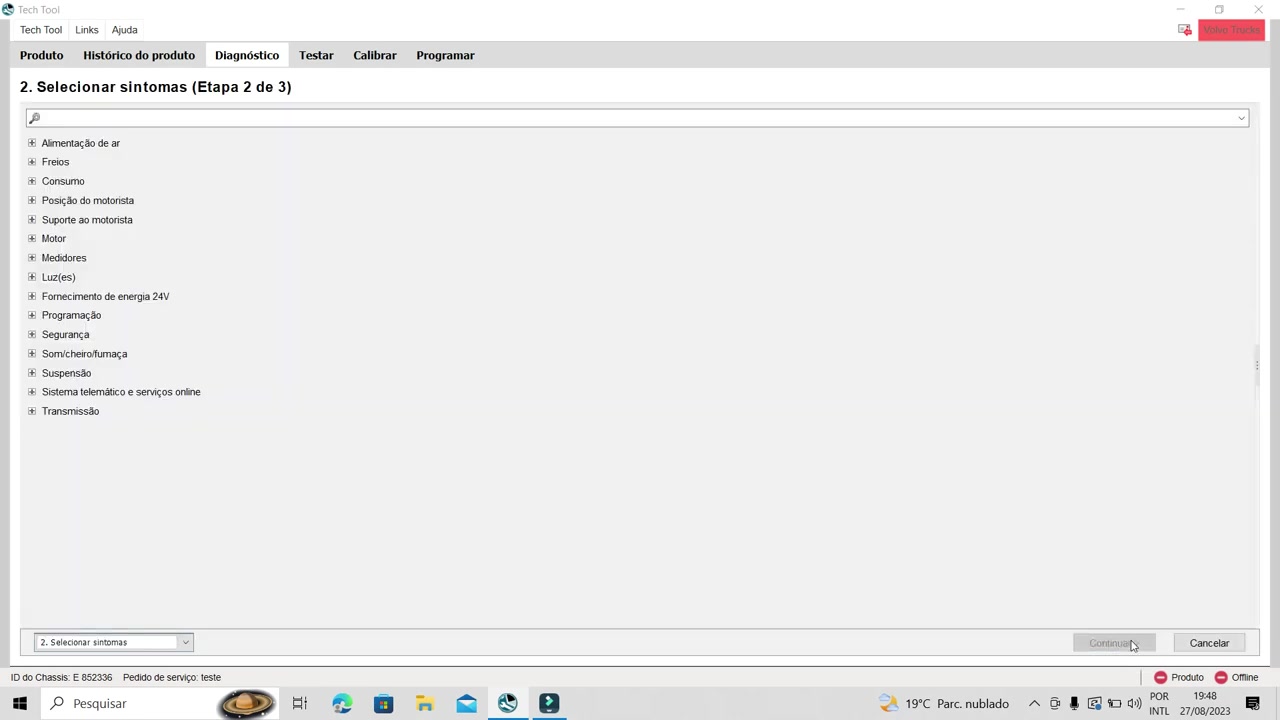
The main dashboard now displays a list of symptom categories. Begin with Motor to diagnose engine‑related faults, then explore Consumo, Alimentação de ar, and Arrefecimento do motor for fuel consumption, air‑intake, and cooling issues respectively. Click a symptom to expand the test list; each test is linked to a specific ECU diagram. For example, selecting the “Fuel level sensor” test opens the VMCU diagram, showing the sensor’s wiring and reference points.
When you open a test, Tech Tool presents a step‑by‑step instruction panel. Follow the illustrated steps: set the key to the required position, verify the fuel level, introduce air into the fuel system, or check the exhaust gas pressure regulator. Each instruction is accompanied by a schematic that highlights the exact connector pins and test points. Use the Start Test button to simulate the measurement; the software will generate a pass/fail result based on the selected electrical version.
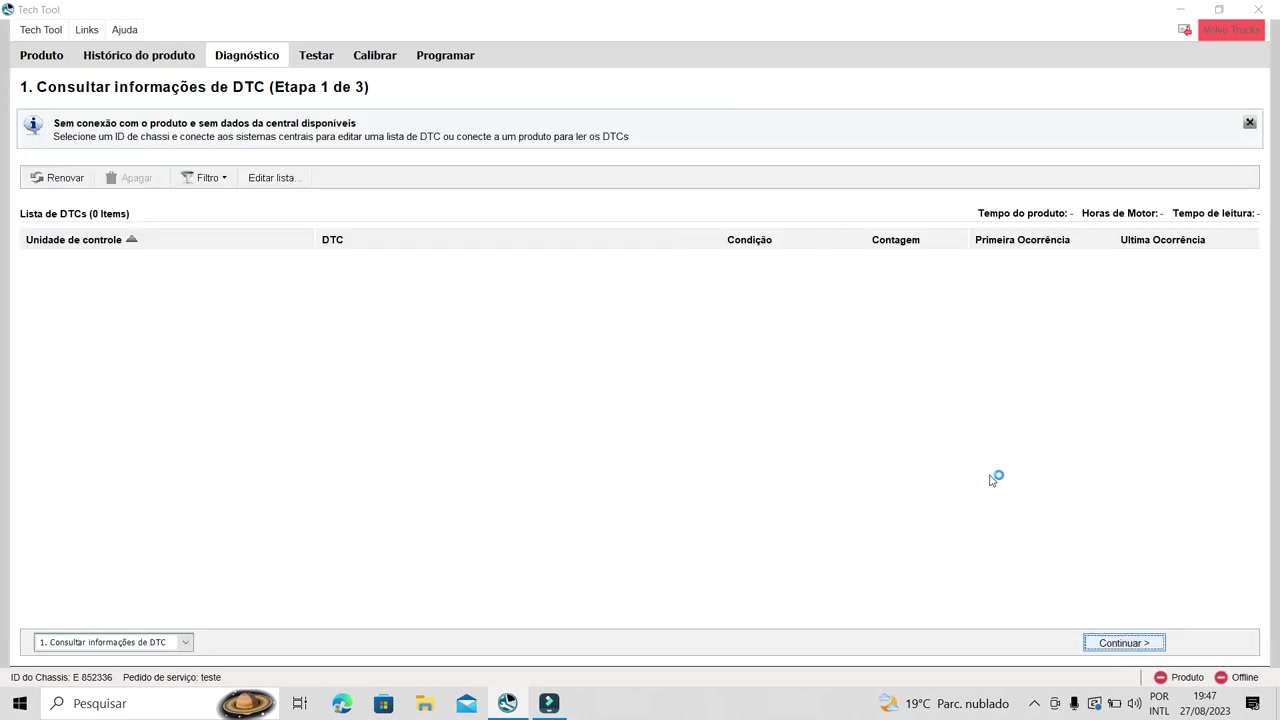
If you connect a real truck later, the same screens will display live fault codes retrieved from the ECUs. In the simulated environment, Tech Tool shows placeholder codes to illustrate how they would appear. Should any warning appear—such as “Conectar aos Sistemas Centrais” or “Dados obrigatórios ausentes”—review the configuration steps, correct the electrical version, and re‑run the test.
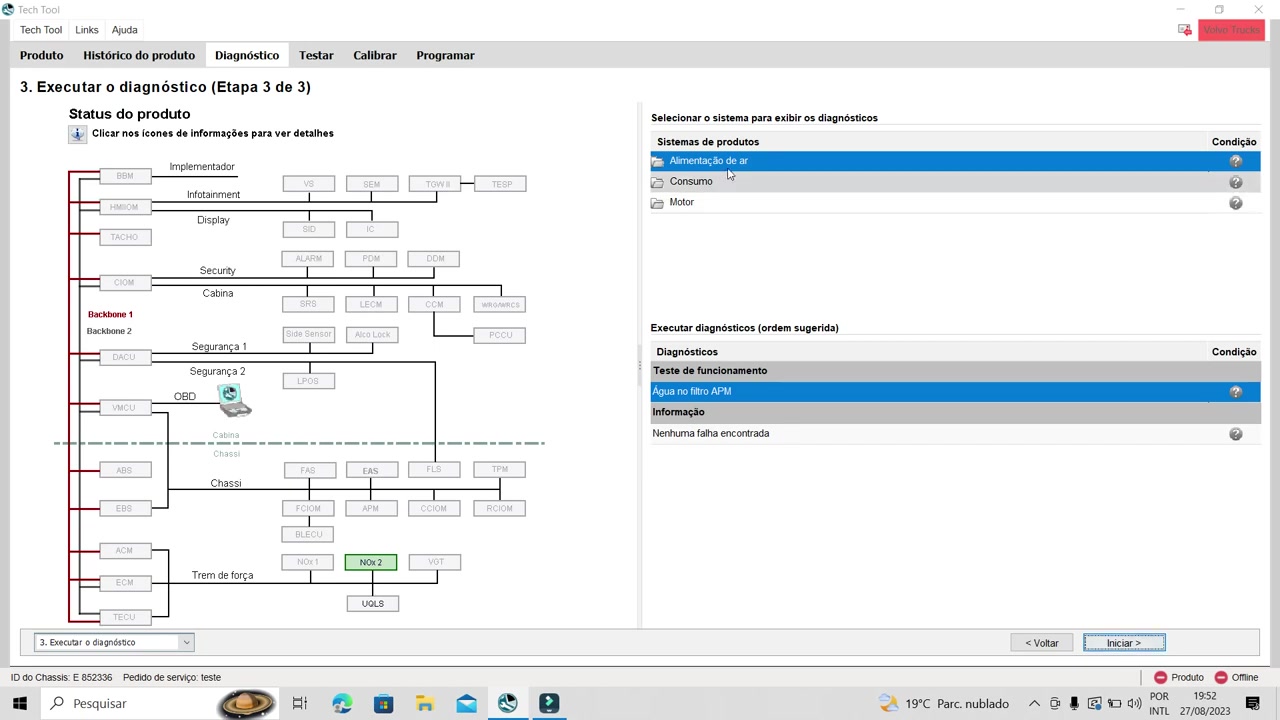
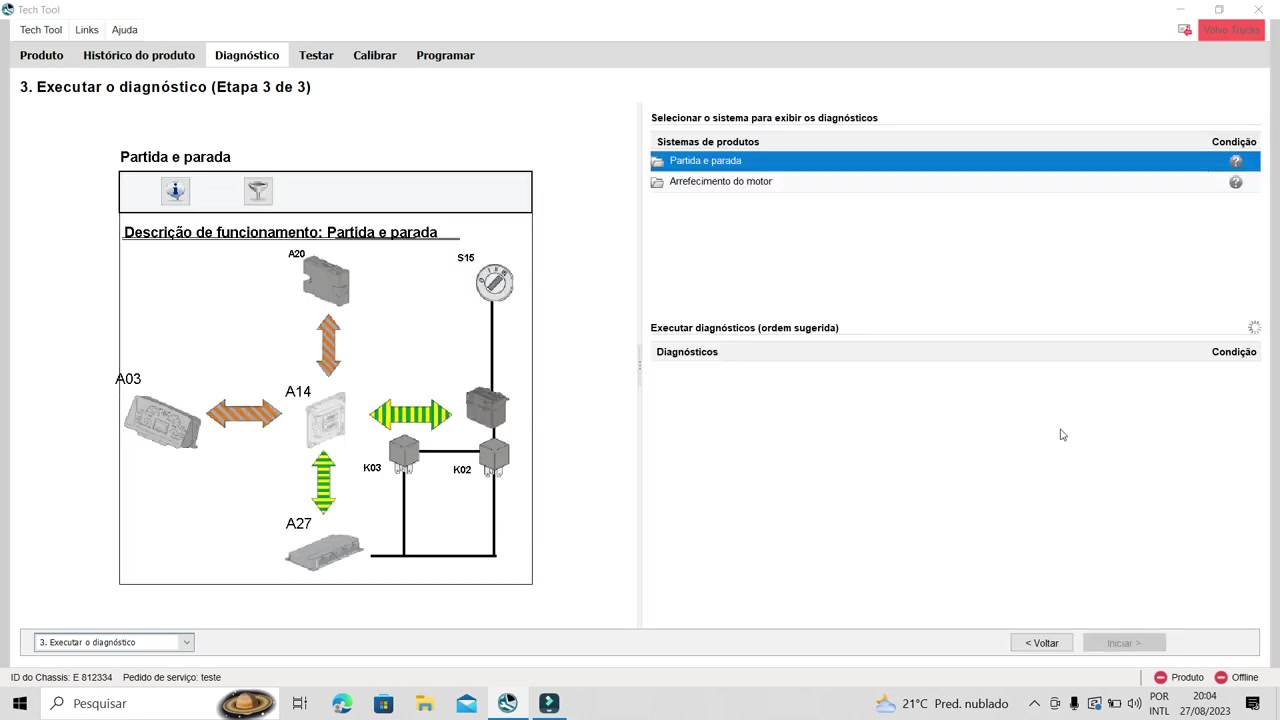
For advanced troubleshooting, open the Component Diagrams tab. Here you can view the backbone architecture, including DDM, PDM, CCM, SRS, LCM, VECU, K2, K3 and S15 modules. Hover over any node to see its diagnostic status, and double‑click to jump directly to the related test list. This visual map is invaluable for pinpointing cross‑ECU interactions, especially in complex cooling‑system faults.
Finally, after completing all required tests, click Finish to close the session. Tech Tool will prompt you to save a diagnostic report; choose a descriptive filename and store it on your workstation for later reference. Remember to close the Vcads (Tech Tool) window only after the report is saved to avoid data loss.
Key Features of Tech Tool
- Offline simulated mode that replicates real‑time vehicle data without a physical connection
- Manual chassis ID entry for precise ECU mapping
- Electrical system version selection (VERSÃO2, VERSÃO4) to match hardware revisions
- Symptom‑driven diagnosis tree covering engine, fuel, air‑intake and cooling systems
- Interactive component diagrams with direct links to test procedures
- Detailed test instructions with visual schematics for key position, fuel level, and exhaust gas regulator checks
- Fault code display and report generation for both simulated and live sessions
Compatible Vehicles and ECUs
Tech Tool 2.8 supports the following Volvo truck families and their associated control units: FH4, D12A, D13A, D13C, VM, FM4. Key ECUs include Backbone, VMCU, DDM, PDM, CCM, SRS, LCM, VECU, K2, K3 and S15. The software also accommodates future model updates through its electrical system version selector.
Pro Tips
- Use the offline simulated mode at home to become familiar with the interface before connecting to an actual truck.
- Always match the electrical system version and vehicle model to the chassis number; an incorrect setting will show wrong diagrams and test results.
- If you are unsure which version to select, choose the first (most common) option—Tech Tool will still provide a functional baseline.
- Complete and save the diagnostic report before closing Vcads; unsaved data is lost when the application exits.
- Be aware that Tech Tool runs on Java and may feel slower than Scania’s native software; patience during loading screens prevents premature error messages.
By mastering Tech Tool 2.8’s offline capabilities, you can diagnose Volvo trucks efficiently, reduce on‑site testing time, and deliver accurate service reports every time.
Frequently Asked Questions
Why does Tech Tool ask so many questions when working offline?
It needs to be configured correctly to display the right tests and component positions, as it cannot download this information from central systems.
Can I get component descriptions or detailed information without an online connection?
No, you need a connection to central systems (or an updated offline Impact copy) for detailed descriptions.
Why is Tech Tool slow?
The application is partly made in Java, which can lead to slower performance in large programs.
Ready to use Tech Tool in your workshop? Download it directly from firstdiag.com — instant delivery, no subscription needed.