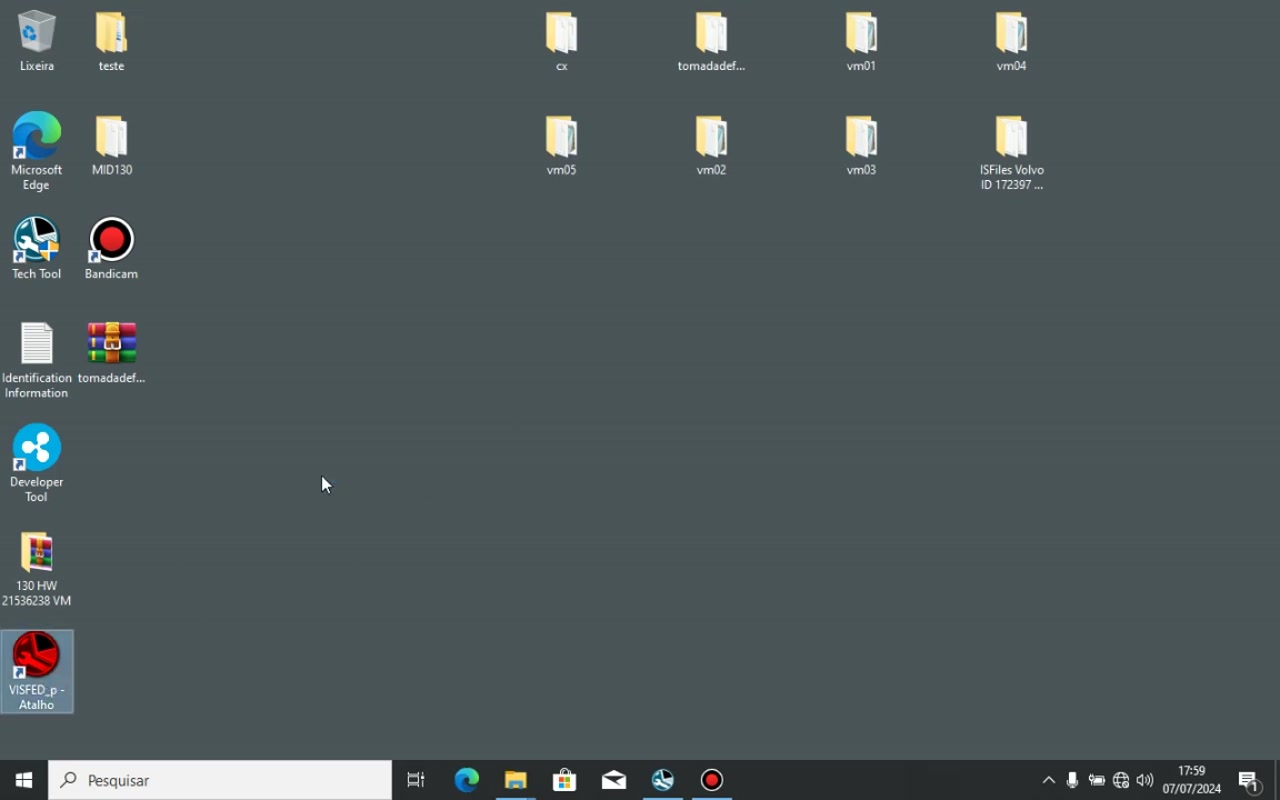
Volvo IS File ED – EDITOR combined with Tech Tool 2.8.130 gives workshop technicians a reliable way to edit, decrypt and re‑encrypt MID 130 transmission ECU files. This tutorial shows how to manipulate MOD and TMP files so you can update client data, correct software types and avoid common programming errors.
What You Will Learn in This Tutorial
- How to load MOD and TMP files into the Volvo IS File ED – EDITOR.
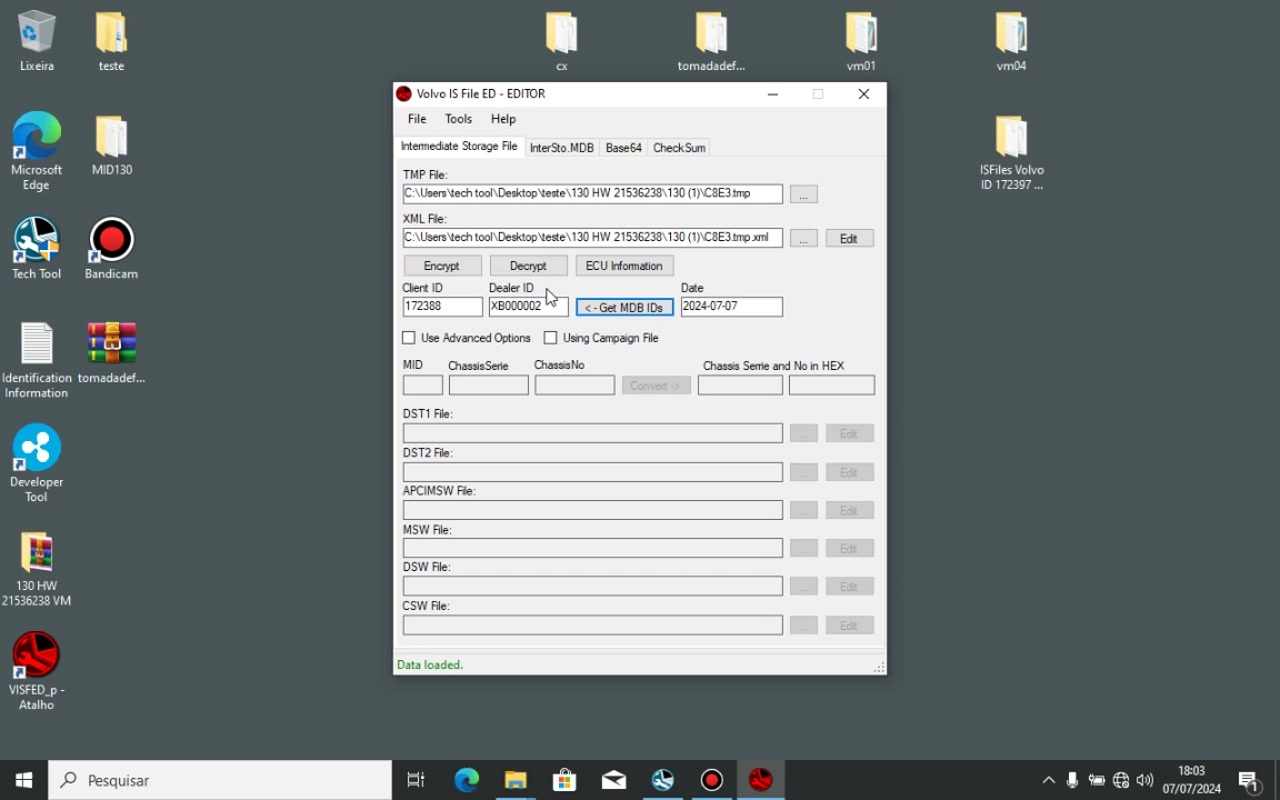
- Decrypting a TMP file using the correct Client ID and Dealer ID.
- Re‑encrypting the file after editing chassis, series, date and user information.
- Configuring Tech Tool 2.8.130 to recognize the edited XML/ISFiles paths.
- Placing edited files in the exact Tech Tool directories to prevent “file not found” errors.
- Identifying and fixing decryption failures caused by files being in use.
- Understanding why incomplete “ECU Reload” software blocks programming and how to select the proper “Free of charge/Replace Unit” package.
Step-by-Step Walkthrough
The video opens with the technician launching Volvo IS File ED – EDITOR (version 2.7) and selecting File → Open to load a MOD file that contains the original calibration data. After confirming the correct vehicle series, the file is saved as a TMP file for editing.
– This view shows the MOD file loaded and the “Save as TMP” button highlighted.
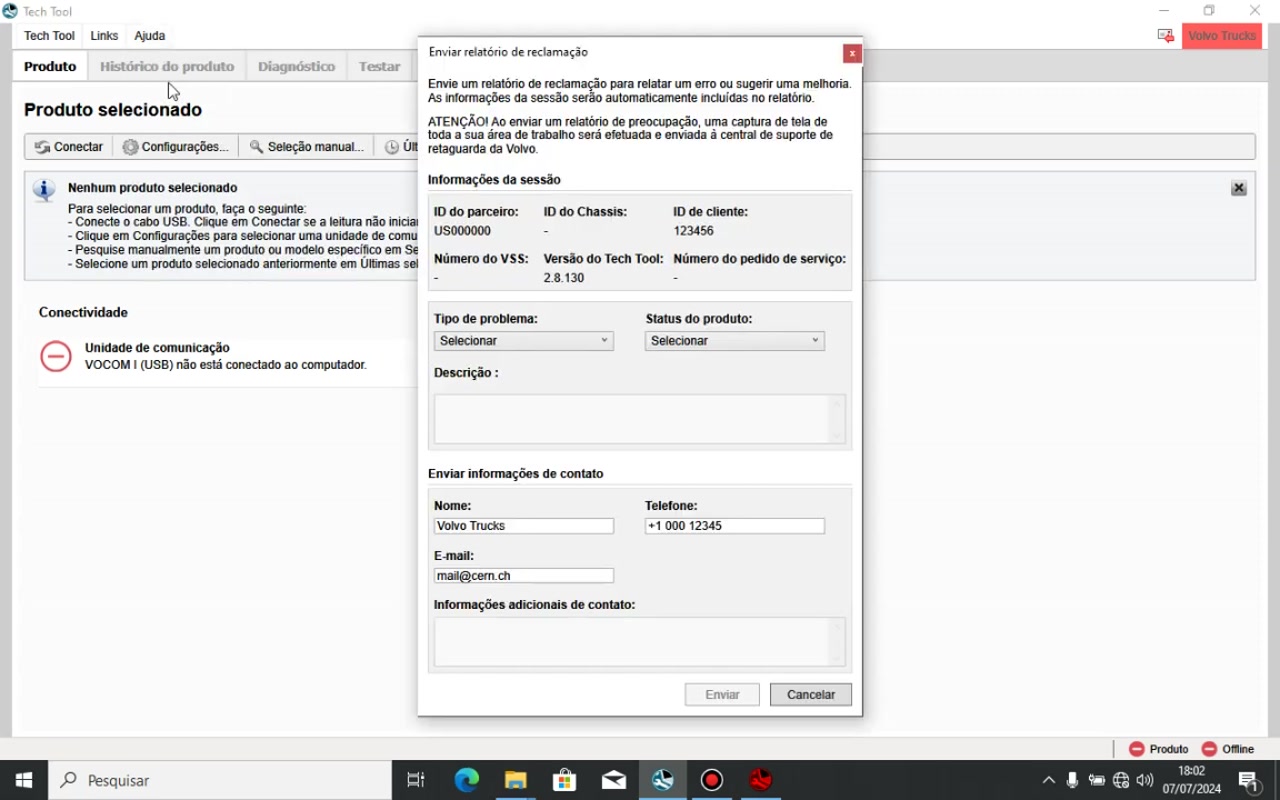
Next, the presenter demonstrates the decryption process. By entering the Client ID, Dealer ID and User ID (extracted from Tech Tool’s Help → Send complaint report dialog), the TMP file is unlocked. If the file is already opened by another instance of Tech Tool, an error pops up; the video advises closing all Tech Tool sessions before proceeding.
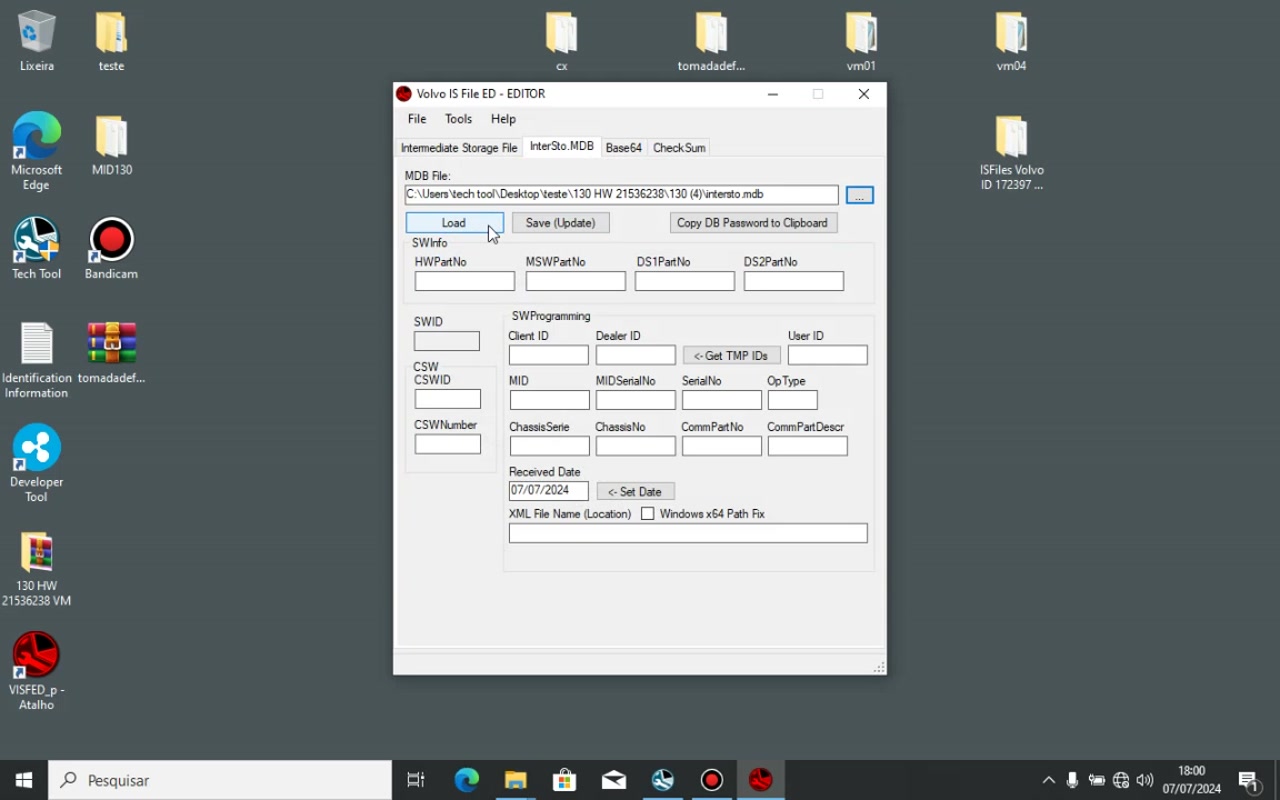
– Decryption window with the three ID fields populated.
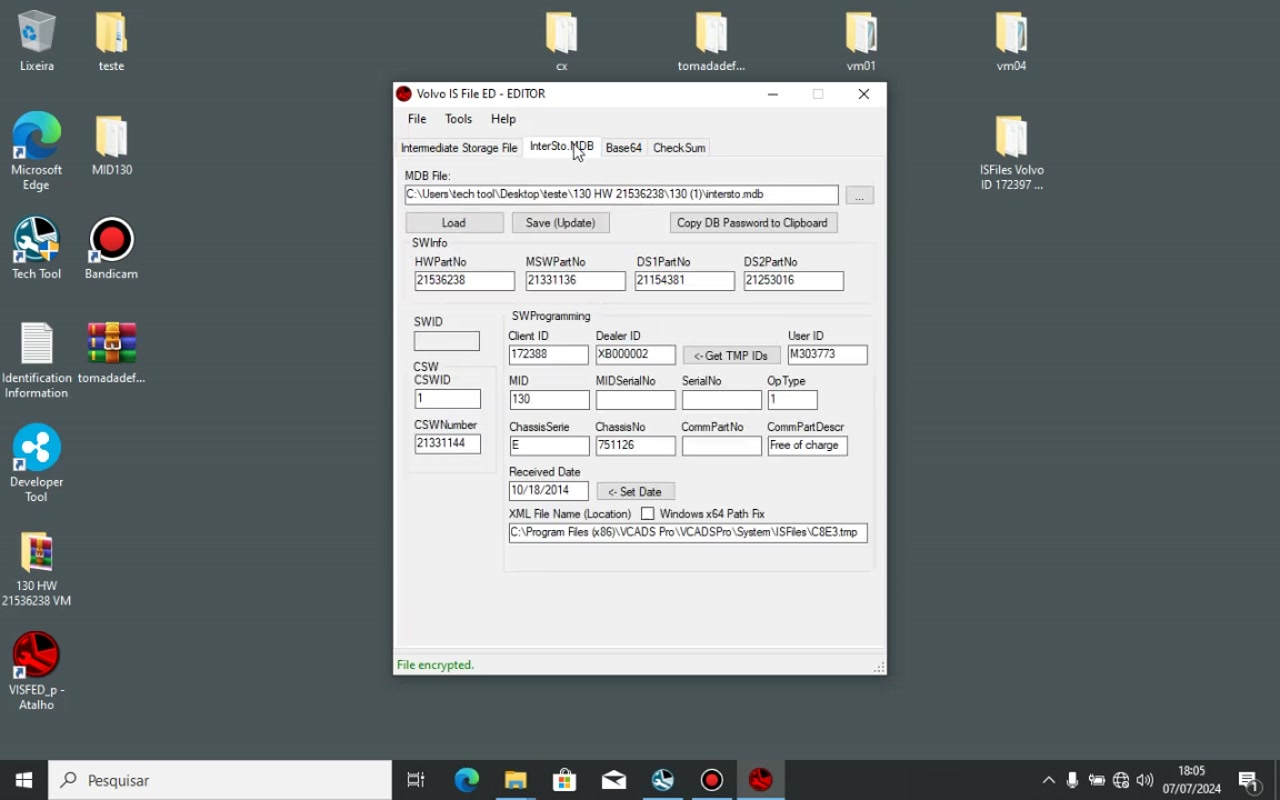
With the file decrypted, the editor displays a table of parameters. The technician updates the chassis/series, changes the date to the current service day, and modifies the User ID to match the technician performing the work. These edits are crucial for a clean programming session later.
– Edited fields highlighted in the parameter grid.
After editing, the file is re‑encrypted by clicking the Encrypt button. The video stresses that the encryption must use the same IDs that were used for decryption; otherwise the ECU will reject the file during flashing.
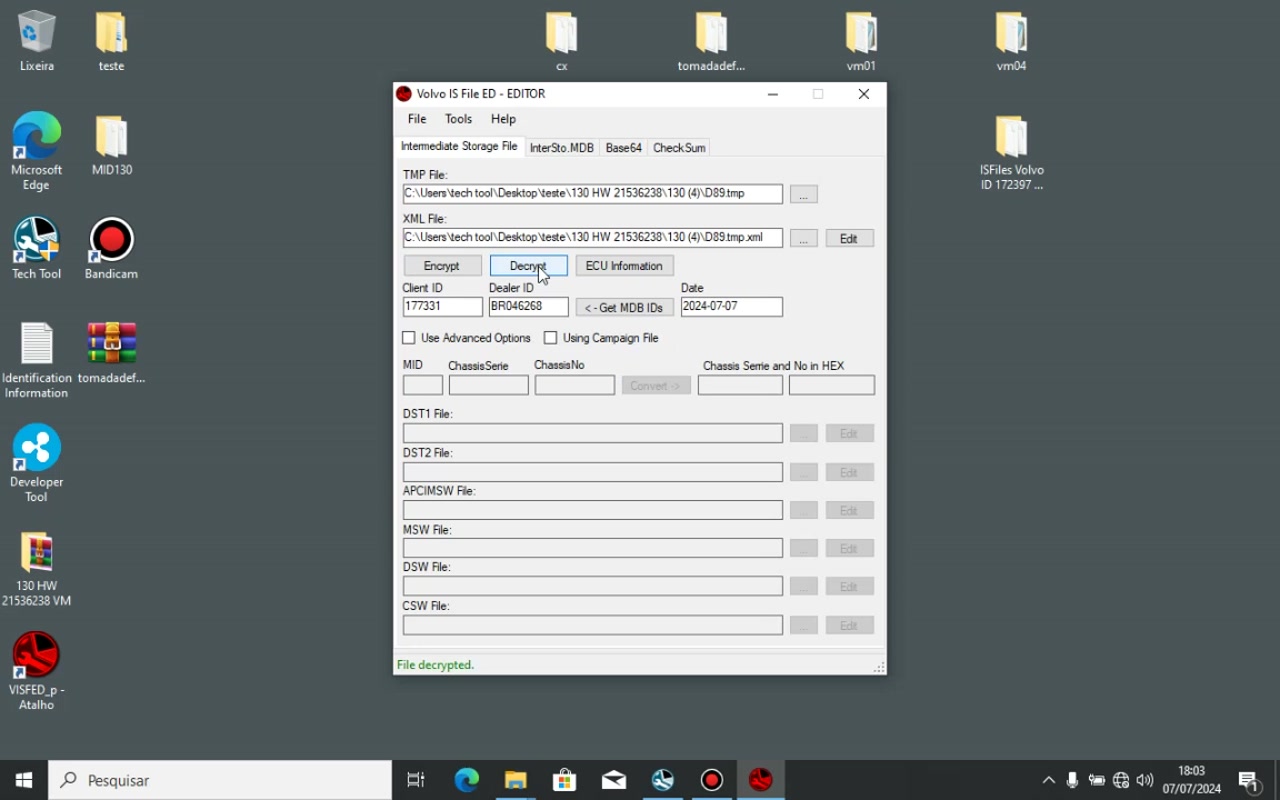
– Encryption confirmation dialog.
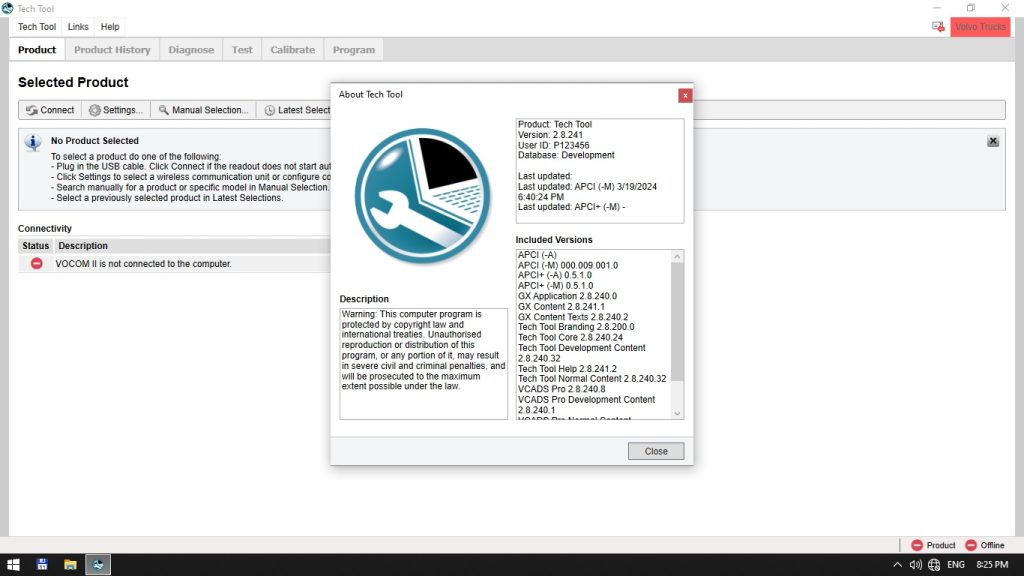
The next segment switches to Tech Tool 2.8.130. The presenter opens Options → Database and updates the path for the XML files to point to the newly created ISFiles folder inside C:\ProgramData\Tech Tool\VCADSPro. If the folder does not exist, the video shows how to create it manually.
– Options window with the corrected XML path.
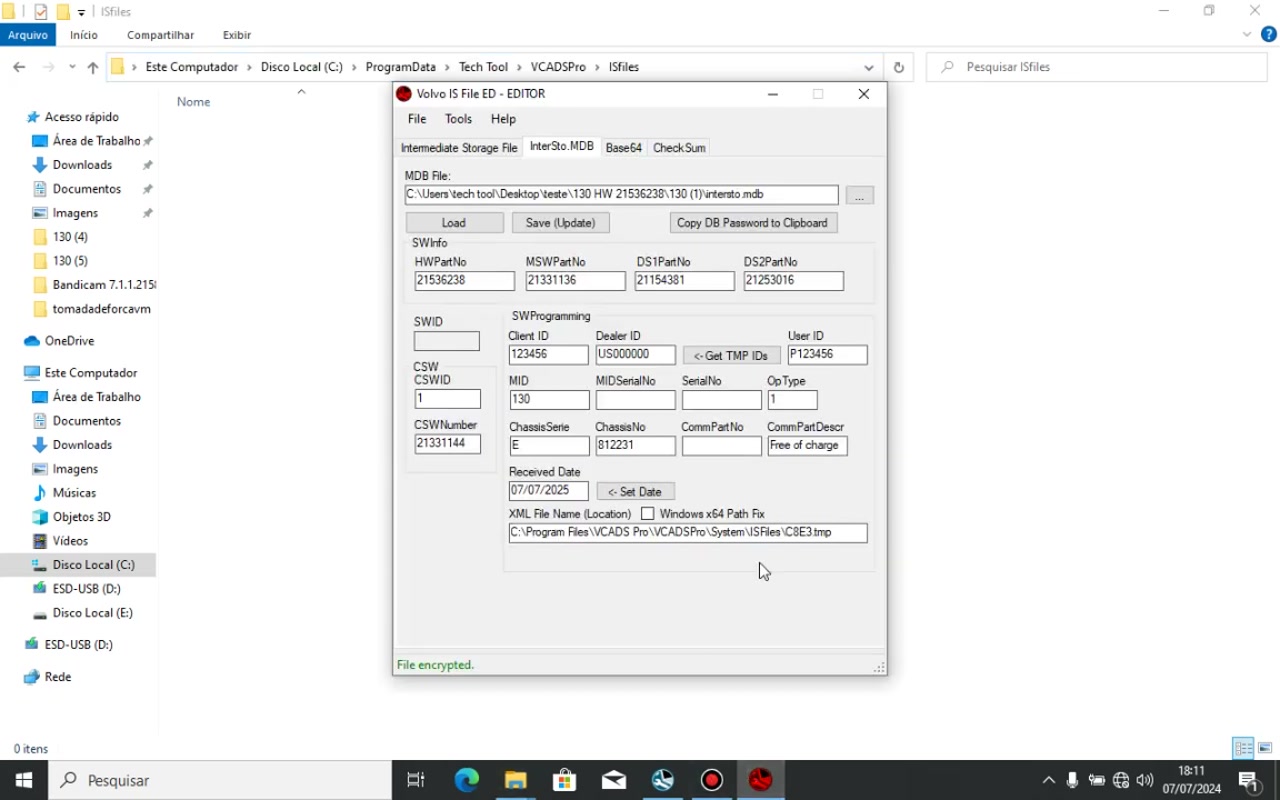
Now the edited TMP file is copied into the VCADSPro\ISFiles directory, and the corresponding intersto.mdb database is backed up before being replaced with the updated version supplied by Volvo. This step guarantees that Tech Tool can locate the new calibration data during the programming routine.
– File explorer view of the ISFiles folder with the new TMP file.
Finally, the tutorial runs a quick “Read ECU” test from Tech Tool. The software reads the MID 130 transmission ECU and displays the updated client information, confirming that the edit was successful. The video also shows the error that appears when an incomplete “ECU Reload” software package is selected, prompting the technician to switch to the full “Free of charge” version.
– Successful readout screen with updated client data.
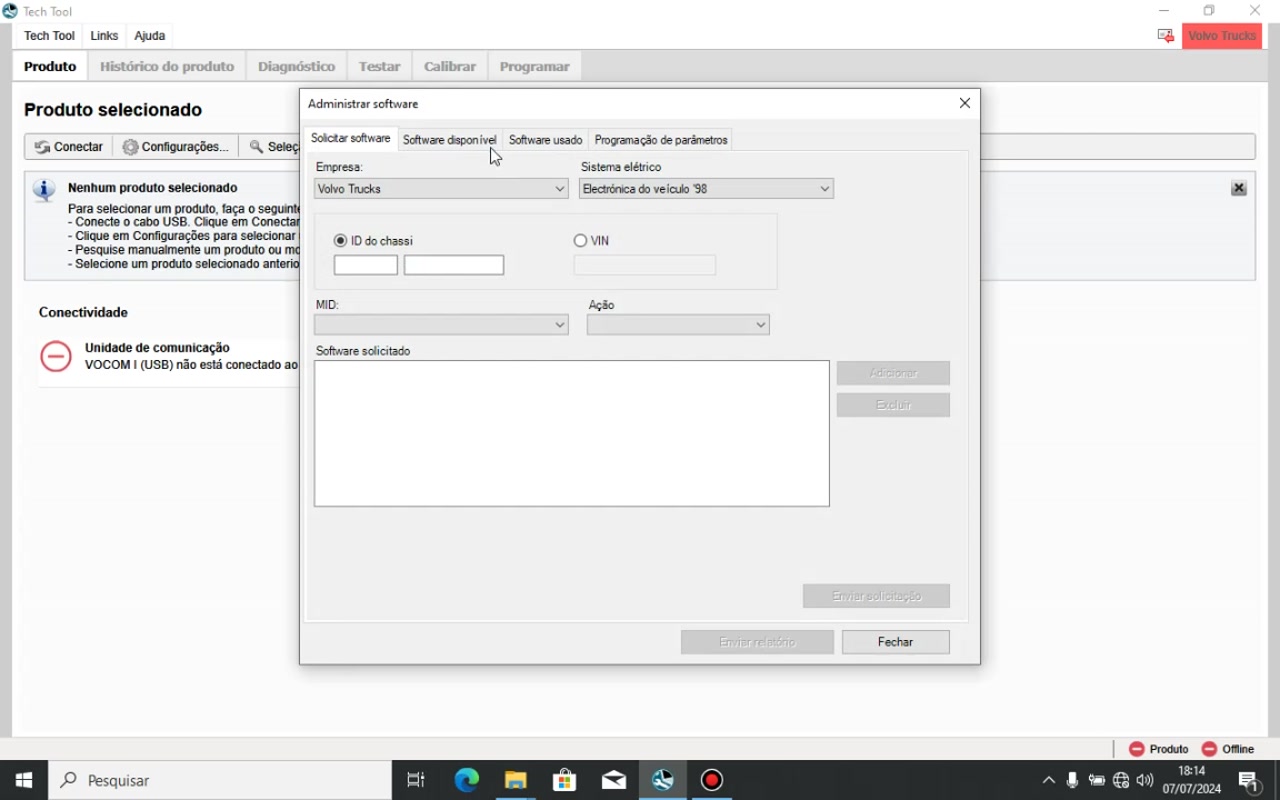
– Error message caused by an incomplete software type.
Key Features of Volvo IS File ED – EDITOR, Tech Tool 2.8.130
- Direct loading of MOD and TMP files for quick inspection and modification.
- Built‑in decryption engine that uses Client ID, Dealer ID and User ID.
- Re‑encryption capability that preserves file integrity for ECU programming.
- Integrated XML path configuration that syncs edited files with Tech Tool’s database.
- Backup and replace function for the
intersto.mdbdatabase, ensuring safe roll‑back. - Compatibility with Tech Tool 2.8.130’s VCADSPro folder structure, eliminating path‑related errors.
Compatible Vehicles and ECUs
The procedures demonstrated apply to Volvo trucks and heavy‑duty vehicles that use the MID 130 transmission ECU. This includes most 2015‑2023 Volvo FH, FM and FL models equipped with the 12‑speed automated gearbox. The same workflow can be adapted for other Volvo platforms that share the MID 130 architecture, provided the correct MOD/TMP files are available.
Pro Tips from the Video
- Retrieve the exact Client ID, Dealer ID and User ID from Tech Tool by selecting Help → Send complaint report – this guarantees successful decryption.
- Always verify that the
ISFilesandDatabasefolders exist inC:\ProgramData\Tech Tool\VCADSPro; create them if they are missing before copying edited files. - Back up the original
intersto.mdbfile before replacement; a simple copy‑paste to a safe location can save hours of re‑configuration. - Prefer “Free of charge” or “Replace Unit” software types for programming; “ECU Reload” often lacks the full calibration set and will trigger errors.
- If decryption fails, close all instances of Tech Tool, ensure the TMP file is not opened elsewhere, and retry – the file lock is the most common cause of failure.
Closing paragraph
By mastering the workflow shown in this tutorial, technicians can confidently edit Volvo transmission ECU files, avoid common path and software‑type pitfalls, and keep trucks on the road with minimal downtime. Mastery of Volvo IS File ED – EDITOR and Tech Tool 2.8.130 together provides a powerful, cost‑effective solution for any Volvo service center.
Frequently Asked Questions
How to decrypt a TMP file in Volvo IS File ED?
Load the MOD and TMP files, then click ‘Get MDB IDs’ to populate Client ID and Dealer ID, and finally click ‘Decrypt’.
Where should the edited TMP file be placed for Tech Tool programming?
The edited TMP file should be placed in ‘C:\ProgramData\Tech Tool\VCADSPro\ISFiles’, and the corresponding ‘intersto.mdb’ (MOD file) should be placed in ‘C:\ProgramData\Tech Tool\VCADSPro\Database’.
How to update the Tech Tool’s internal database with the modified MOD file?
After editing the MOD file in Visfed, save it, then copy it to ‘C:\ProgramData\Tech Tool\VCADSPro\Database’, replacing the original ‘intersto.mdb’ (after backing it up).
What is the significance of ‘Free of charge’ vs ‘ECU Reload’ in the software description?
‘Free of charge’ (or ‘Replace Unit’) indicates a complete software package suitable for full ECU replacement or reprogramming. ‘ECU Reload’ often signifies an incomplete software that only updates specific parts, potentially leading to programming errors or incomplete functionality.
Looking for professional diagnostic software for trucks and heavy equipment? Visit firstdiag.com for instant digital downloads.
Ready to use Volvo Tech Tool 2.8 in your workshop? Download directly from firstdiag.com — instant delivery, all versions available.