The tutorial walks you through using Cat Electronic Technician 2017B v1.0 together with WinFlash, SISWeb, SIMS and TMI Web to flash and program a Caterpillar Engine Control Module (ECM). By the end of the video you will be able to verify bench communication, download the correct flash file, flash the ECM, and program essential parameters such as engine rating, serial number and fuel‑limit settings, all from a single workstation.
What You Will Learn
- How to bench‑test ECM communication with a Cat Communication Adapter 3.
- How to locate and download the exact flash file from SISWeb using engine serial number.
- How to flash the ECM with WinFlash while handling common error messages.
- How to program engine rating, truck manufacturer, FLS, FTS and timing calibration.
- How to retrieve original configuration data with SIMS when the old ECM is still functional.
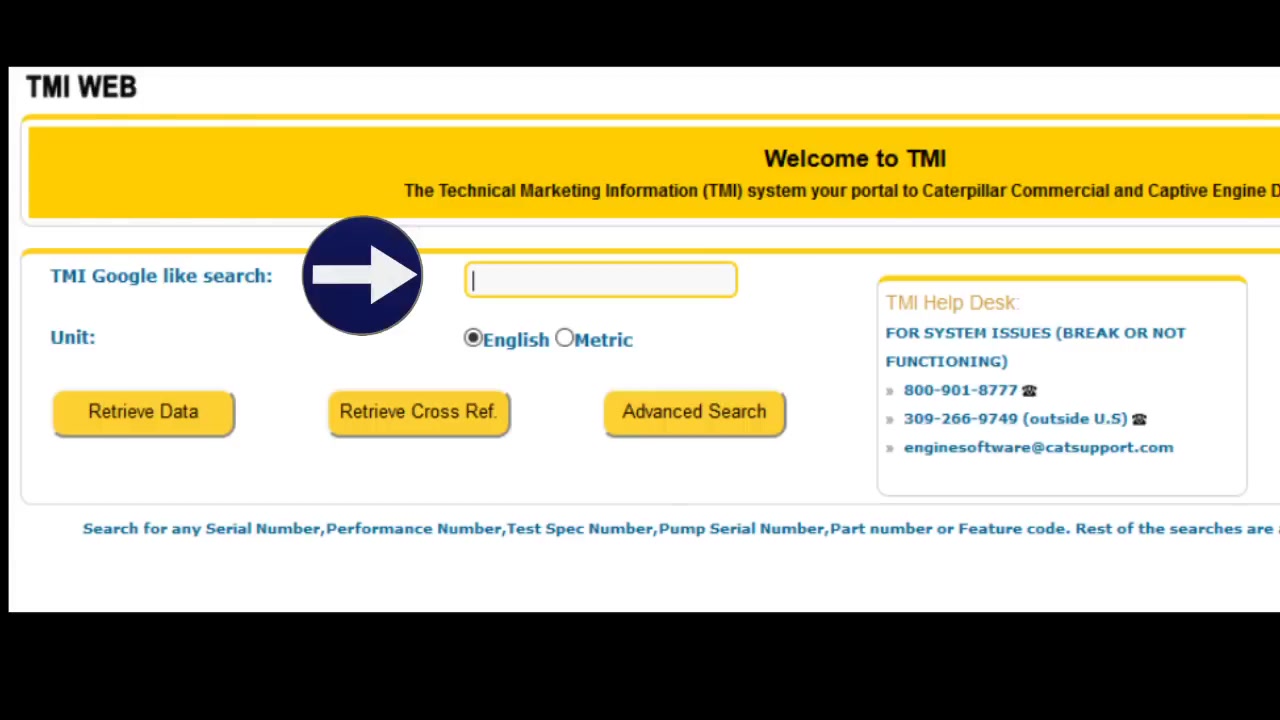
- How to extract FLS/FTS values from TMI Web when no configuration file is available.
- How to avoid re‑rating fees and illegal FLS/FTS entries by verifying horsepower and torque specifications.
Step-by-Step Walkthrough
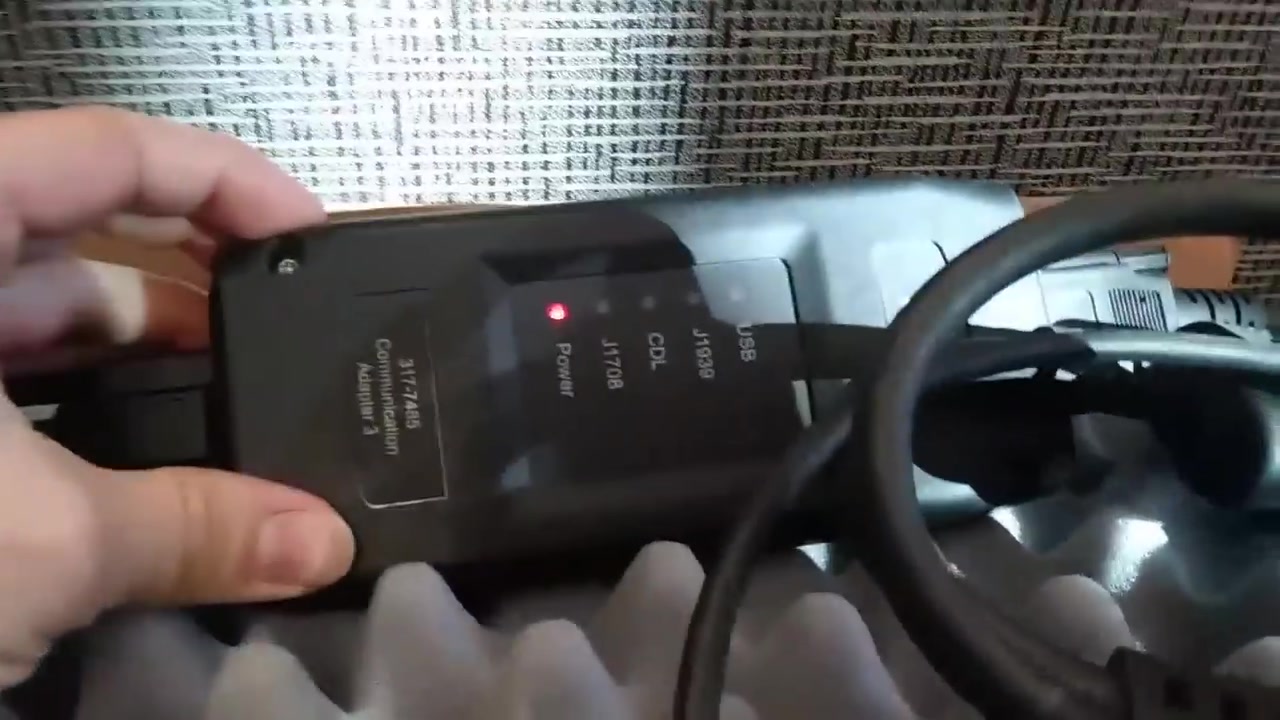
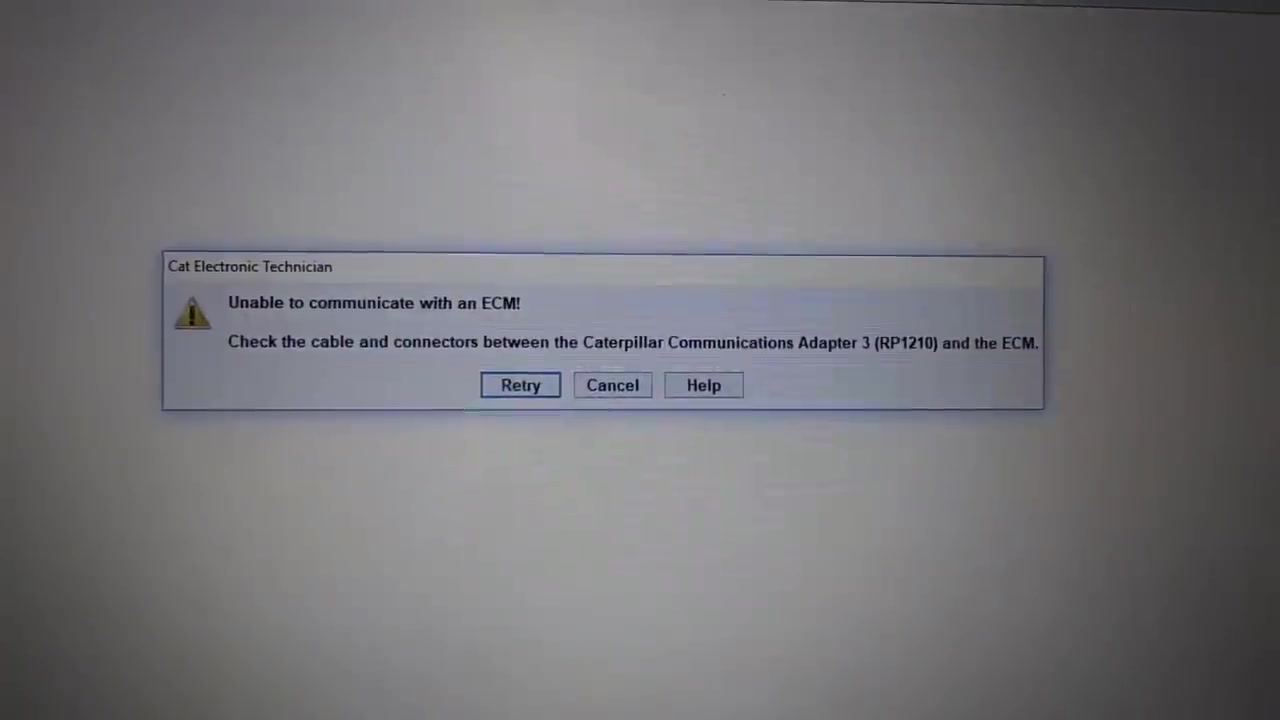
Start by connecting the old or replacement ECM to the bench using the Cat Communication Adapter 3 and the supplied jump‑out harness. Power the adapter and launch Cat Electronic Technician 2017B v1.0. In the main window select ECM Communication and click Test. If the J1708 LED blinks green, the module is alive; if not, you will see the “Unable to communicate with an ECM!” error.
Once communication is confirmed, open the Read Configuration tab and export any existing data to a .cfg file for backup.
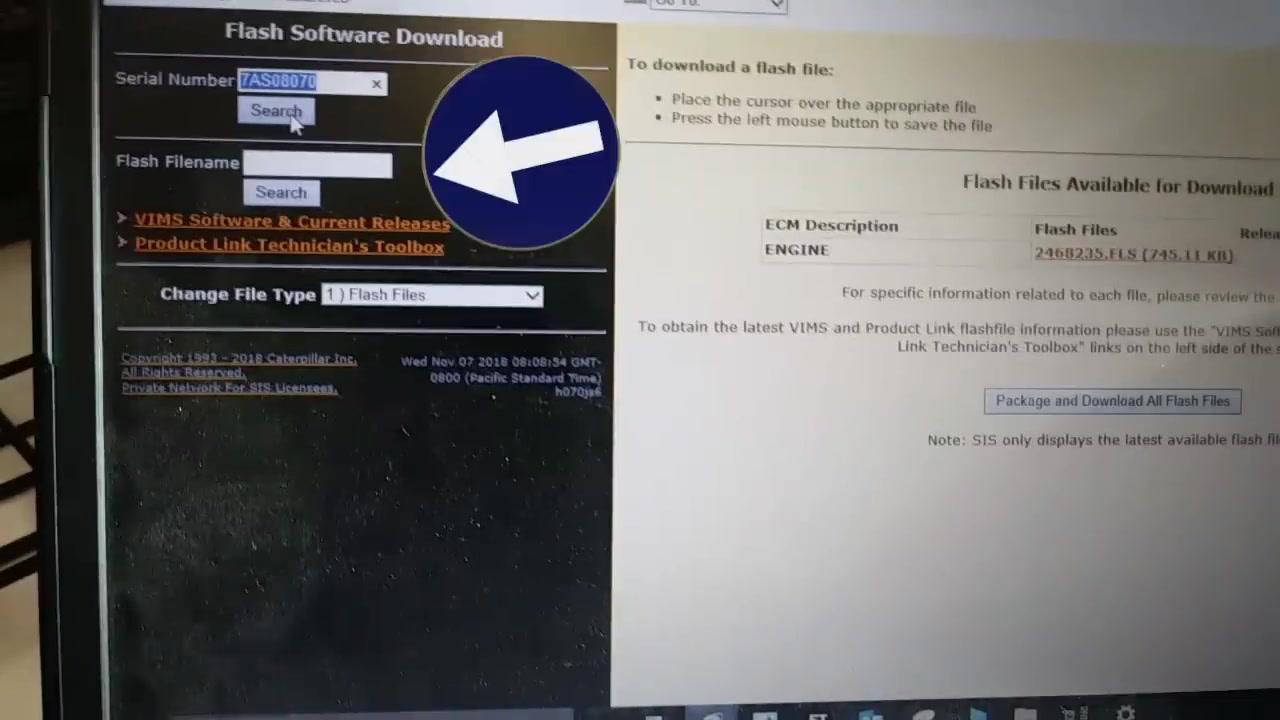
Next, open a web browser and navigate to SISWeb (https://sisweb.caterpillar.com). Enter the engine serial number, select the correct engine model (e.g., C13 or 3126B), and choose the flash file that matches the original horsepower and torque. Download the .bin file to a known folder.

Return to Cat Electronic Technician and click Flash ECM. Browse to the downloaded .bin file, then press Start Flash. If you encounter error #131 (“maximum number of clients reached”), close any other instances of Cat Electronic Technician and retry. The flashing process typically takes 5–7 minutes; progress is shown in the status bar.
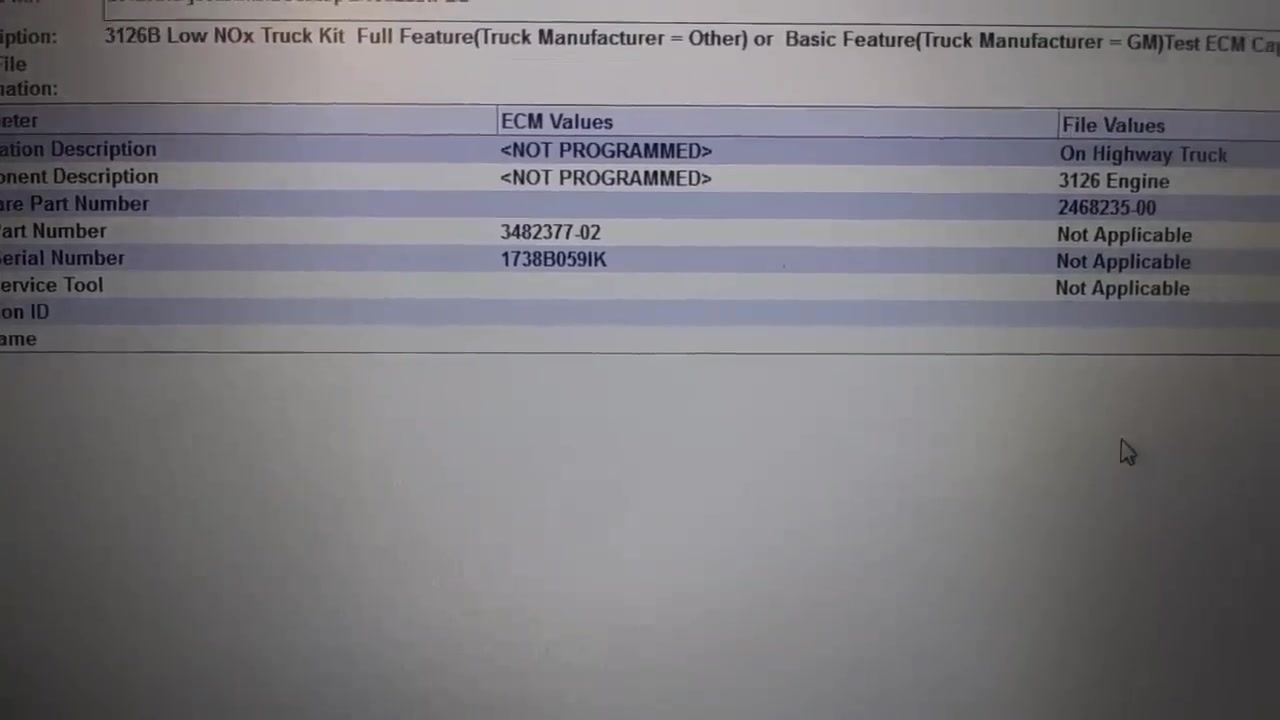
After flashing, open the Program Parameters screen. Enter the engine rating (HP & torque), the truck manufacturer code, and the correct FLS/FTS values. These values can be copied from the original configuration file (if you saved one) or retrieved from TMI Web (https://tmiweb.caterpillar.com) under the engine’s performance tab. Do not type arbitrary numbers; always use factory‑approved figures.
If the original ECM was dead and you lack a configuration file, use SIMS (https://sims.caterpillar.com) to pull a “Replacement Configuration” from a similar engine. Import that file into Cat Electronic Technician and select the option to copy only the timing calibration. This preserves the precise fuel‑delivery map while allowing a fresh flash.
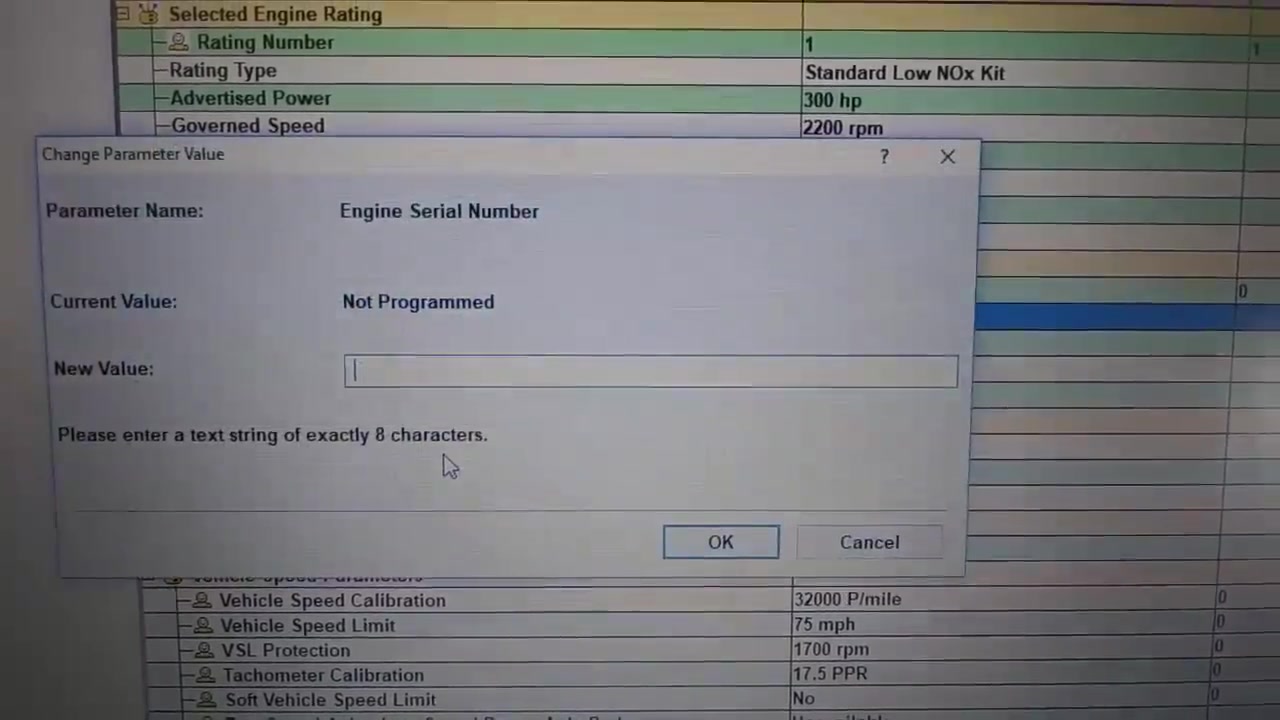
Now program the engine serial number. Be aware that entering a serial number locks the ECM for use only on that specific engine, preventing it from being used as a test unit. Confirm the warning and click Apply.

Finally, run a quick verification by selecting Read Live Data and confirming that the displayed horsepower, torque, and FLS/FTS match the values you programmed. Save the new configuration, disconnect the adapter, and reinstall the ECM on the truck. A final power‑up should show normal operation with no error codes.
For documentation purposes, export a PDF report from Cat Electronic Technician that includes the flash version, programmed parameters and a checksum of the new firmware. Store this report with the vehicle service record.
Key Features of Cat Electronic Technician 2017B v1.0, WinFlash, SISWeb, SIMS, TMI Web
- Real‑time J1708 communication diagnostics with visual LED status.
- Direct integration with SISWeb for automated flash‑file selection based on engine serial number.
- WinFlash’s robust flashing engine that supports error recovery and multi‑client handling.
- SIMS ability to pull replacement configurations and isolate timing calibration data.
- TMI Web performance data extraction for accurate FLS/FTS values without a physical ECM.
- Comprehensive parameter programming interface covering engine rating, manufacturer code, fuel‑limit settings and serial number locking.
Compatible Vehicles and ECUs
The procedures described apply to Caterpillar ECMs used on the following platforms: Cat 3126B engine, Cat C13 engine, Freightliner chassis equipped with Cat power‑train, and any other Cat‑based diesel engine that utilizes the J1708 communication protocol. The same workflow can be adapted for newer Cat engines that support J1939 with minor interface adjustments.
Pro Tips
- Always use Cat Communication Adapter 3; it provides the most reliable J1708 handshake and reduces timeout errors.
- If the original ECM is dead, download the flash file directly from SISWeb using the engine serial number; this ensures the correct calibration set.
- Before selecting a flash file, verify the listed horsepower and torque against the truck’s spec sheet to avoid unnecessary re‑rating fees.
- When no configuration file exists, use SIMS “Copy Configuration” with a similar engine’s replacement file to transfer only timing calibration.
- Never guess FLS/FTS values—retrieve them from TMI Web or the original ECM to stay within factory specifications and avoid warranty issues.
Following this guide enables technicians to reliably restore, flash and program Caterpillar ECMs, reducing downtime and ensuring that each engine runs within its certified performance envelope.
Frequently Asked Questions
What if the old ECM is dead and I can’t communicate with it?
You cannot use ‘Copy Configuration’. You will need to manually program parameters and use SISWeb or TMI Web to find necessary values like FLS/FTS.
How do I find the correct FLS and FTS values for my engine?
If you have SIMS access, you can view past ECM downloads for your engine serial number. If not, you can use TMI Web with your engine serial number to retrieve a dyno run report that includes these values.
What happens if I program the wrong FLS/FTS values?
You will need a factory password to change them, which is difficult to obtain without high-level Cat access.
Ready to use Cat Electronic Technician 2017B v1.0, WinFlash, SISWeb, SIMS, TMI Web in your workshop? Download it directly from firstdiag.com — instant delivery, no subscription needed.